

Log in to the Caregiver Learning Center to enroll in training and take courses online. Learn how to create a login to get started.

Find answers to common questions of our Member Resource Center and explore your learning and language support options.

Log in to view your eligibility or manage your health benefits or learn how to create an account.

Find answers to common questions and explore your health benefits support options.

Log in to to see you balance and manage your retirement benefit. Create an account.

Find answers to common questions and explore your retirement benefit support options.

Get guidance and support with Basic Training and preparing to become a certified Home Care Aide.

Getting Started as a Caregiver
Get tips for training success, guidance on what training you need to begin working and learn when you can access your caregiver benefits.
Whether you’re signing in for the first time or returning for Continuing Education, get helpful information and step-by-step instructions below.
When you first log in, you’ll see a welcome video and your training requirements. Click Next to Enroll or view your Dashboard, where you’ll see your training overview and enrolled courses.
Use the tabs below to learn how to access your account, navigate the site, and manage your profile.
To log in for the first time or reset your password, you will need your 12-digit Person ID. If you do not know it, call 1-866-371-3200 or email mrc@myseiubenefits.org.
If it’s your first time signing in, you will need to review and accept the Terms of Agreement by checking the box and clicking I Agree.
The Caregiver Learning Center works on computer, tablets and mobile devices.
Make sure to keep your device and browser up to date.
Desktop & Laptop
Supported operating systems:
• Microsoft Windows 8 or higher
• macOS (last two major releases)
• Most Linux systems
Mobile & Tablet
we recommend enrolling into training using a Google Chrome or Microsoft Edge browser and using the Go.Learn app to complete online courses. You can find the app in the Apple App Store or Google Play Store.
Supported mobile operating systems:
• iOS 13 or higher
• Android 9.0 or higher
To access different pages:
On desktop, use the navigation bar at the top of the page to access key pages.
On mobile, click the menu icon in the top left corner.
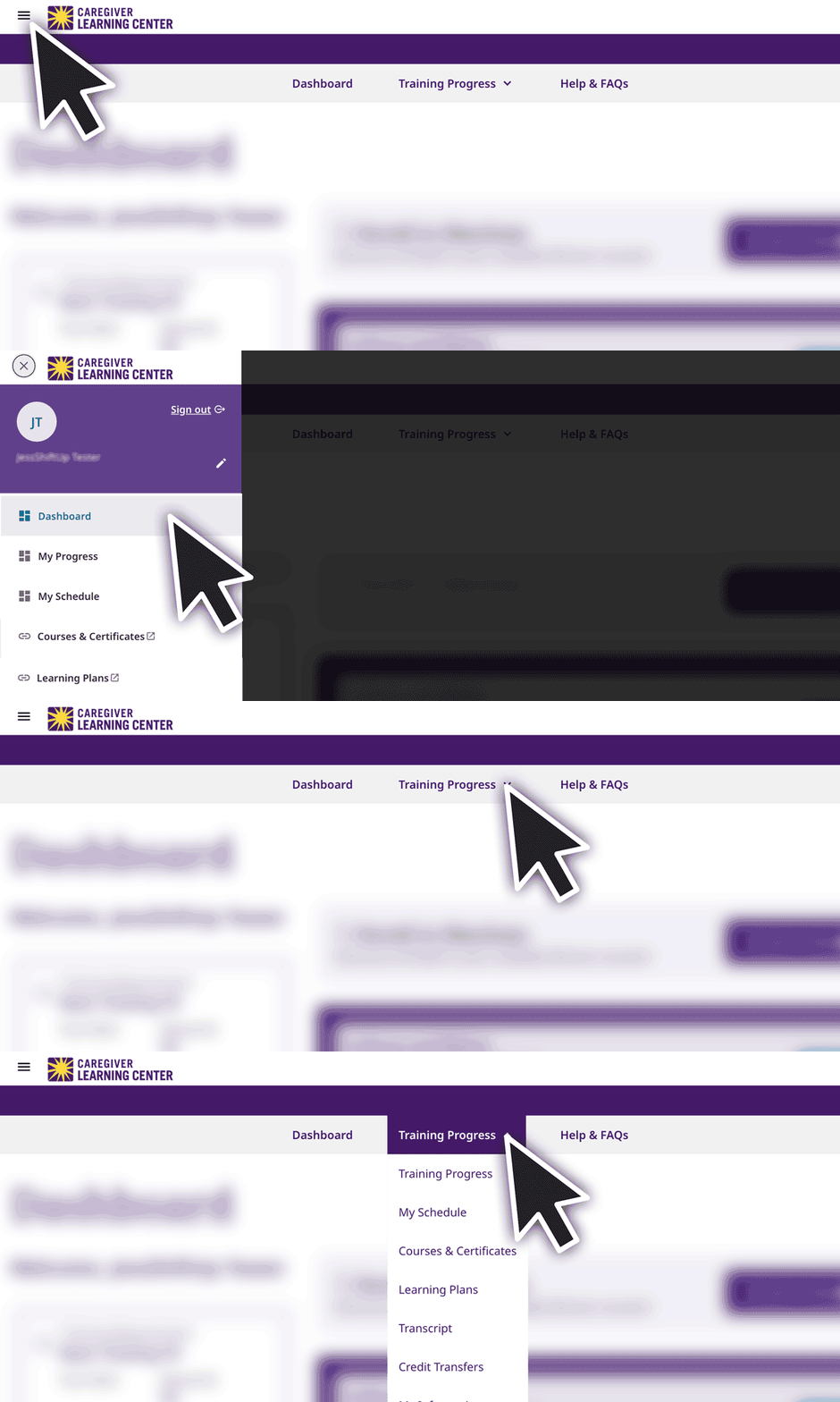
If you’re logged in the links will take you directly to the page.
Dashboard:
From your Dashboard you can:
• View your training requirement and due date.
• Check your enrollment status.
• See your scheduled courses (in-person and webinar).
• Track your online course progress .
Training Progress:
View enrolled and completed courses.
My Schedule:
View your scheduled webinars and in-person classes.
Learning Plans:
View your enrolled Learning Plan. This applies to Basic Training and some multi-course programs, like Tools for Calm. You can click on the Learning Plan to see the included courses.
Profile Page
Click the menu icon in the top left to open the menu.
Then click the pencil icon to open the profile page to:
• Change your password
• Update your language or time zone
• Change your profile image
My Information Page
Click the menu icon in the top left to open the menu.
Then click My Information to view your contact information and employer details.
You can’t update this information yourself—to make changes, contact your employer. Once your updated information is sent to SEIU 775 Benefits Group, your account will be updated.
Contact your employer to confirm your training requirements and how to enroll.
For the best experience enrolling in training, use a computer, tablet or smartphone with the latest version of Google Chrome or Microsoft Edge.
Orientation & Safety Training helps you start work feeling prepared and confident. It covers key information about safety, expectations and your role as a caregiver.
To Enroll:
You can now start, pause, and return to the course anytime.
Basic Training 70 is a 70-hour program that prepares you for the Home Care Aide (HCA) certification exam. To complete Basic Training 70, you will need to:
• Enroll in Basic Training 70
• Attend 8 full days (~49 hours) of in-person classes
• Complete 21 hours of online webinars
To Enroll:
Basic Training 30 is a 30-hour, mostly online self-paced training.
To complete Basic Training 30, you’ll need to:
Step1:
Enroll in Learning Plan & Skills Lab
Step 2:
Enroll in Elective Courses:
Basic Training 16 includes 16-hours of online self-paced training.
To complete Basic Training 16, you’ll need to:
Step1:
Enroll in Learning Plan & Skills Lab
Step 2:
Enroll in Elective Courses:
Basic Training 9 includes 9 hours of self-paced, online courses.
To complete Basic Training 9, you will need to:
Step1:
Enroll in Learning Plan
Step 2:
Enroll in Elective Courses:
Basic Training 7 includes 7 hours of study.
To complete Basic Training 7, you will need to:
• Complete 1 hour of independent study.
• Enroll in and complete 6 hours of instructor-led webinar training.
To Enroll:
Download Your Materials :
To prepare for your first class download and complete the Ready or Not Questionnaire and your Digital Handouts. You can find these files near the bottom of your Basic Training 7 Learning Plan page.
Continuing Education (CE) courses helps you build your skills and grow professionally. CE is required for some caregivers, you can confirm your requirements with your employer.
Caregivers WITH CE Requirement:
Must complete 12 hours of CE each year.
Courses are available in 3 formats:
• Online: Take courses anytime online.
• Webinars: Scheduled online courses
• In-Person: Scheduled classroom training
Caregivers WITHOUT CE Requirement:
Can take online courses as an optional benefit.
To Enroll in Online Courses:
To Enroll in Webinar or In-person Classes:
You can start, pause, and return to an online course anytime. Each course page tracks your progress and includes a course description and downloadable resources at the bottom of the page.
To complete online courses, the mobile app is optional but provides the best learning experience.
Most online courses begin with a pre-assessment to check what you already know and end with a post-assessment to review what you learned. Your course will be marked complete after you finish the post-assessment.
In-person and webinar courses are scheduled classes that you must attend at the listed date and time.
View your schedule on the Dashboard or My Schedule page.
You can click on a course to see more details.
You will see the new schedule on your Dashboard page.
View your schedule on the Dashboard page.
Click the link to the right of the course name to begin your webinar training.
To use Zoom, you will need a computer, tablet, or smartphone with audio and video, along with a reliable internet or WiFi connection. We recommend that you download and install Zoom at least a day prior to your webinar.
Download Zoom for you device at zoom.us/download.
Use the Getting started with Zoom and Zoom video, audio & chat guides to learn how to troubleshoot your audio and video, use chat features, and update your Zoom preferences.
View your completed training, download your transcript, and check the status of any submitted credit transfers.
To view or download your training transcript* (completed courses and training history) visit the Transcript page.
Desktop
Mobile & Tablet
Use the Credit Transfers page to view the status of submitted credit transfers and any approved training credits added to your record for courses completed outside of the Caregiver Learning Center.
Desktop
Mobile & Tablet
If you have questions about enrolling, course options or completing training, contact the MRC. Support is available in multiple languages.
Classes and course materials are available in many languages. Even if you speak English fluently, a course in your primary language may better set you up for success.
If you are a caregiver going through Basic Training and preparing to become a certified Home Care Aide (HCA), you can get guidance and support from Peer Mentors.
Students with disabilities have the right to request and receive reasonable accommodation in order to receive all of the Training Partnership’s programs and activities.
Your class time is valuable. The following policies ensure a positive learning environment in which you are supported and have the opportunity to be successful.
Log in to the Caregiver Learning Center to enroll in training and take courses online. Learn how to create a login to get started.
Find answers to common questions of our Member Resource Center and explore your learning and language support options.
Log in to view your eligibility or manage your health benefits or learn how to create an account.
Find answers to common questions and explore your health benefits support options.
Log in to to see you balance and manage your retirement benefit. Create an account.
Find answers to common questions and explore your retirement benefit support options.
Get guidance and support with Basic Training and preparing to become a certified Home Care Aide.
Getting Started as a Caregiver
Get tips for training success, guidance on what training you need to begin working and learn when you can access your caregiver benefits.
Lorem ipsum dolor sit amet, consectetur adipiscing elit, sed do eiusmod tempor incididunt ut labore et dolore magna aliqua. Ut enim ad minim veniam, quis nostrud exercitation ullamco laboris nisi ut aliquip ex ea commodo consequat. Duis aute irure dolor in reprehenderit in voluptate velit esse cillum dolore eu fugiat nulla pariatur. Excepteur sint occaecat cupidatat non proident, sunt in culpa qui officia deserunt mollit anim id est laborum.
If you have questions about enrolling or completing your training, contact the MRC before they are closed. The MRC will reopen on January 2.
Note: Contact your employer for questions about your training requirement, pay or deadline.
Get help online:
The Caregiver Learning Center cannot be accessed at caregiverlearning.org. Please use seiu775bg.docebosaas.com to access your training.
Make the most of your learning benefits. Read about this year’s Continuing Education new online courses or explore your learning support options.
If you complete training during the System Maintenance, it will be sent to your employer after June 10.
Please contact your employer if you have questions about your training requirement, deadline or payment.