Get tips for training success, guidance on what training you need to begin working and learn when you can access your caregiver benefits.
Caregiver Learning Center
Employer User Guide
User Guide Tips
Use the table of contents to navigate to an instruction set. Each set of instructions includes a series of reference images you can navigate by clicking the dots.
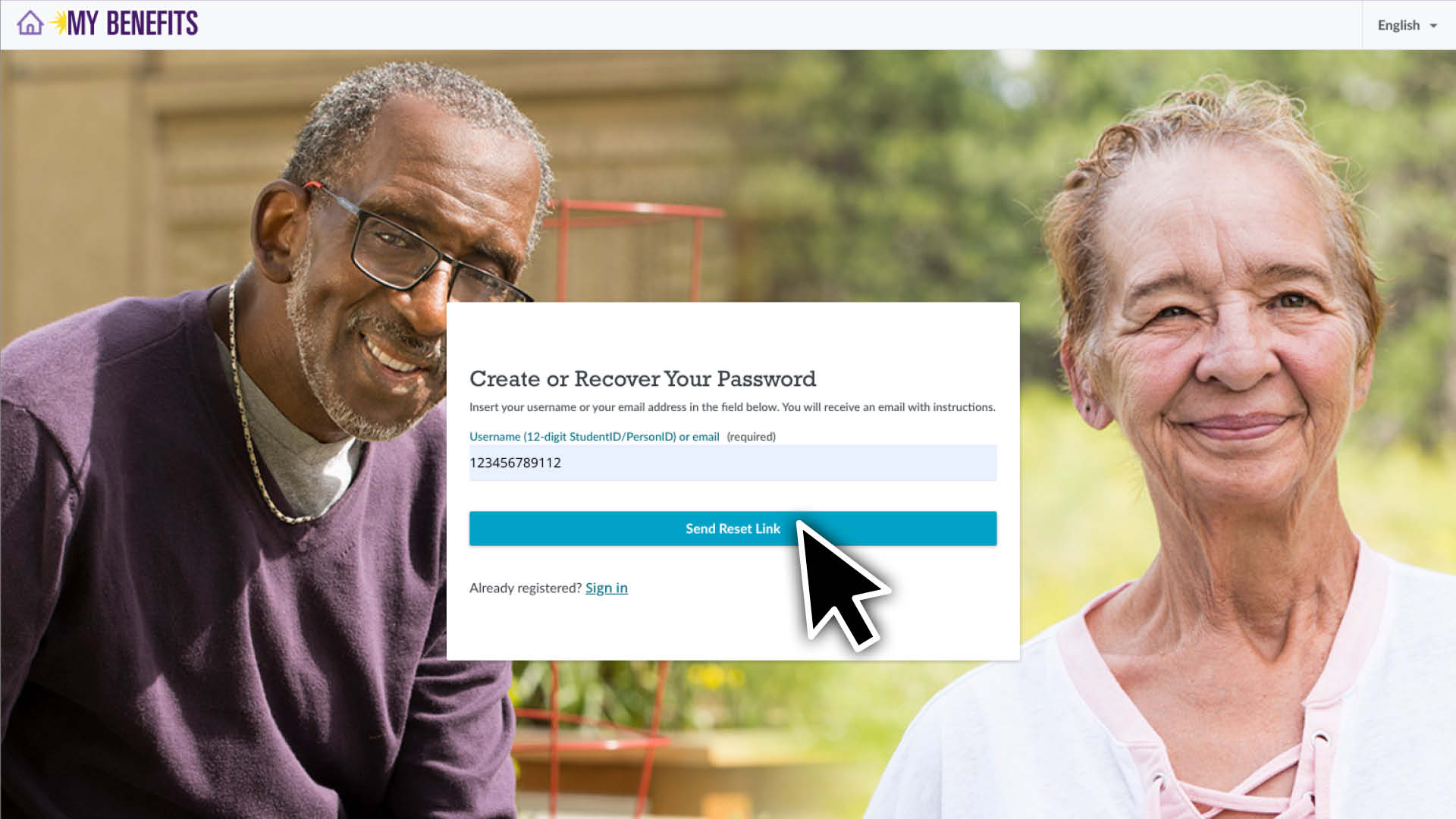
Enter your Username (your work email) and click the Send Reset Link button.
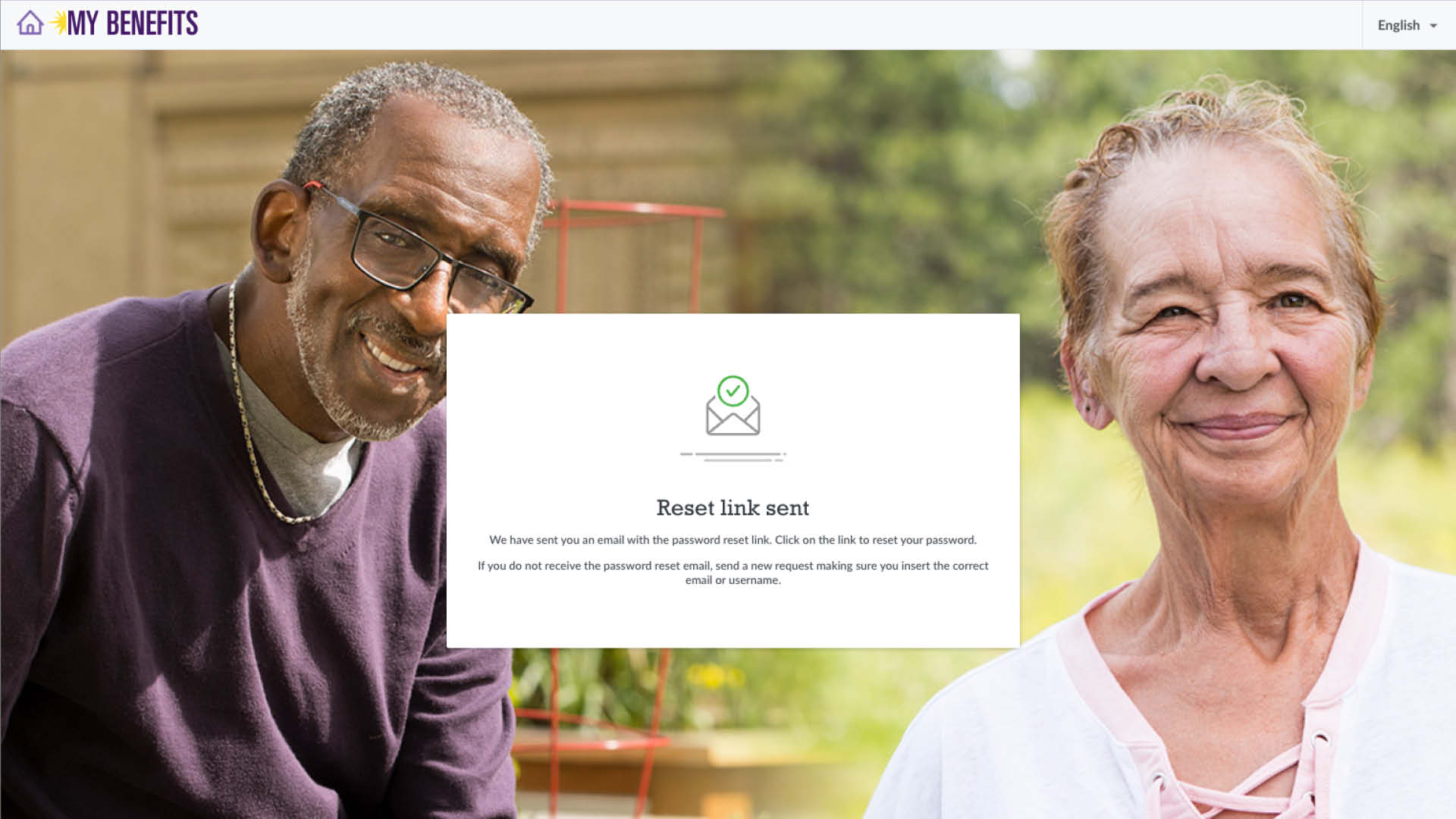
You’ll be sent an email, click the link in the email.
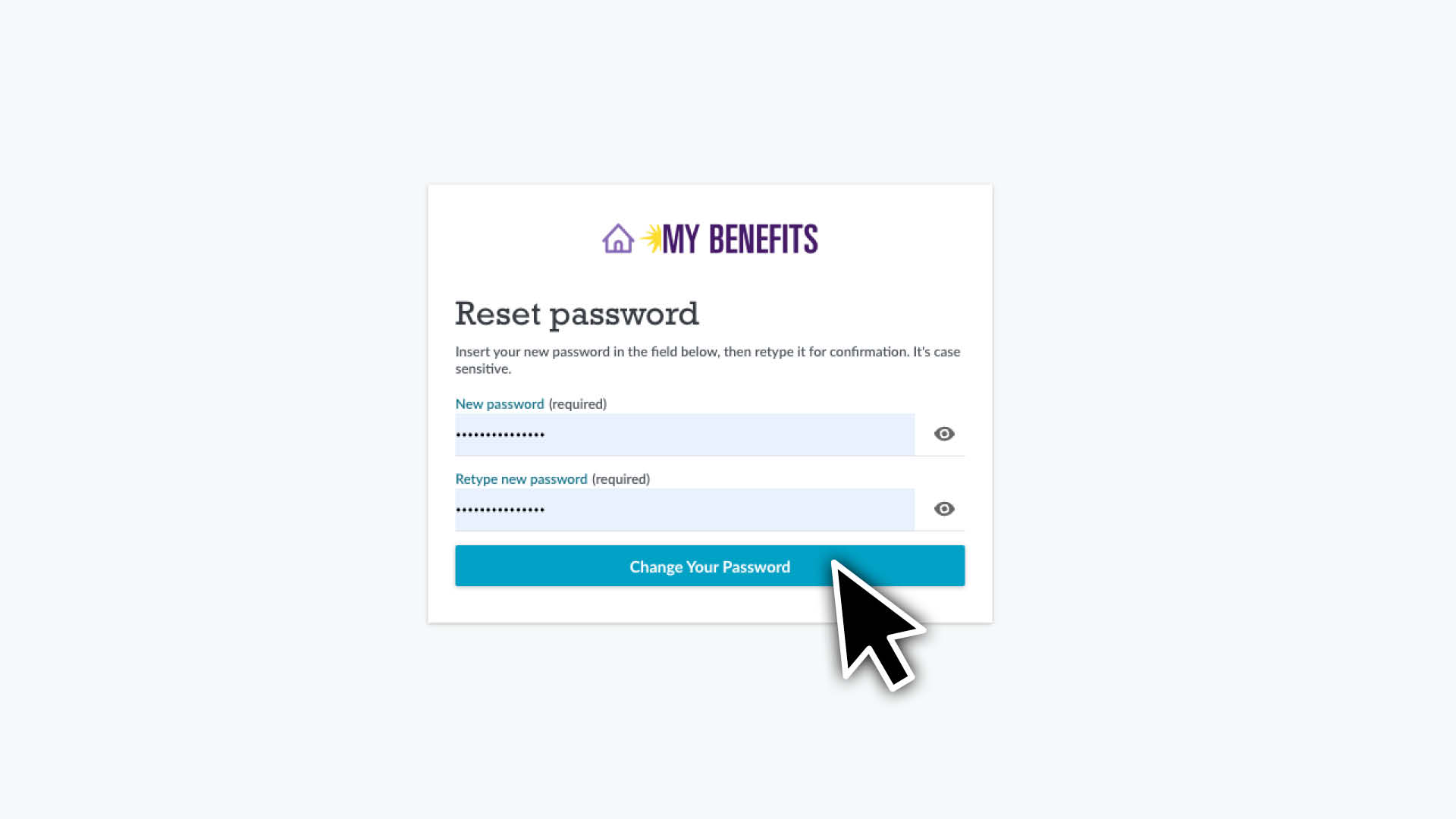
Enter and confirm your new password and click Change Your Password.
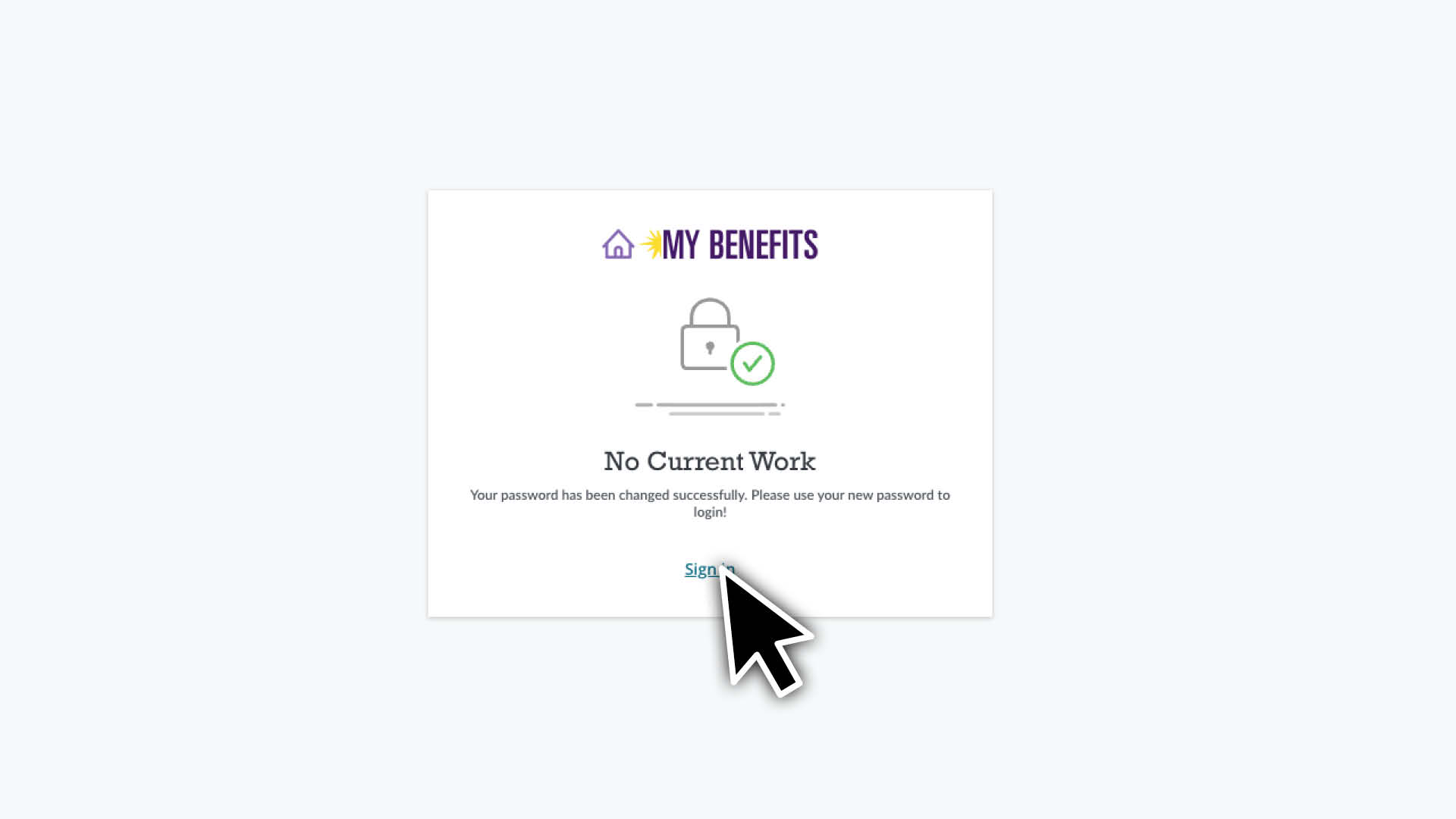
Click the Sign In link to be taken to the sign in page.
Enter your username and new password and click the Sign In button.
If it’s your first time logging in, accept the Terms of Agreement.
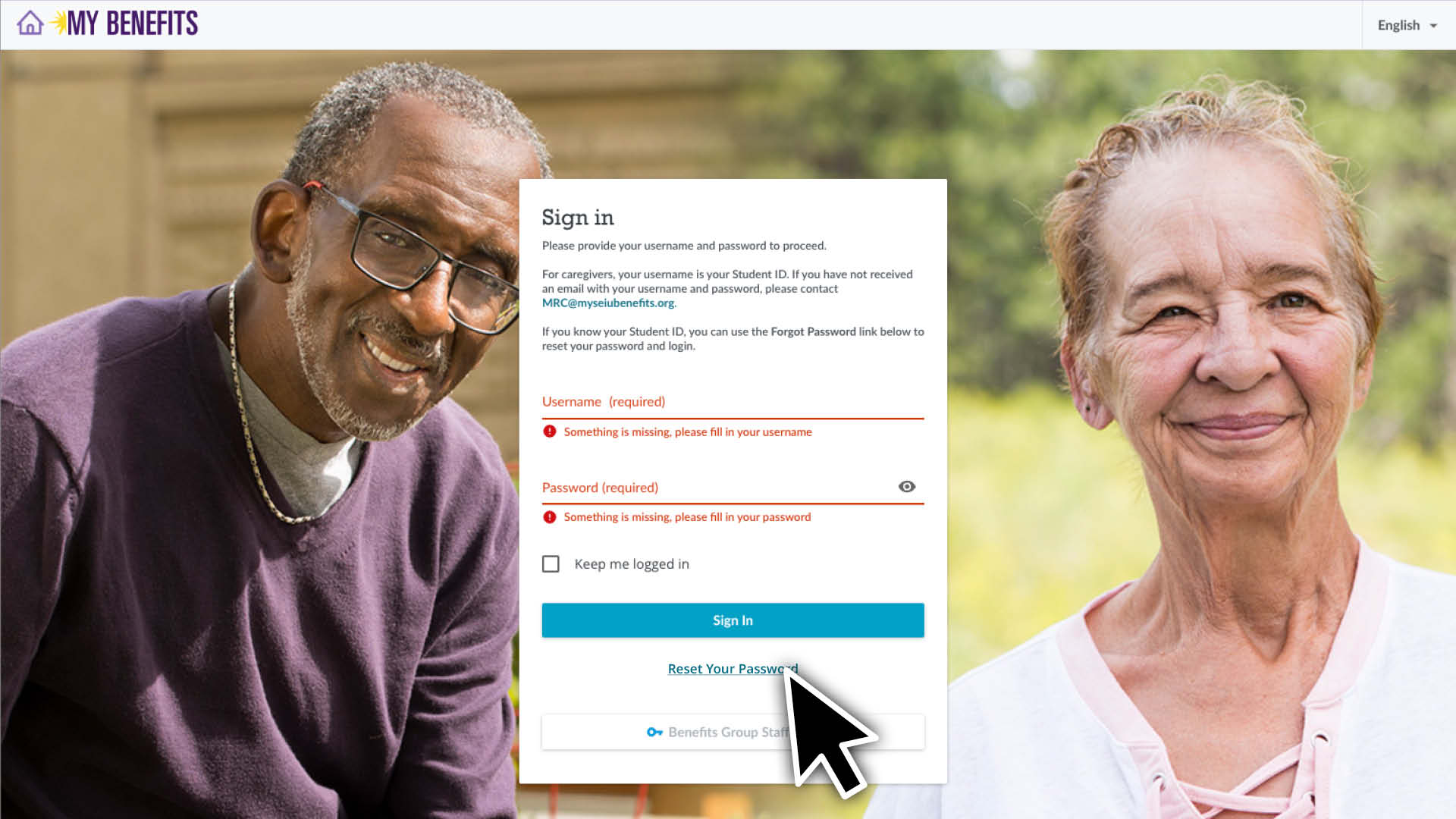
Go to caregiverlearning.org and click the Reset Your Password link.
Enter your Student ID and click the Send Reset Link button.
You will be sent an email with the subject line “New Password”. Click the link in the email.
Enter and confirm your new password and click Change Your Password.
Click the Sign In link to be taken to the sign in page.
Change Your Password or Manage Your Profile & Preferences
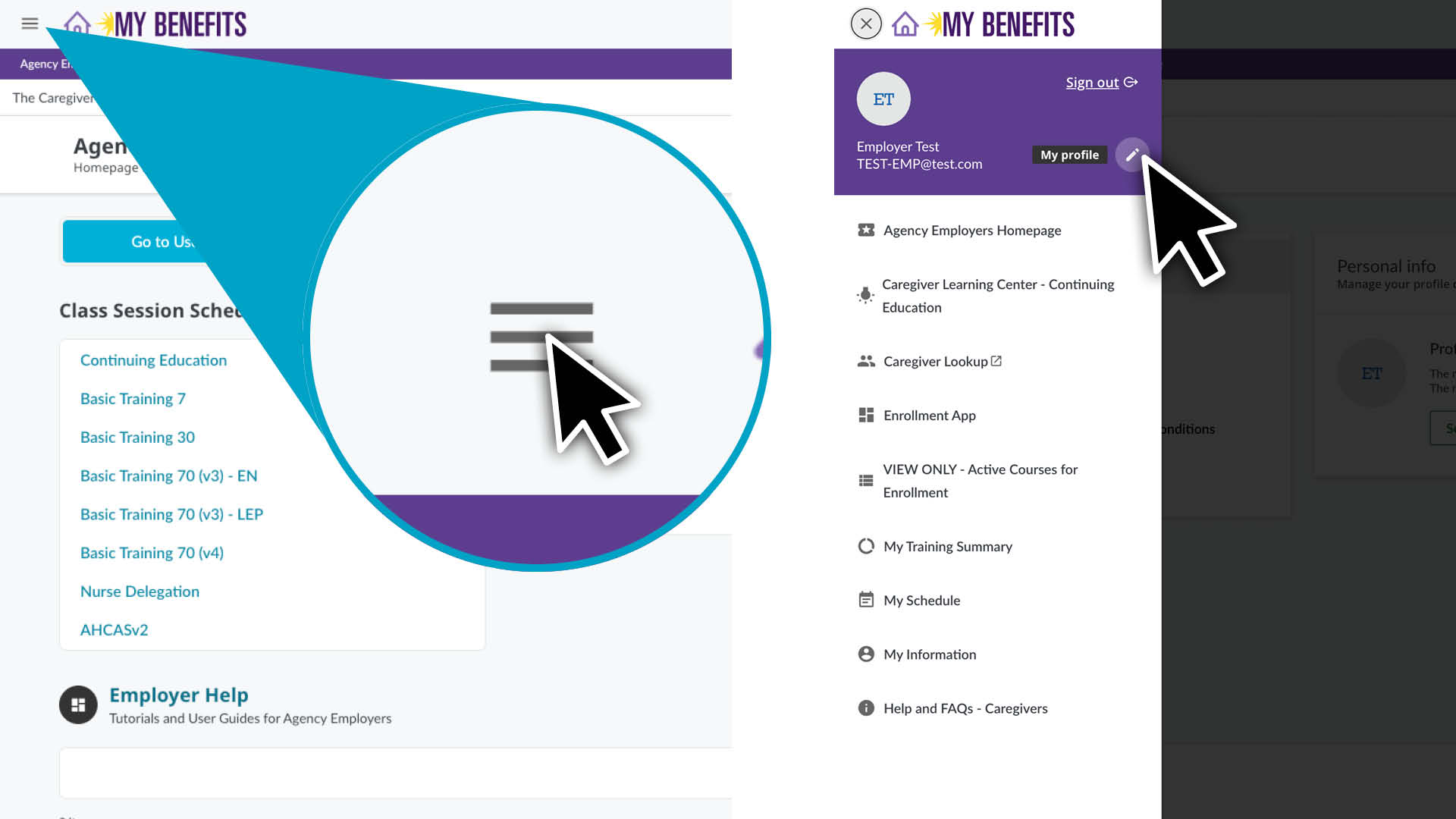
Click the menu icon.
Click the pencil icon to view the My Profile page.
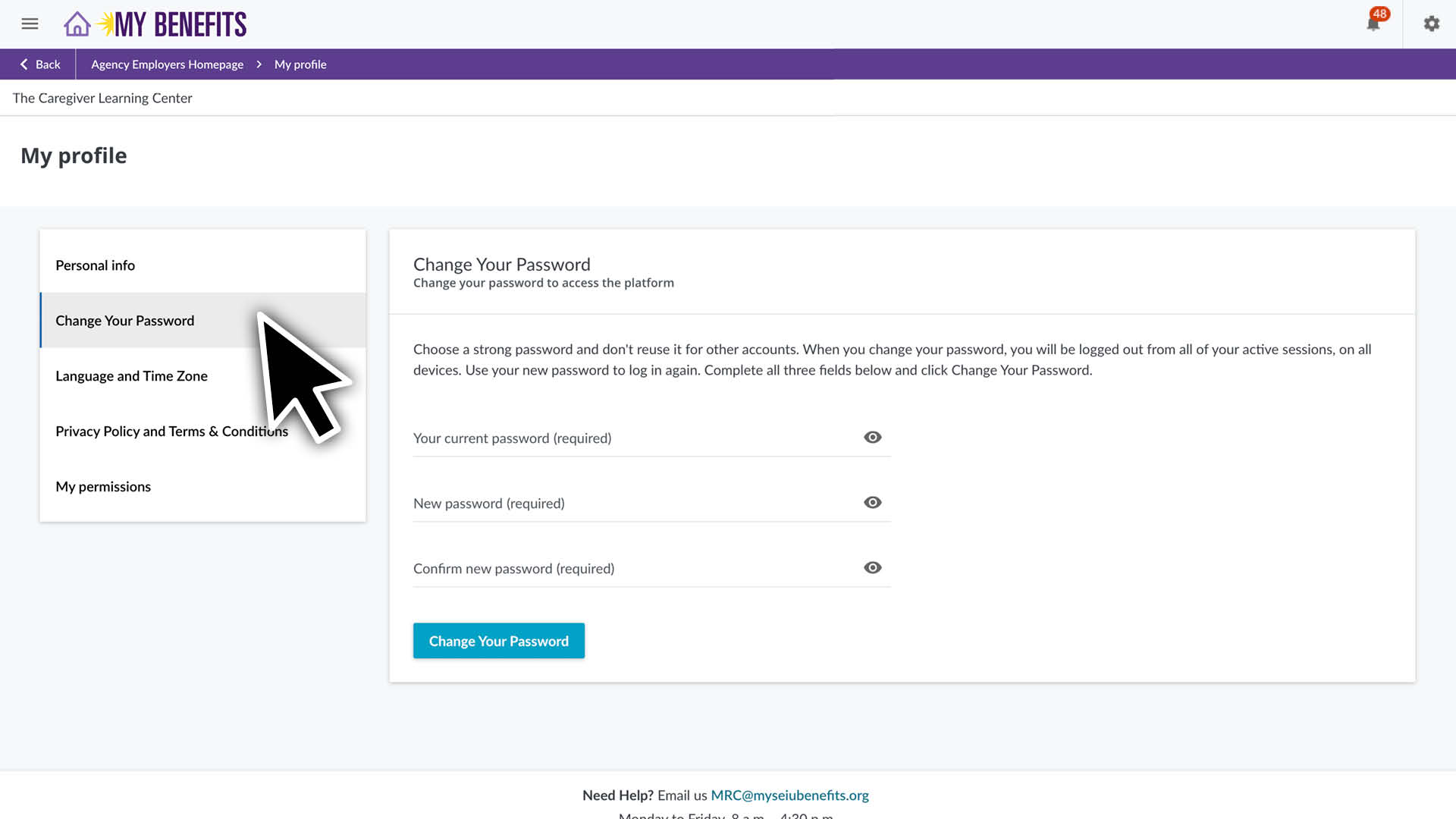
Click the tabs on the left to:
View your personal information and change your profile image.
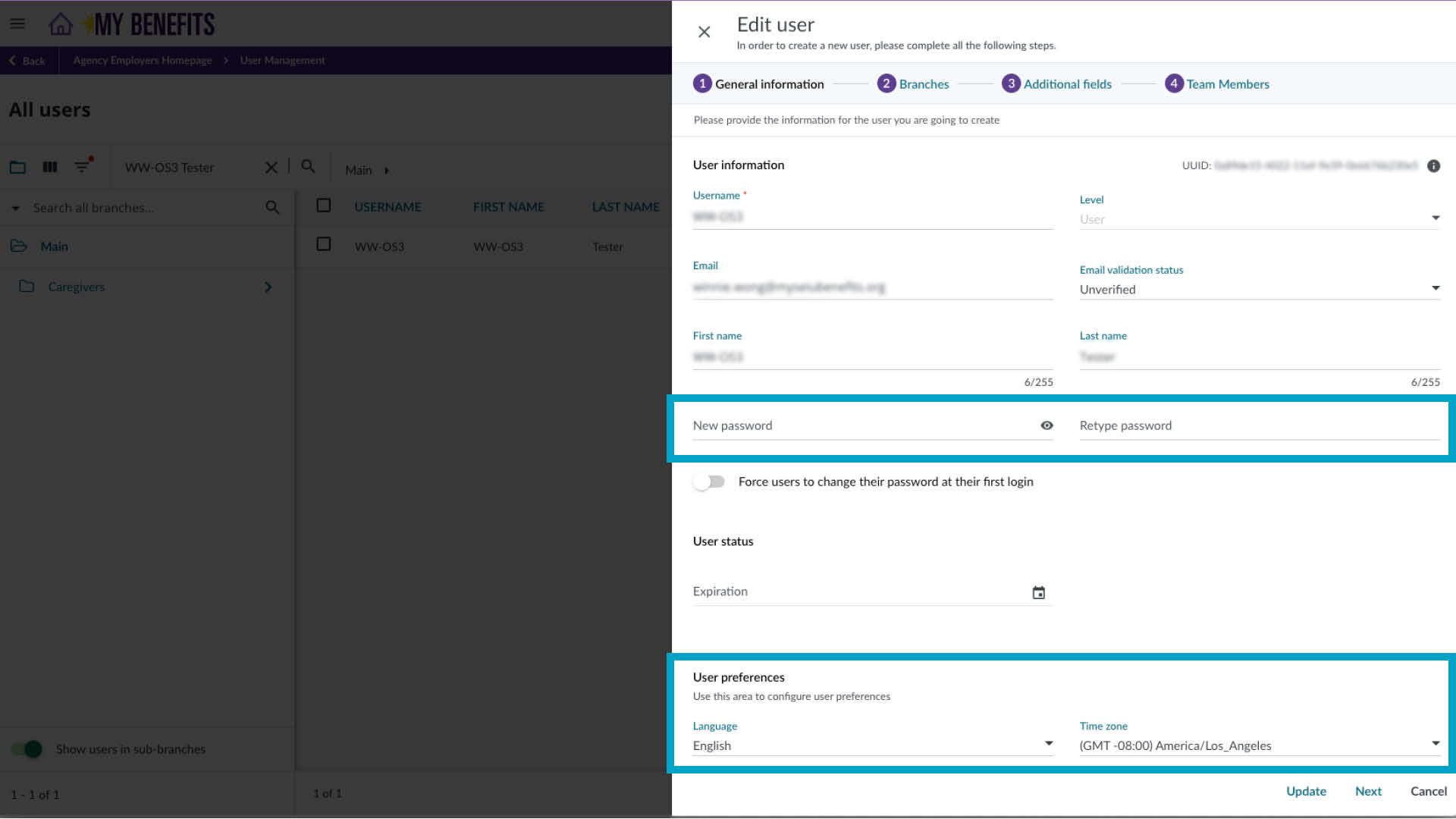
Change your password (if you know your current password).
Change your preferred language or time zone.
Caregiver Management
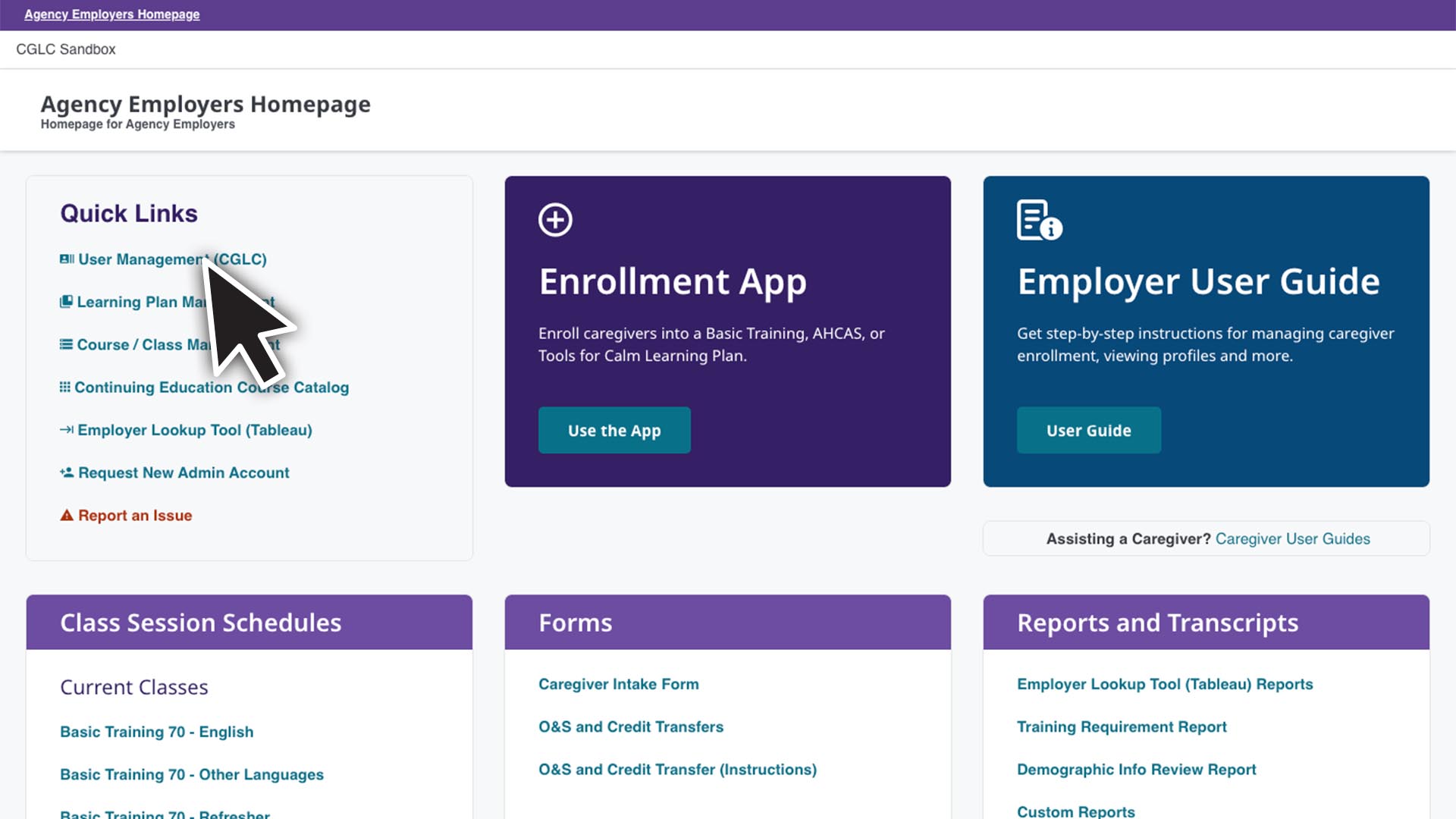
Learn how to use the User Management page to lookup caregiver(s) so you can review or edit their information or enrollments and impersonate (log in as) a caregiver.
You do not need to use the Merge User or Channel links.
Do not select the Merge User button, if you see a duplicate account for your caregiver, please contact student.support@myseiubenefits.org.
Impersonate (Log in as) a Caregiver
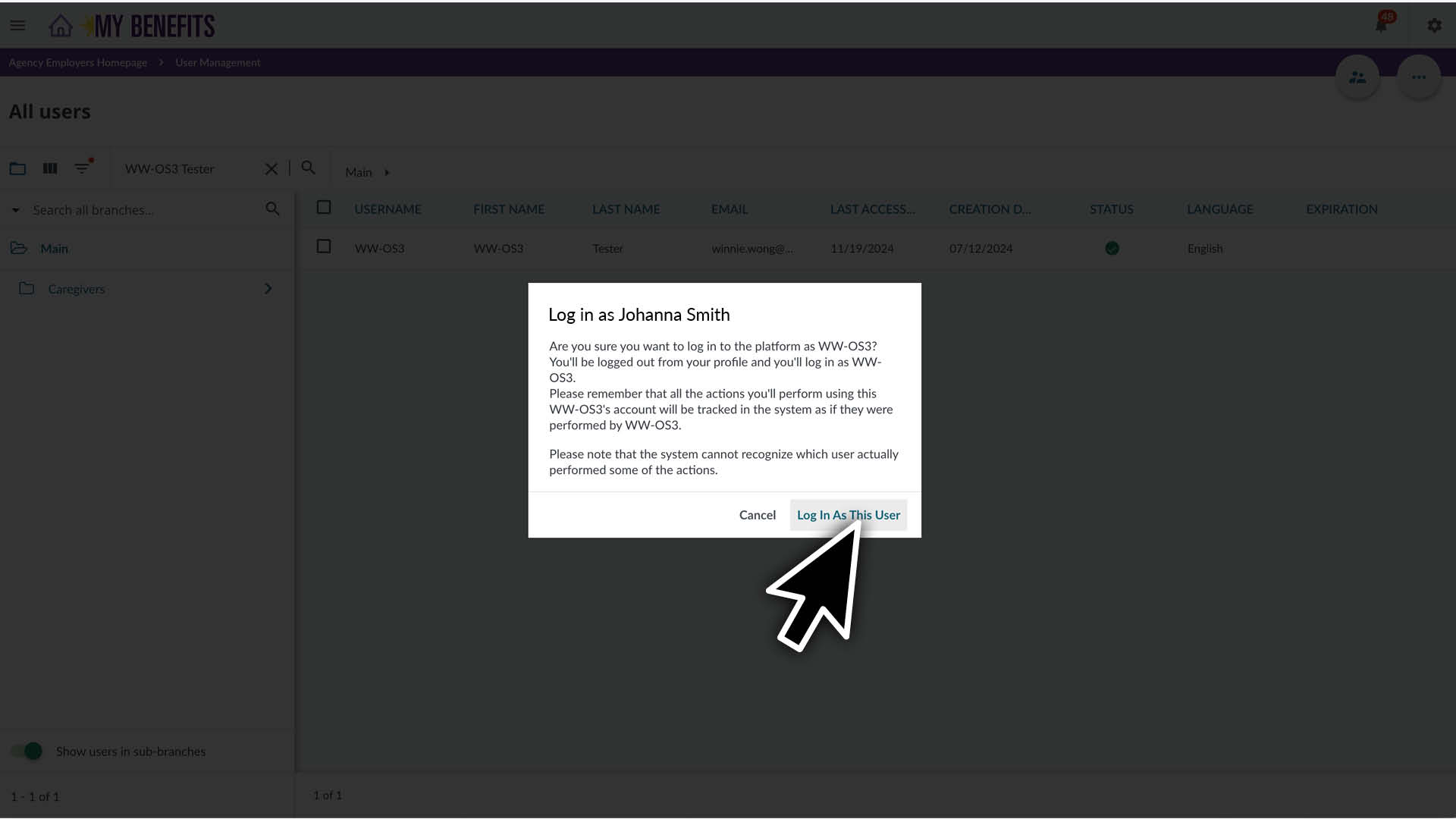
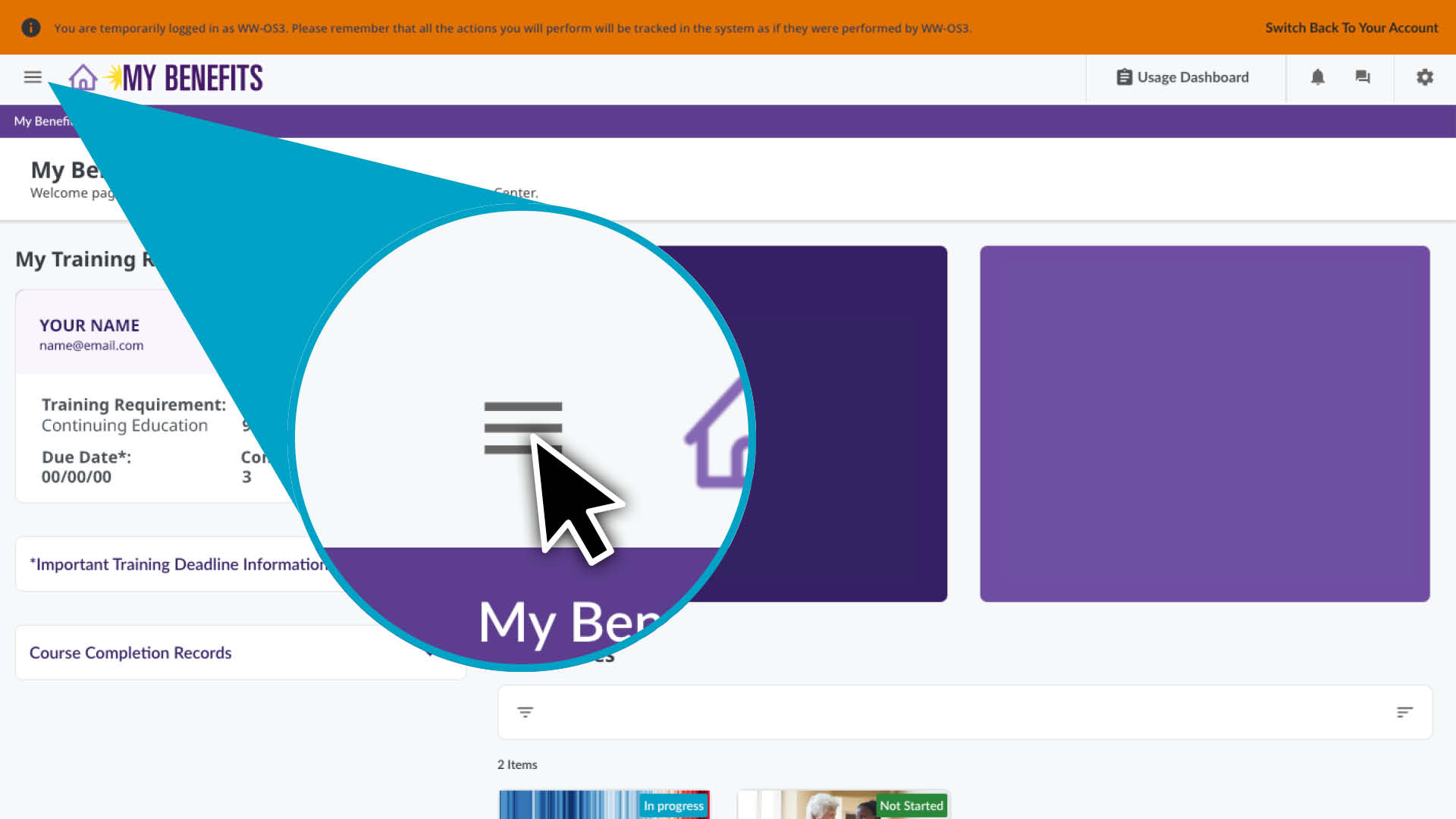
You can log in as a caregiver to assist them with navigation or complete tasks on their behalf. Please remember that all the actions you perform will be tracked in the system as if they performed them.
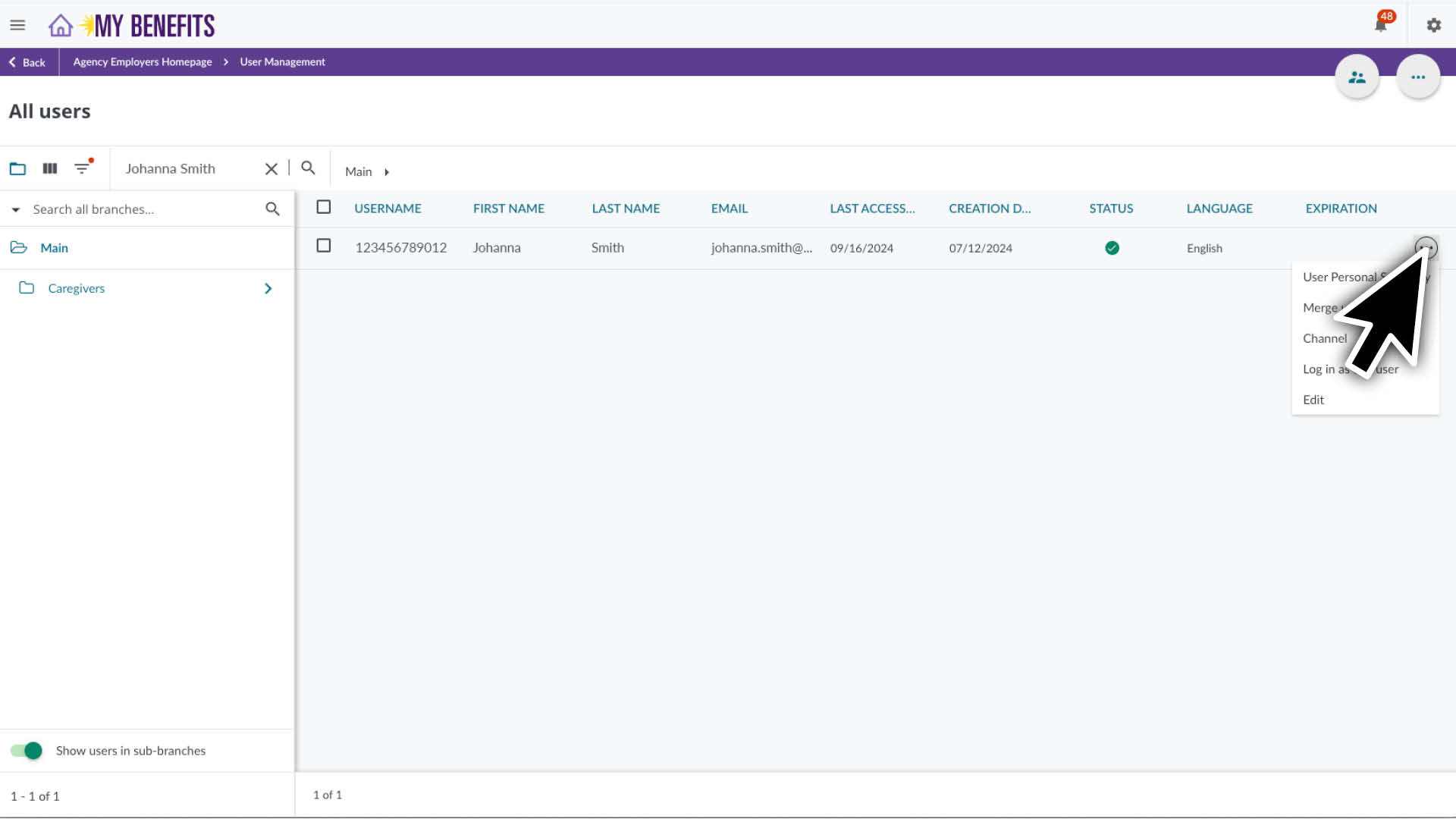
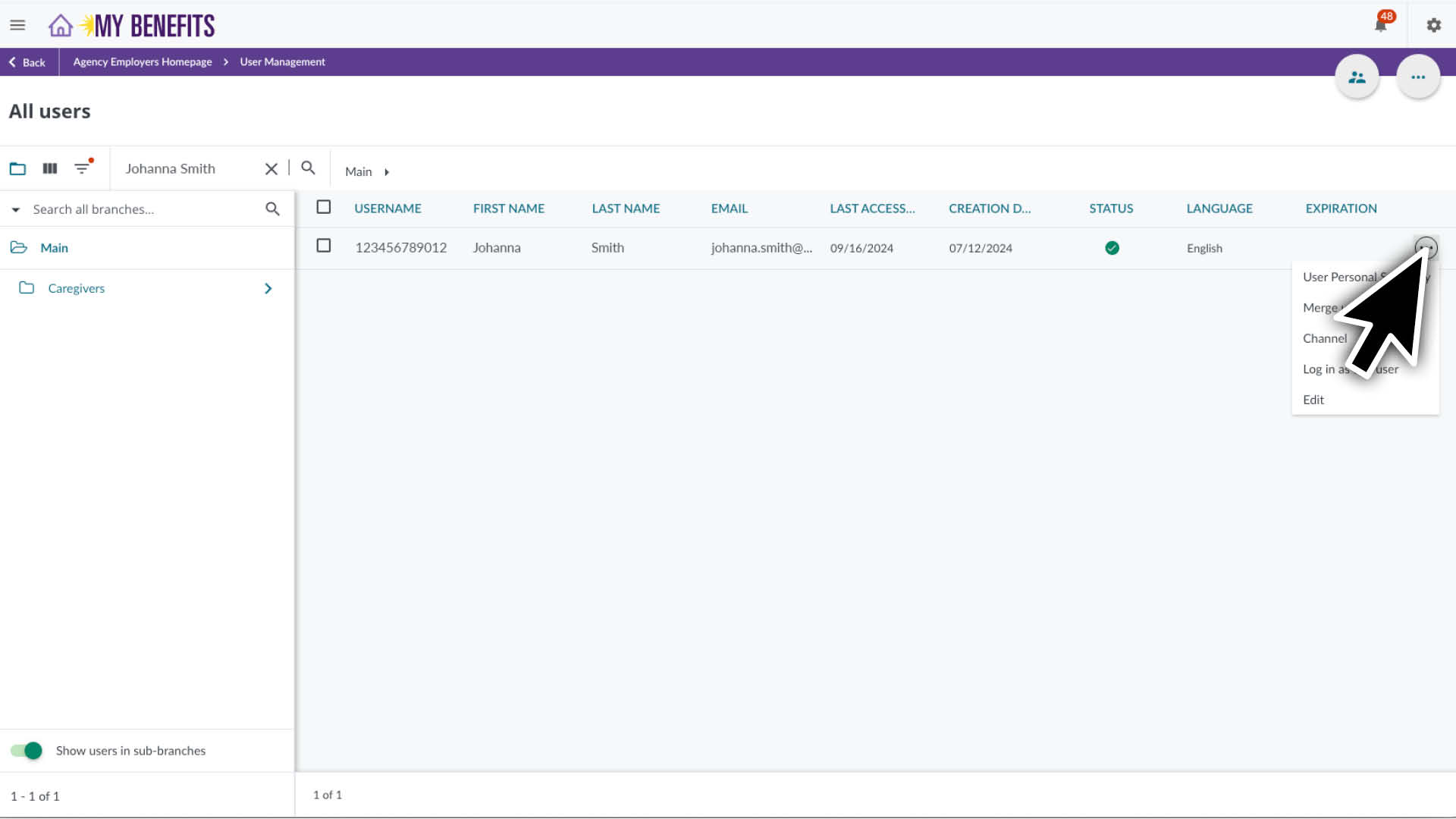
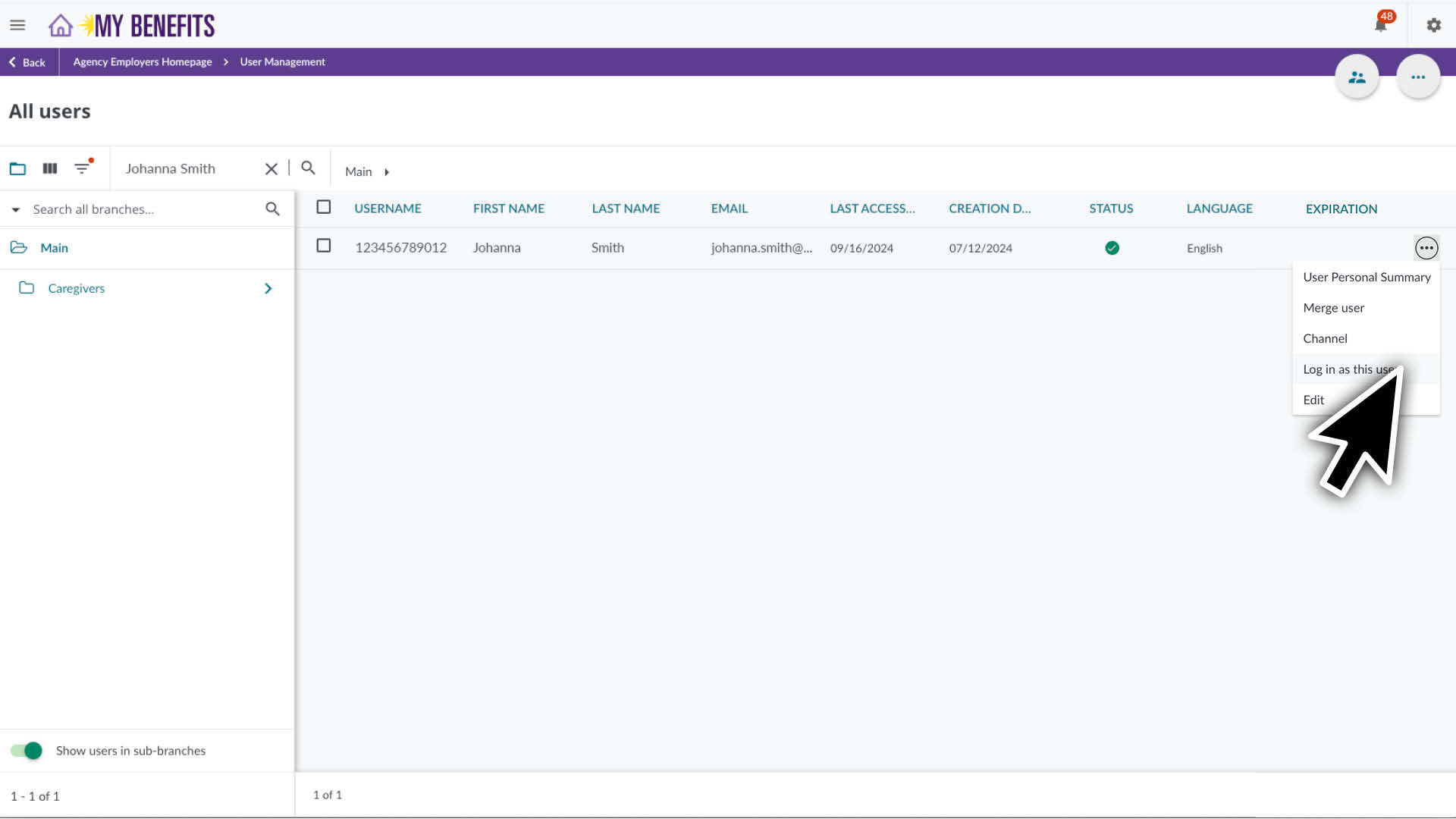
Hover over the caregiver’s row and click the 3 dots, located on the far right.
Click Login as this user.
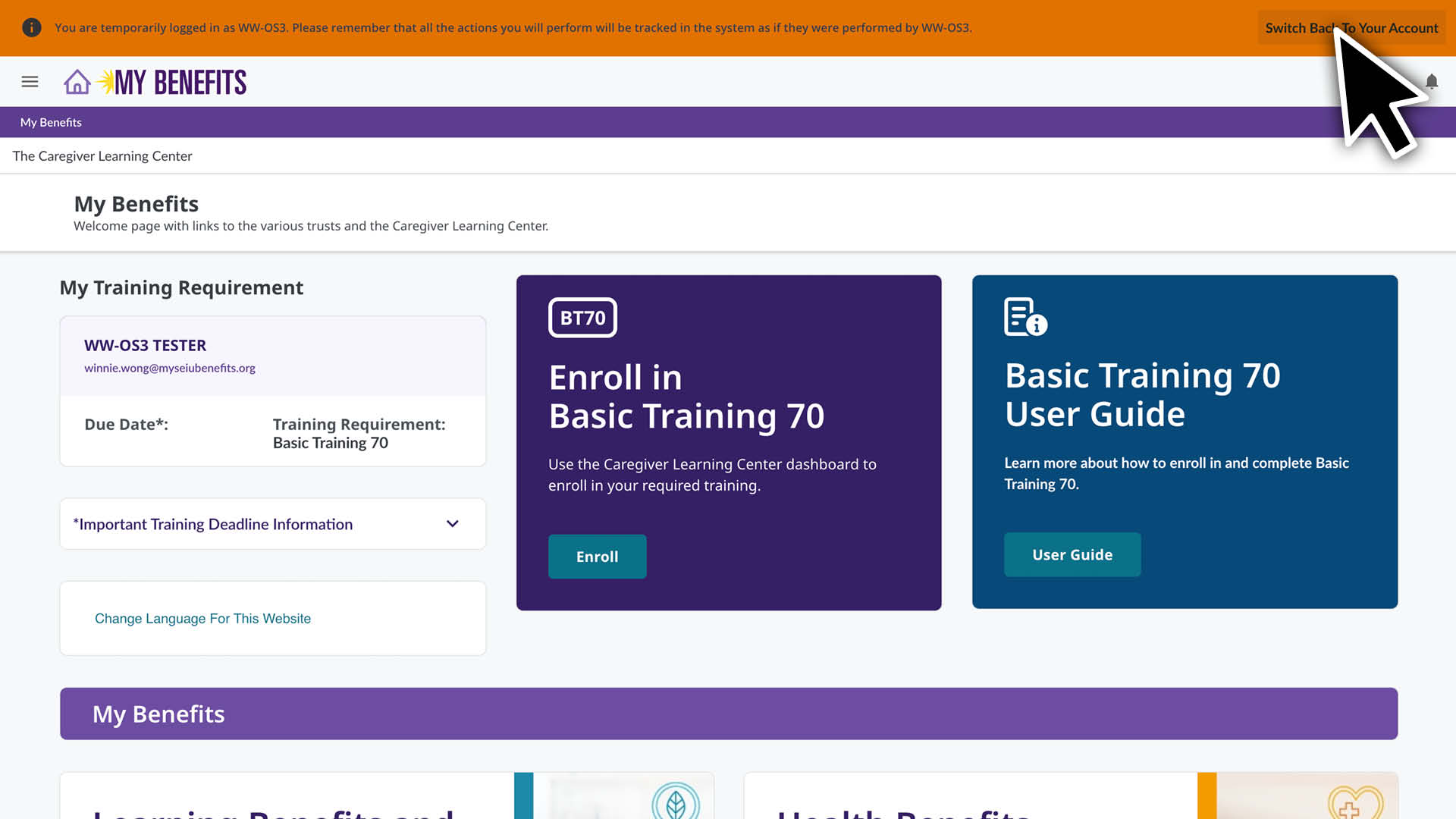
To exit, click Switch Back To Your Account in the orange banner at the top of the page.
If the Caregiver hasn’t accepted the Terms and Conditions, obtain verbal consent to proceed. If security settings block you from accepting on their behalf, ask the Caregiver to log in and accept or email student.support@myseiubenefits.org for assistance. Once completed, the Caregiver’s homepage will appear.
Using Filters to Sort
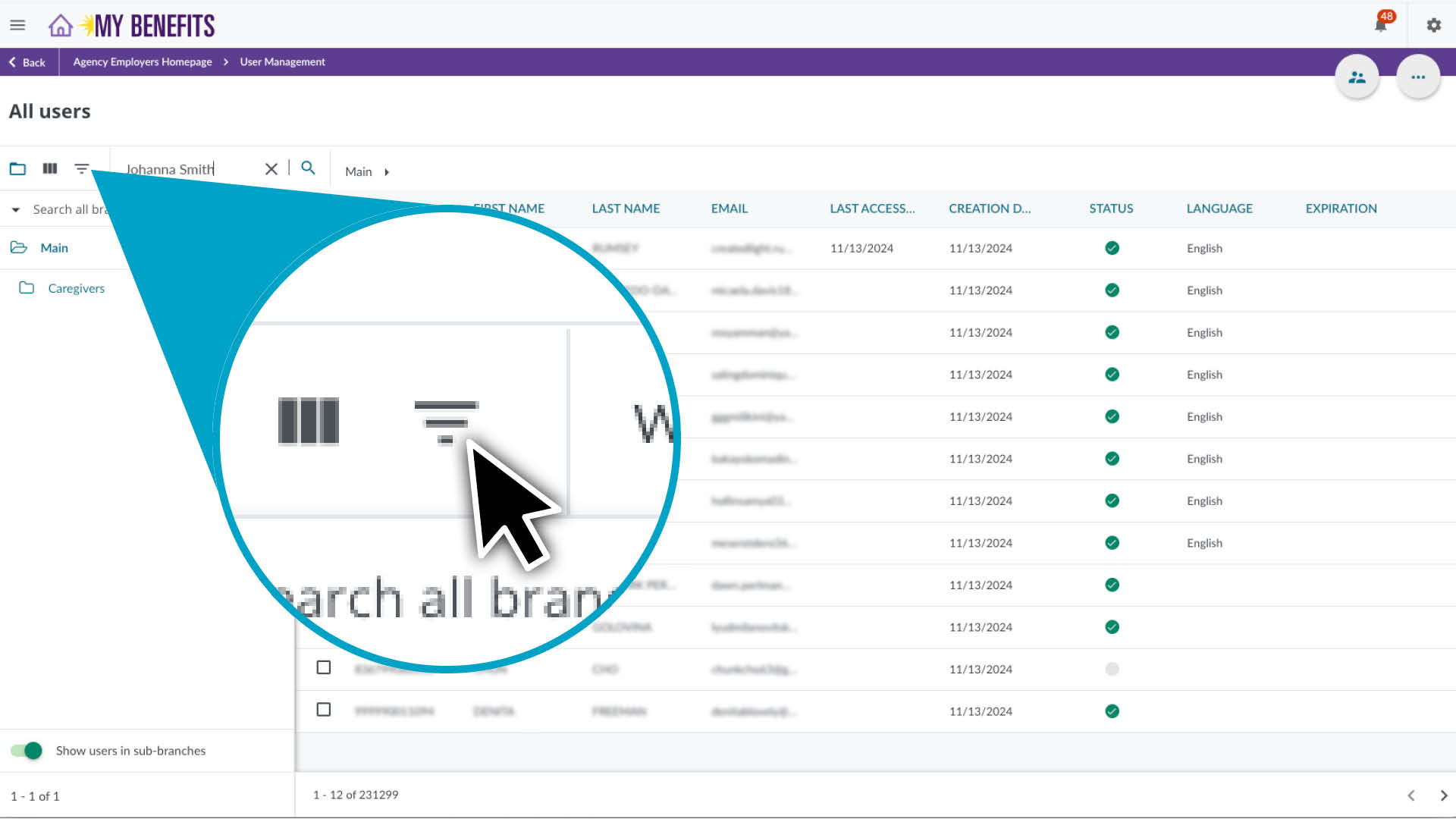
Any page or panel containing content in a table format can be filtered or sorted using filters. The example shown below is for the User Management page.
To add Filters:
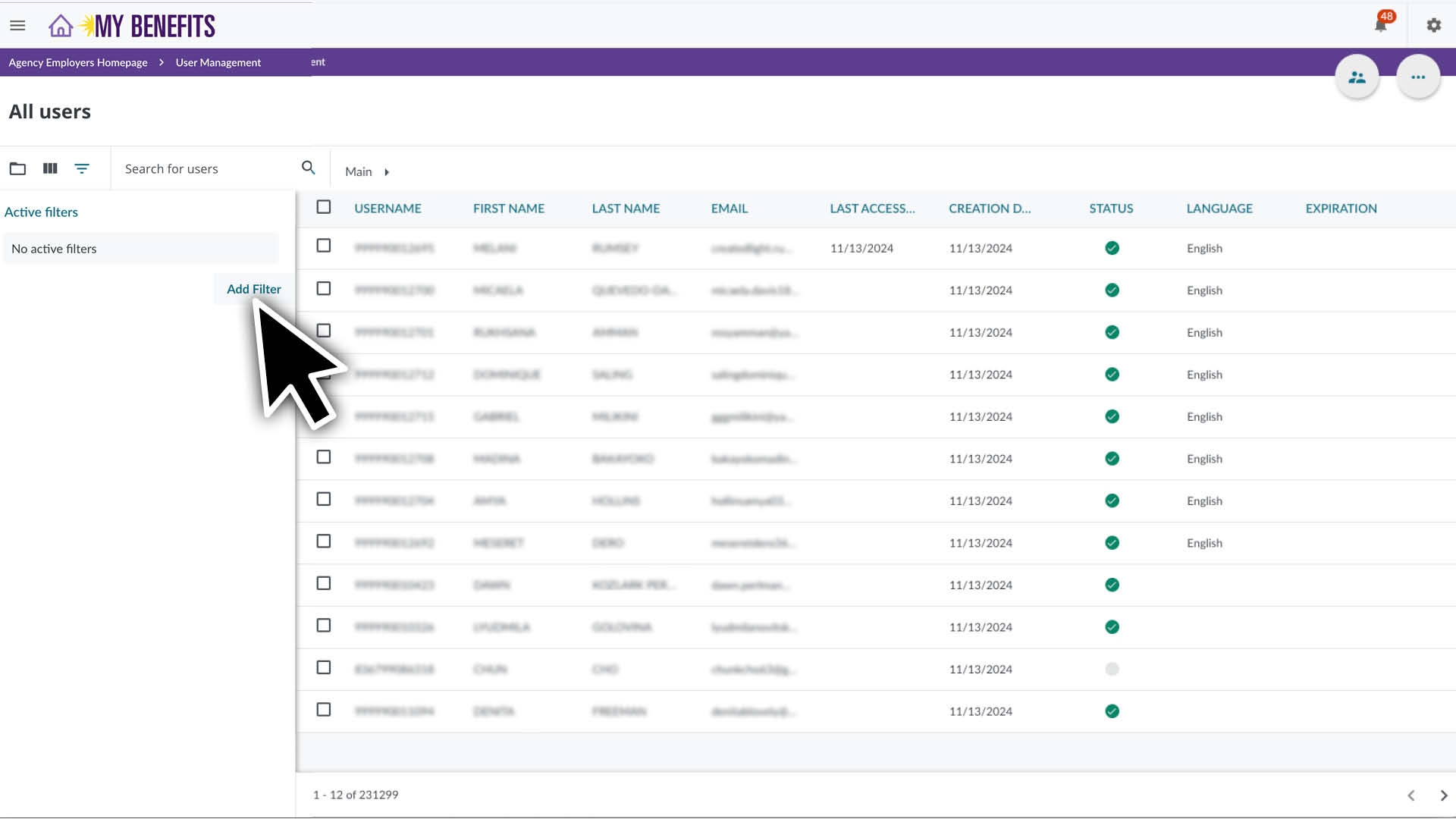
Click the Filter icon, located in the top left corner of the table.
Click Add Filter in the filters panel.
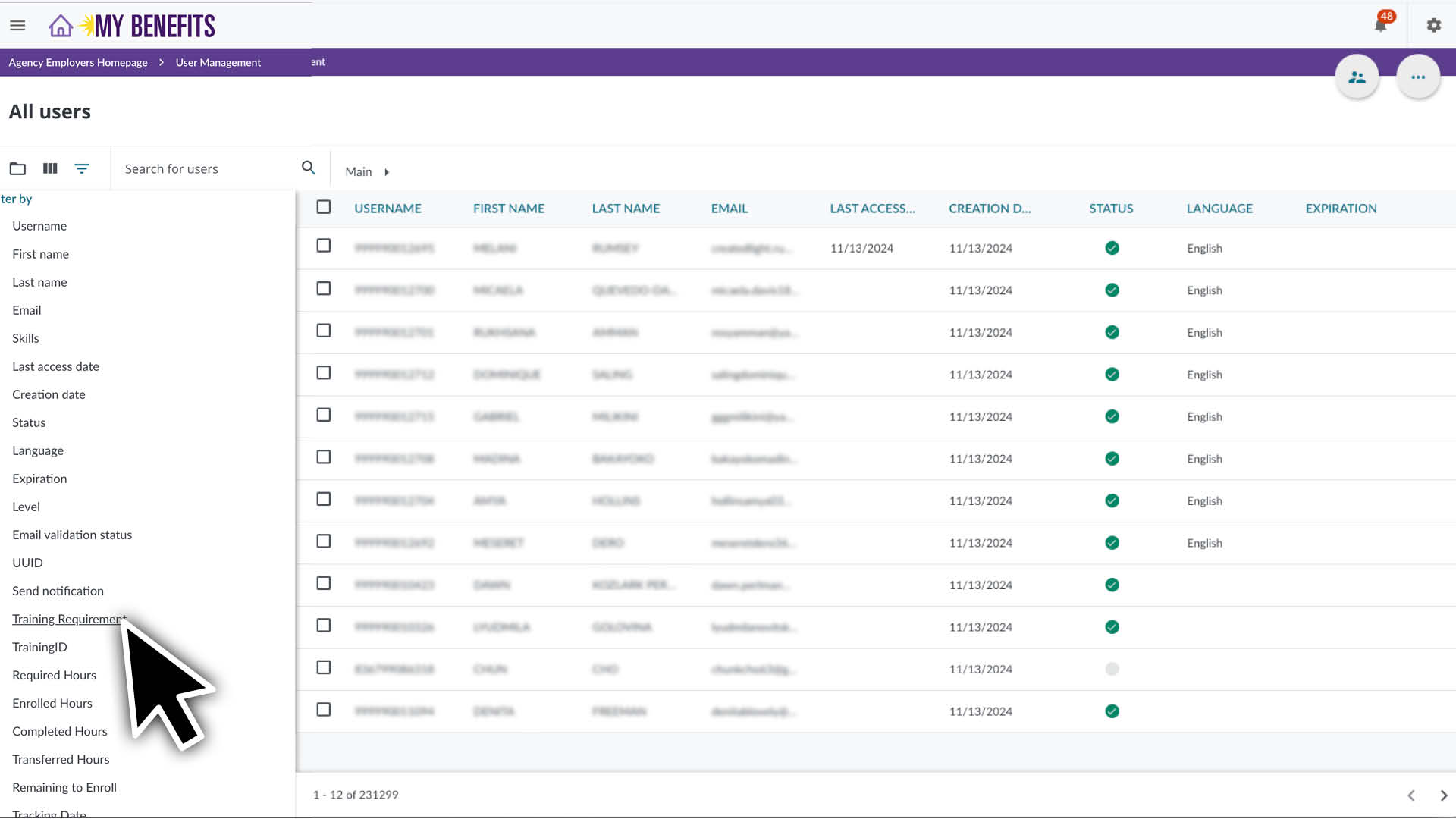
Select the Filter you would like to add (ex. Current Training Requirement)
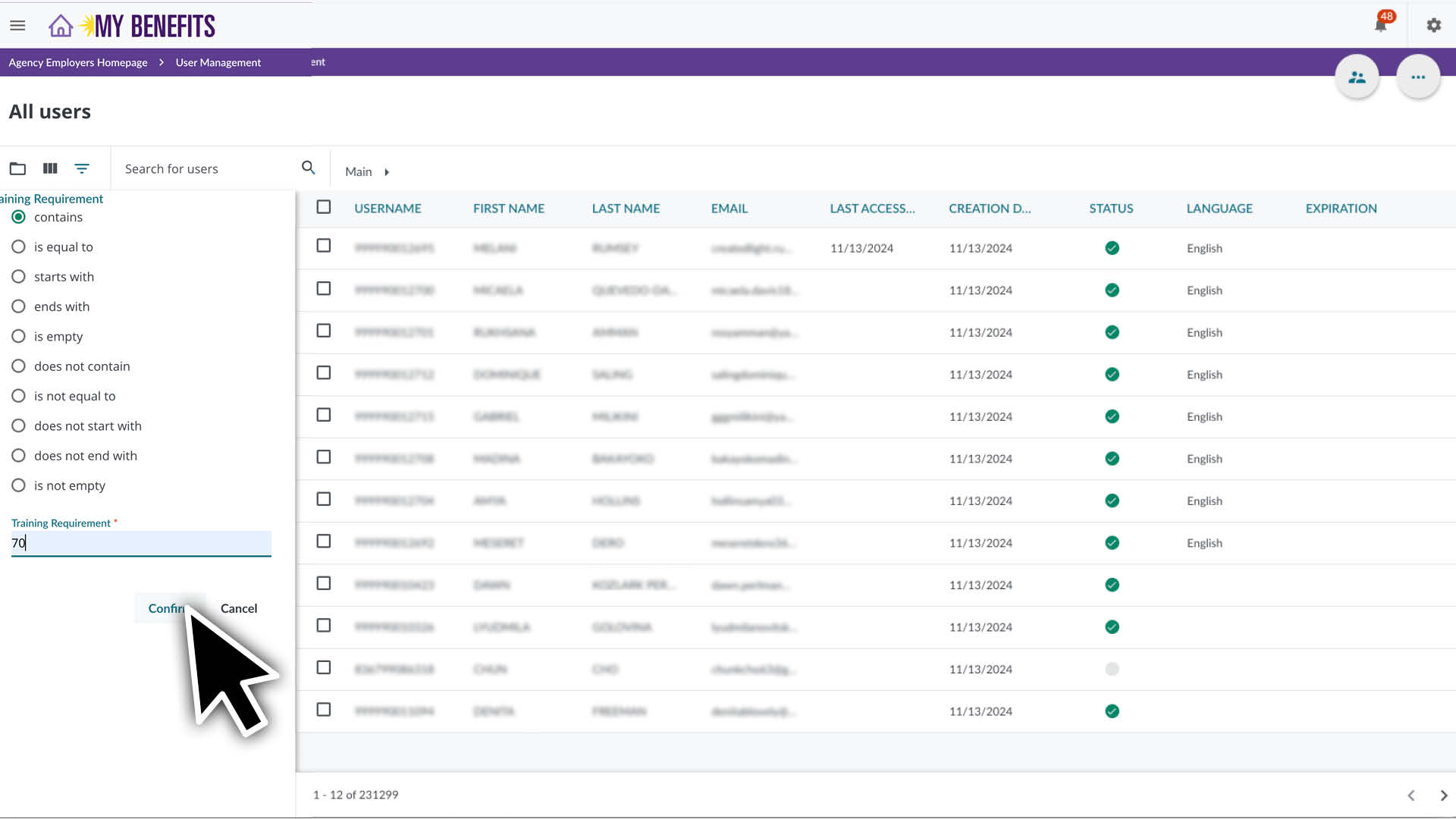
Specify the criteria and click Confirm.
You can add multiple filters, by following the instructions above.
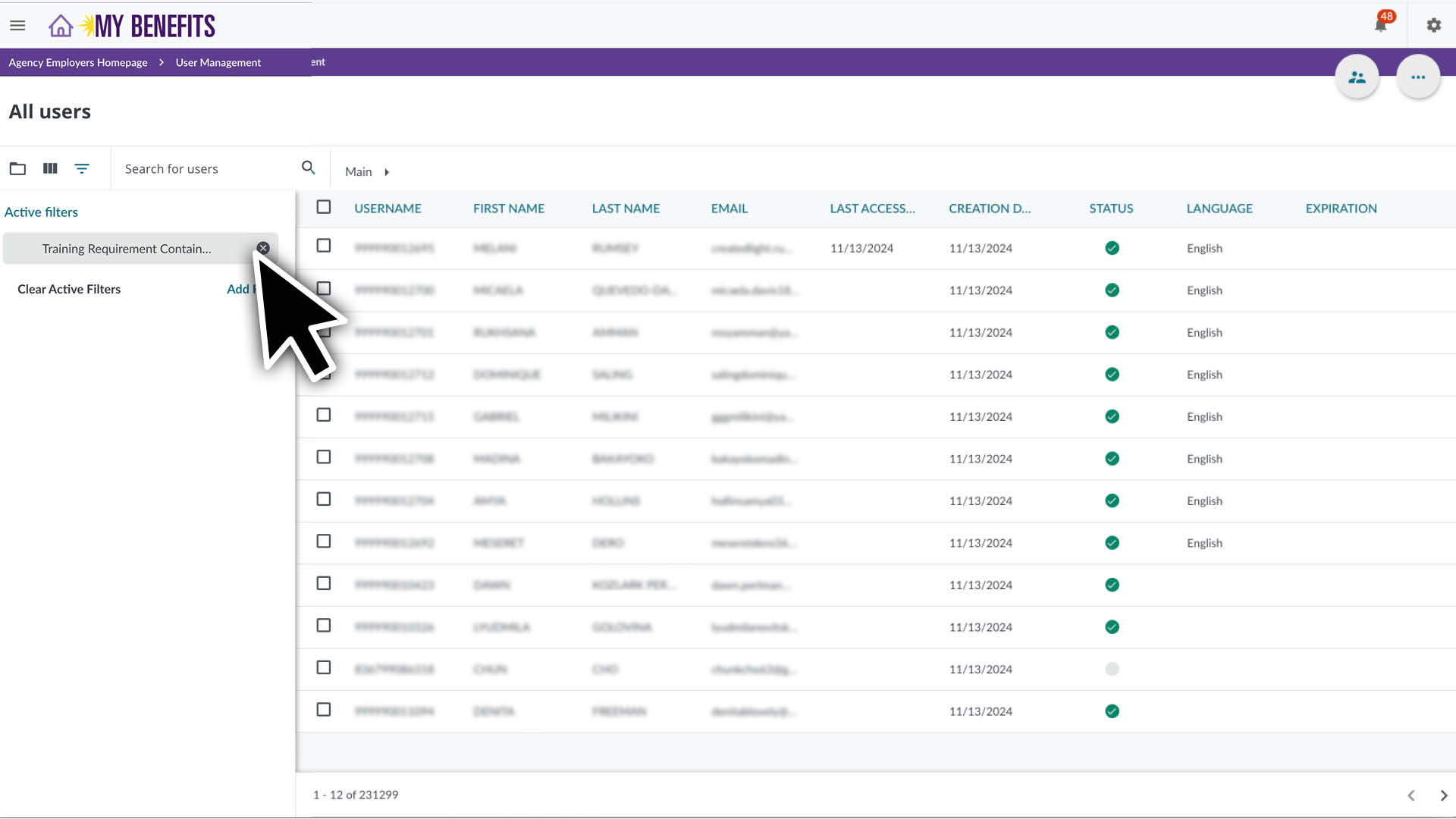
Active Filters will be displayed in the Filters panel.
To deactivate an Active Filter, click the X on the listed filter.
To close the Filter panel, click the Filter icon.
Customizing Table Columns
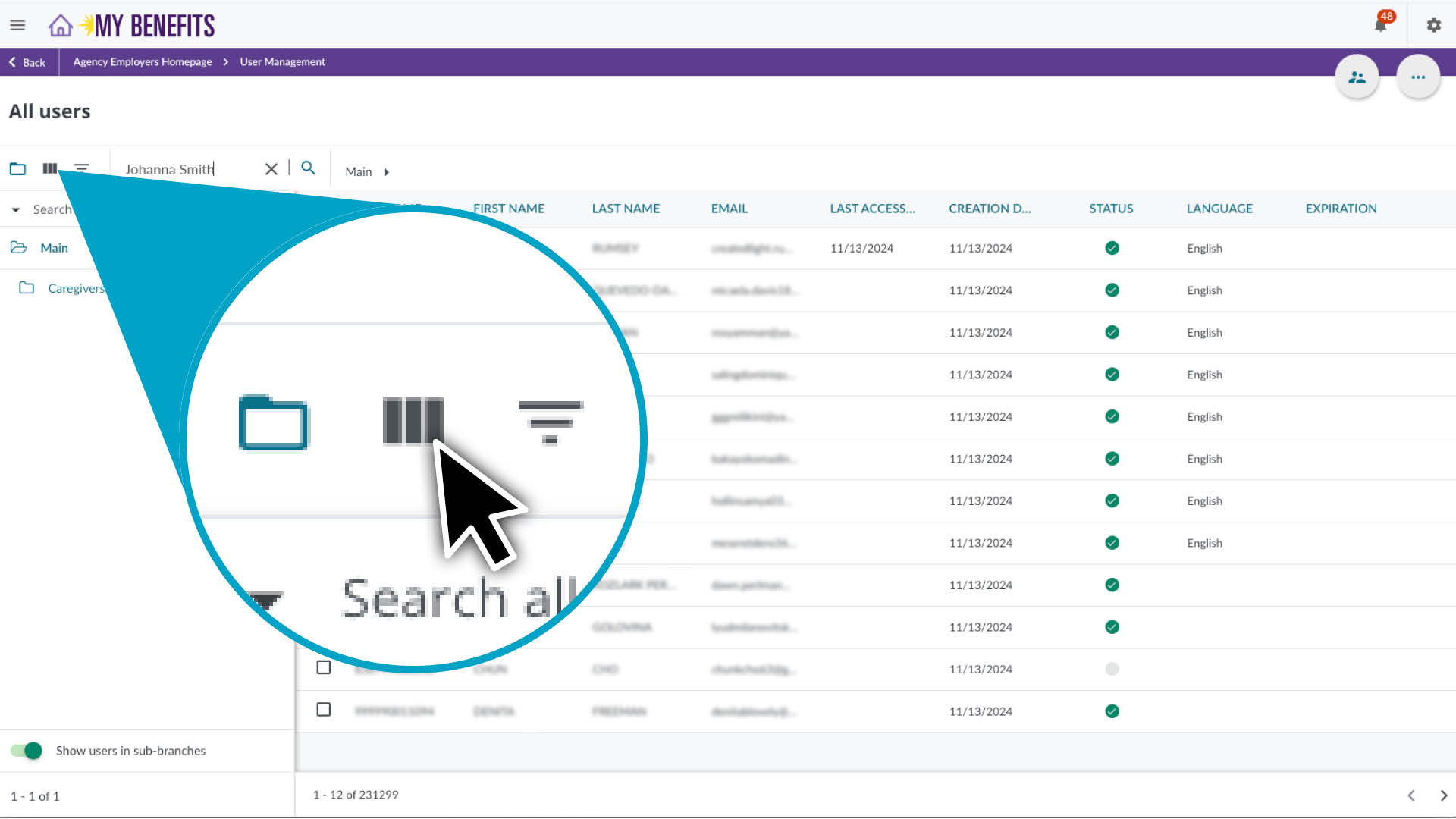
To customize columns, click the Columns icon, located in the top left corner of the table. The example shown below is for the User Management page.
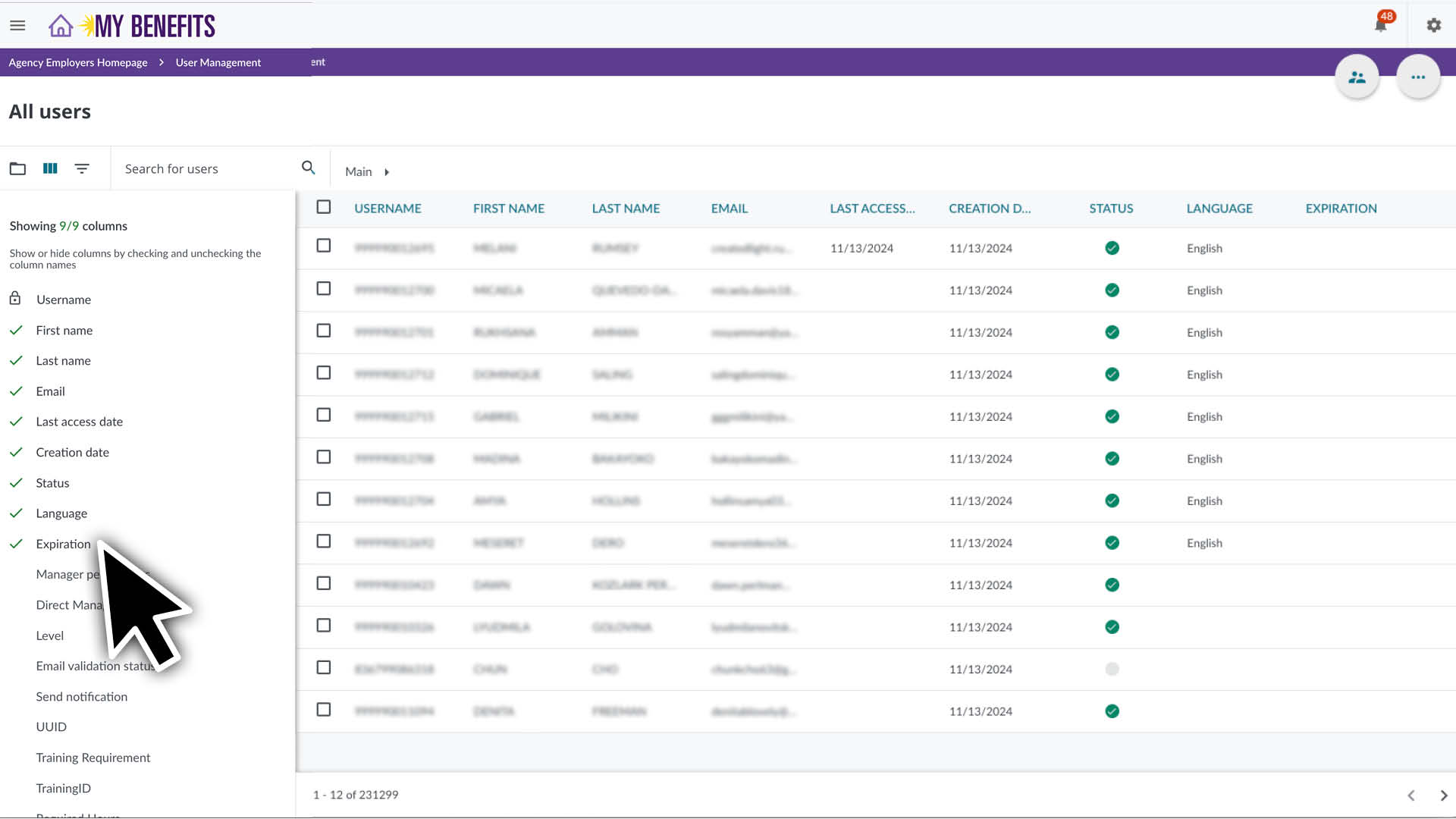
The Columns panel will display a list of column names.
You can select up to 9 columns of data to display.
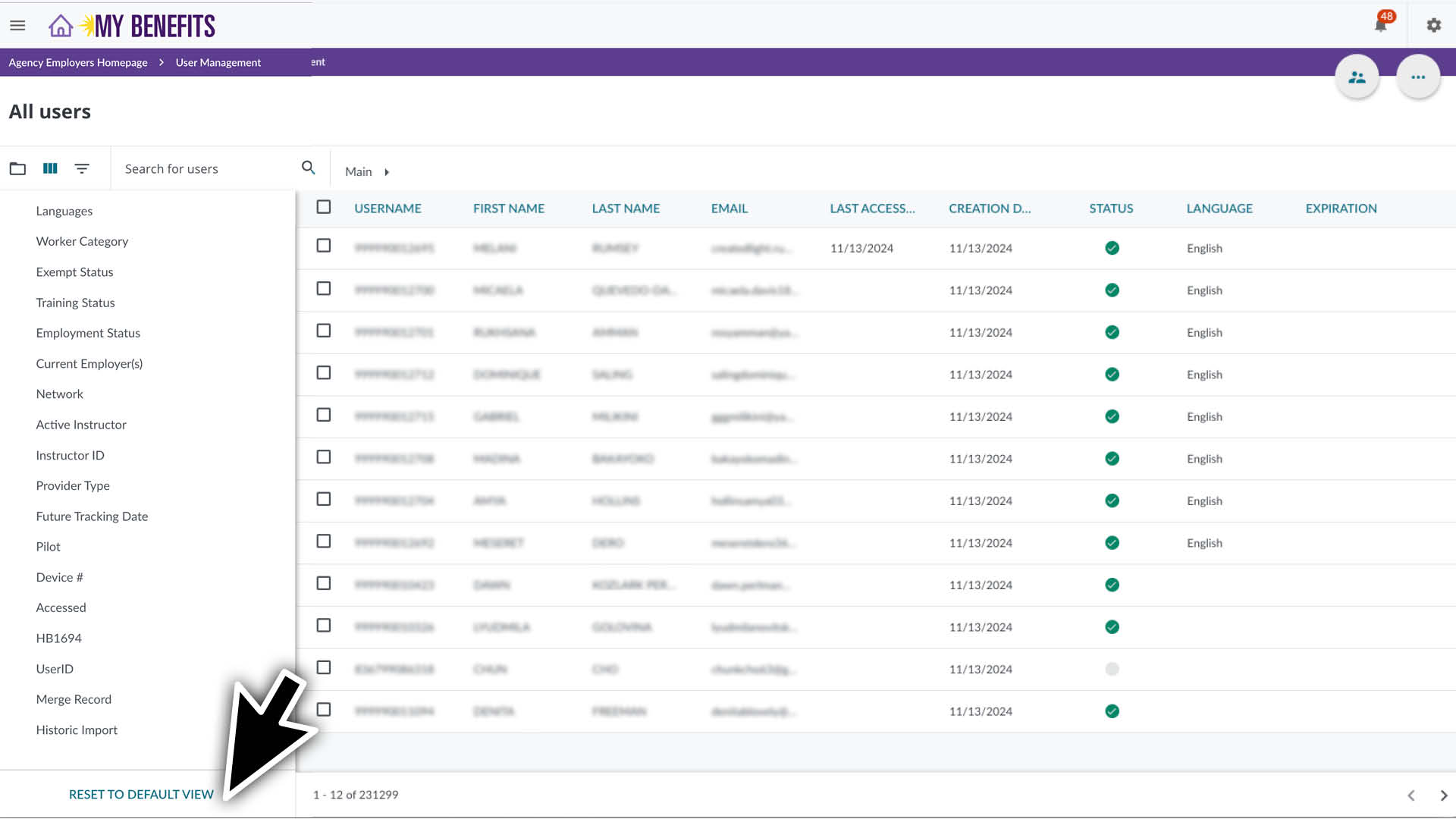
You can show or hide columns by checking and unchecking the column names.
To close the Columns panel, click the Column icon.
The order in which you select the columns determines the display of the columns left-to-right. To start from the left, deselect all columns and begin selecting in the order you want them to appear.
Orientation & Safety
Learn how to enroll caregivers so their training is ready when they log in. You can also verify enrollment, unenroll a caregiver or complete a credit transfer below.
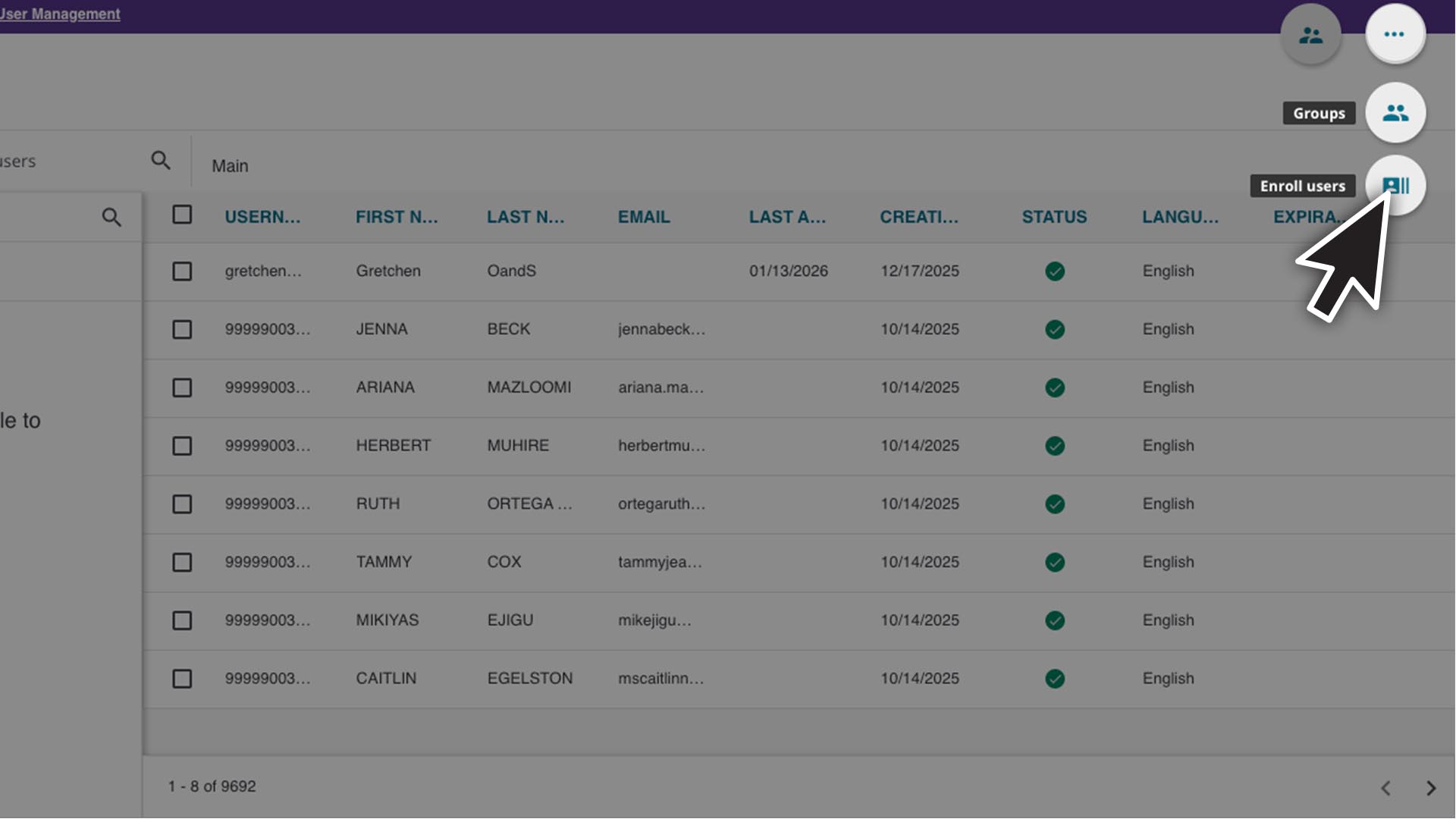
Select the three dots (⋯) in the top right corner and choose Enroll Users.
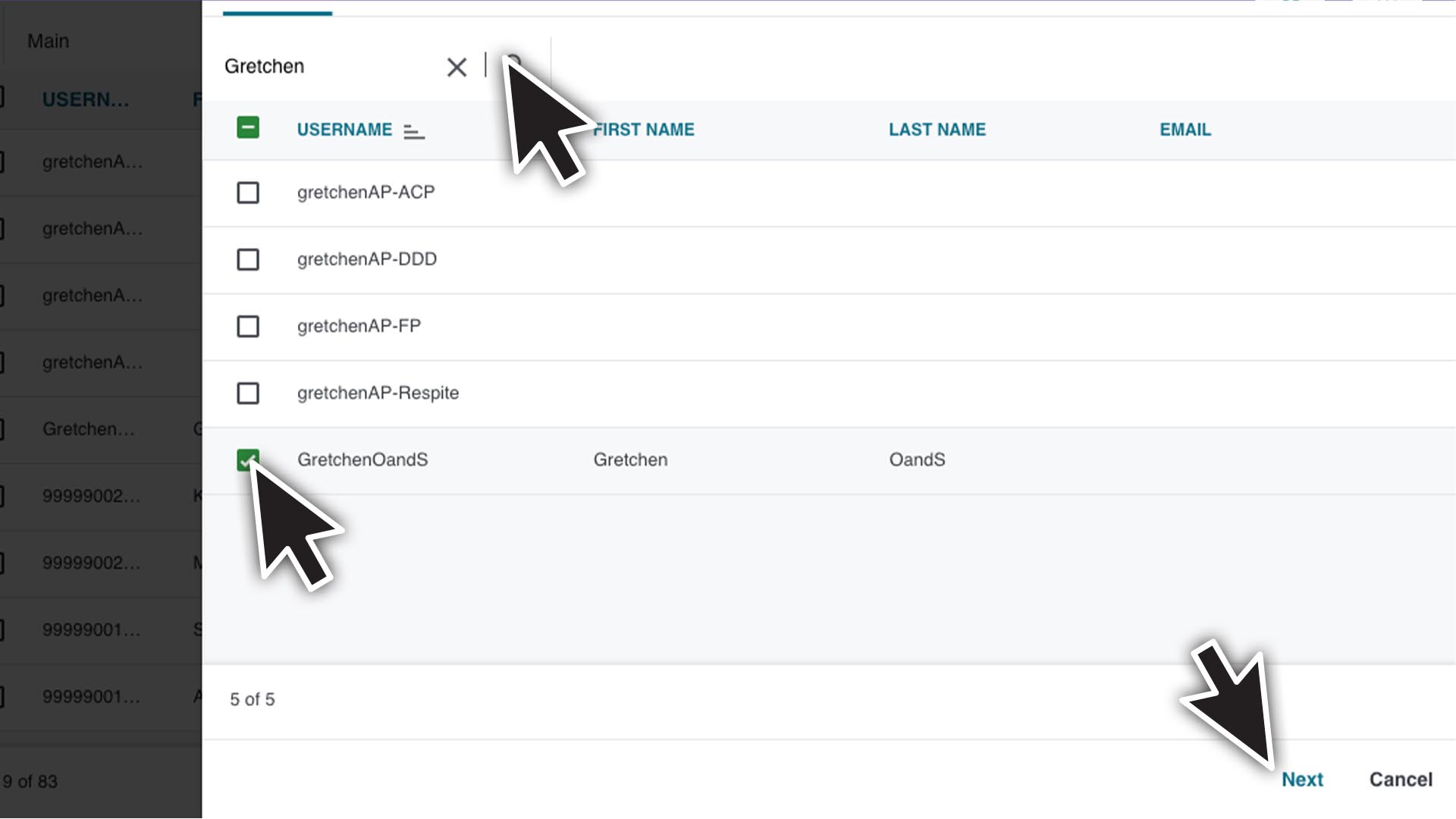
Select the caregiver(s) to enroll. • Search for the caregiver’s username. • Select the preferred language version. • Click Next.
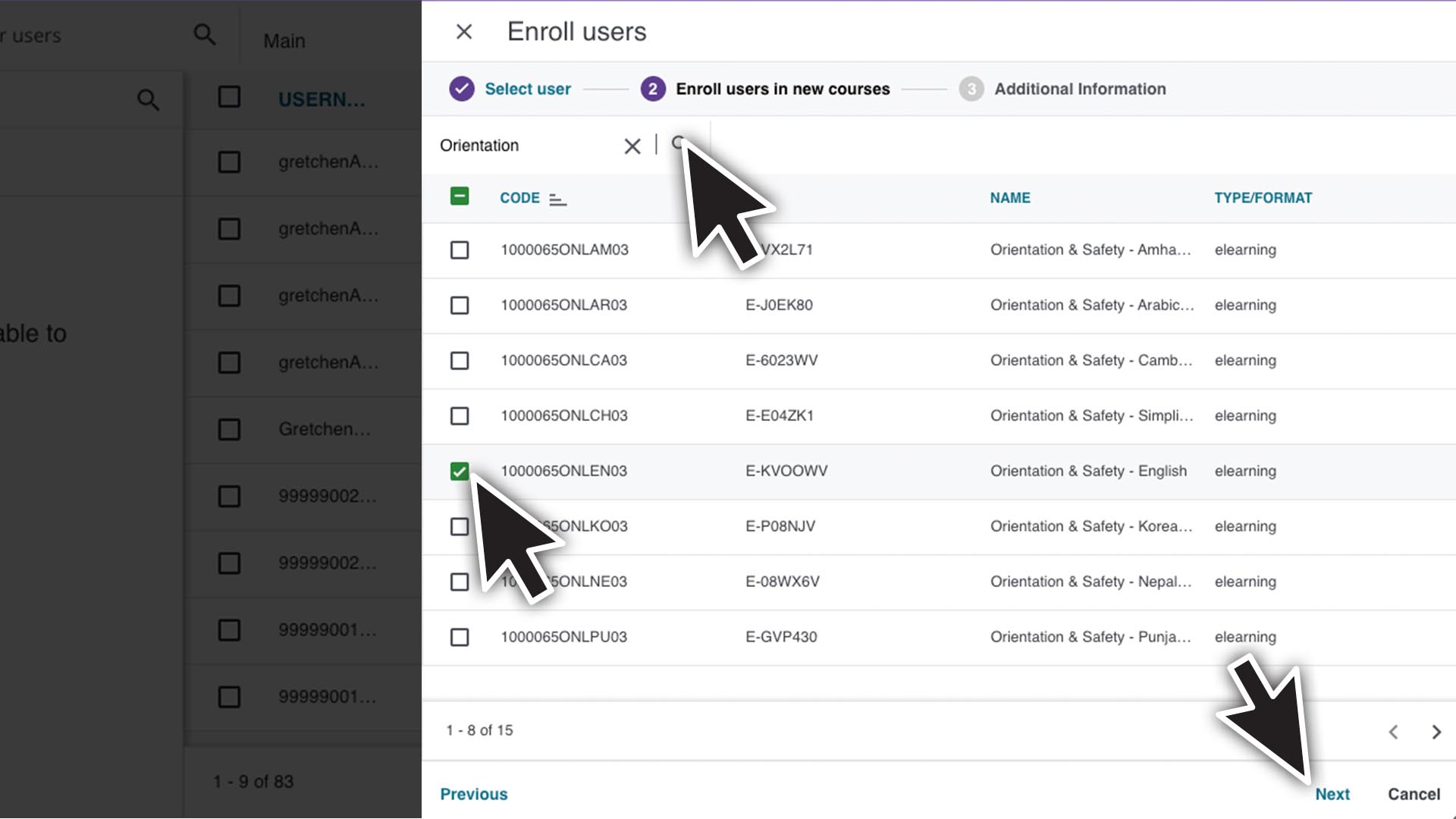
Select Orientation & Safety. • Search for “Orientation”. • Select the caregiver. • Click Next.
Click Confirm to complete enrollment.
Basic Training 70 (BT70)
Learn how to manage enrollment for Basic Training 70.
BT70 Learning Plans
The BT70 Learning Plans includes the full 70 hours of courses required for HCA certification.
Enroll Caregiver(s)
The Enrollment App will schedule the in-person and webinar ILT class sessions. In the below cases some ILT sessions may need to be selected separately.
Schedule conflicts: If one of the class schedules doesn’t work for a caregiver you can reschedule it after they are enrolled in the Learning Plan.
Unable to enroll in these sessions alert: If you get this message, the caregiver is enrolled in BT70 but needs to select a session. Learn how.
You will need the caregivers User ID to use the Enrollment App. You can find it on the User Management page where you look up caregivers.
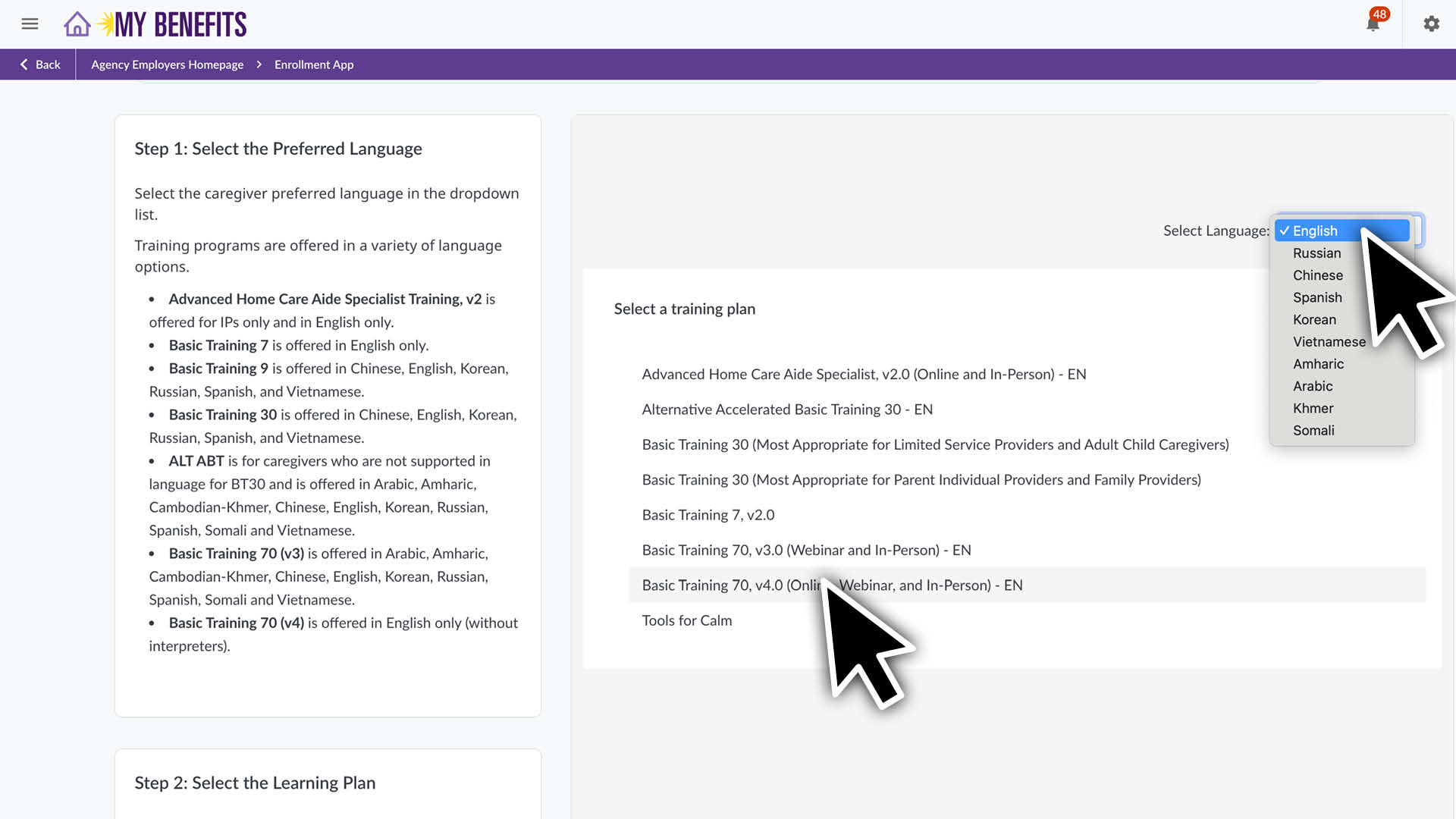
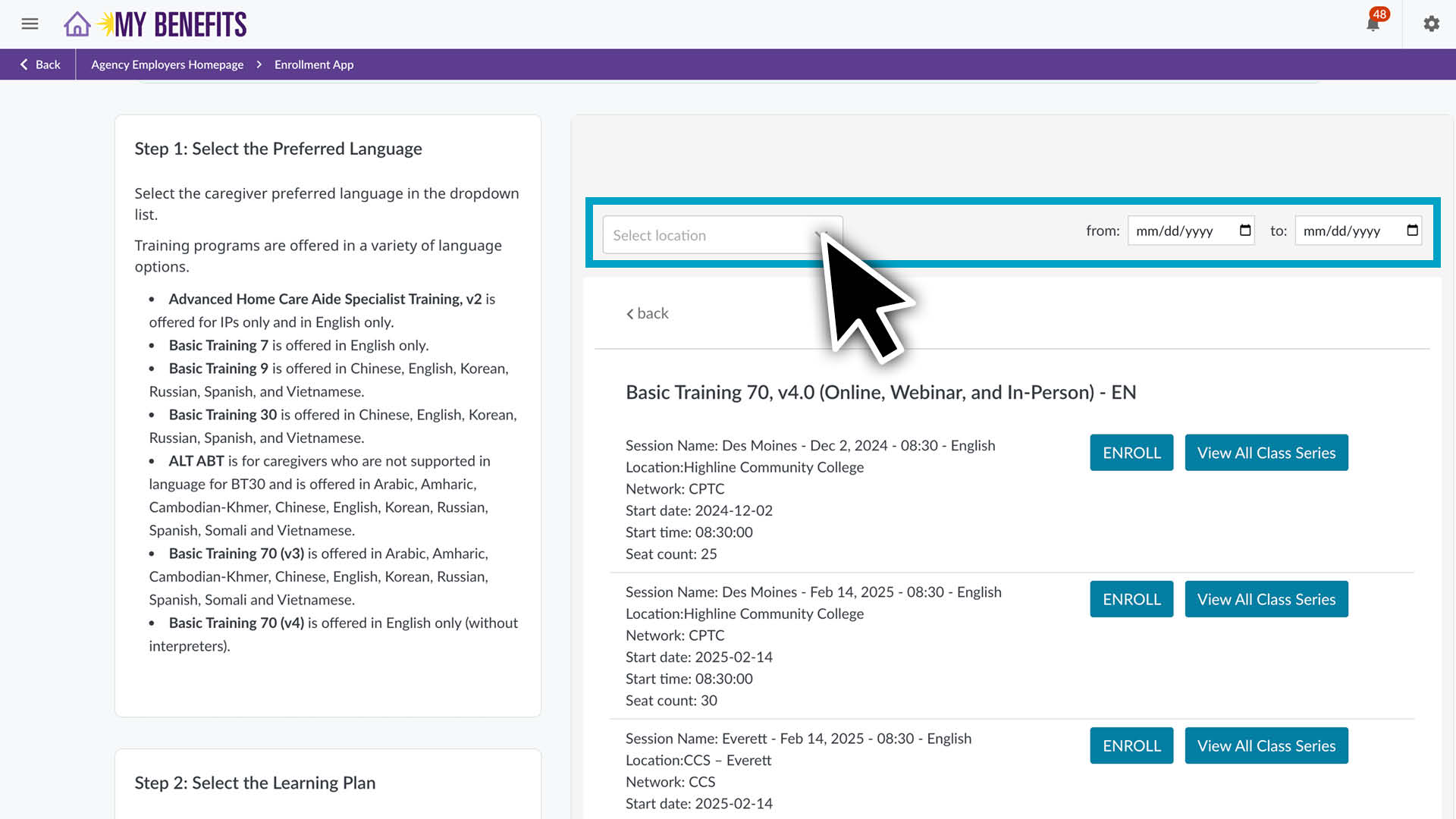
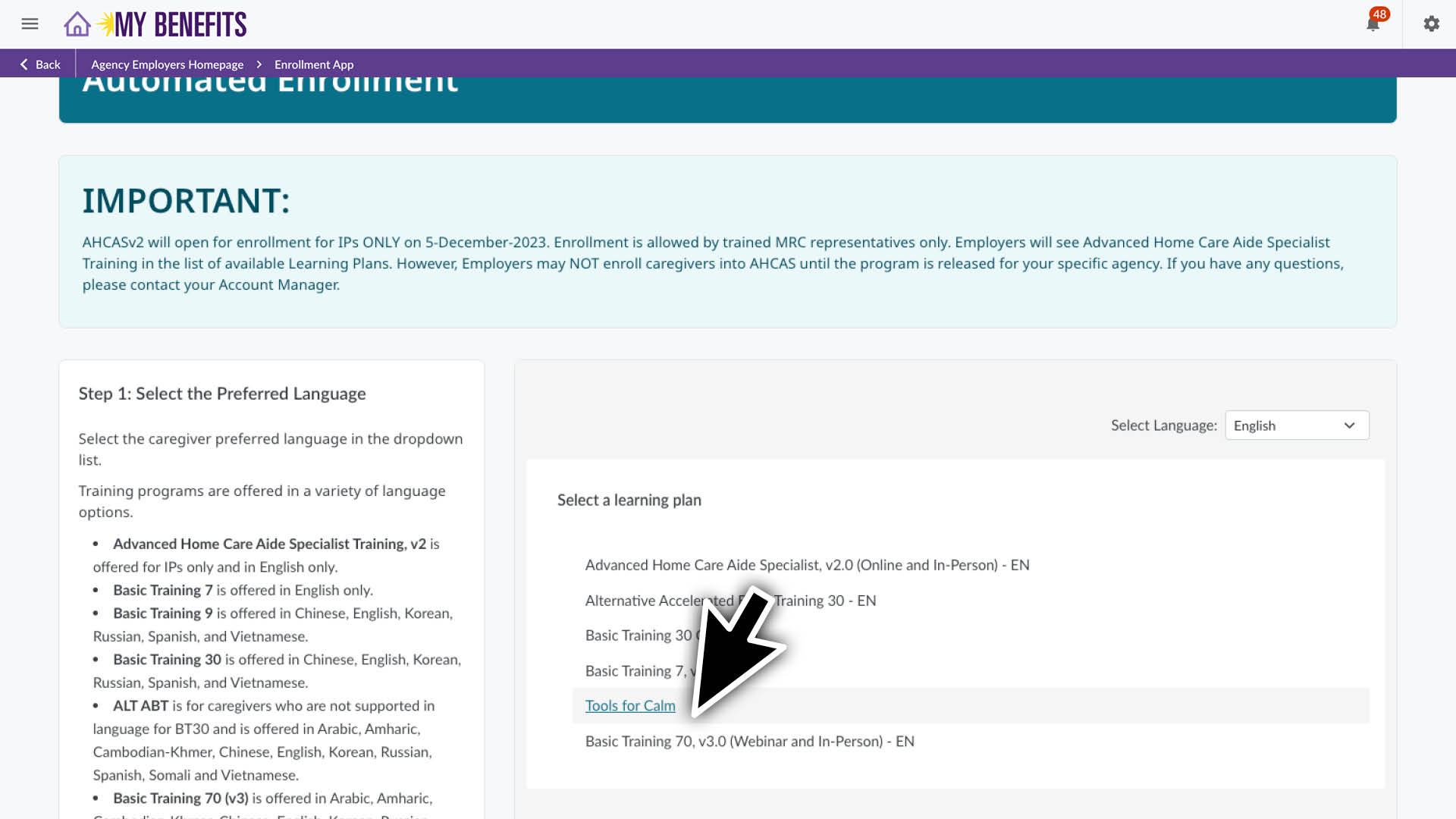
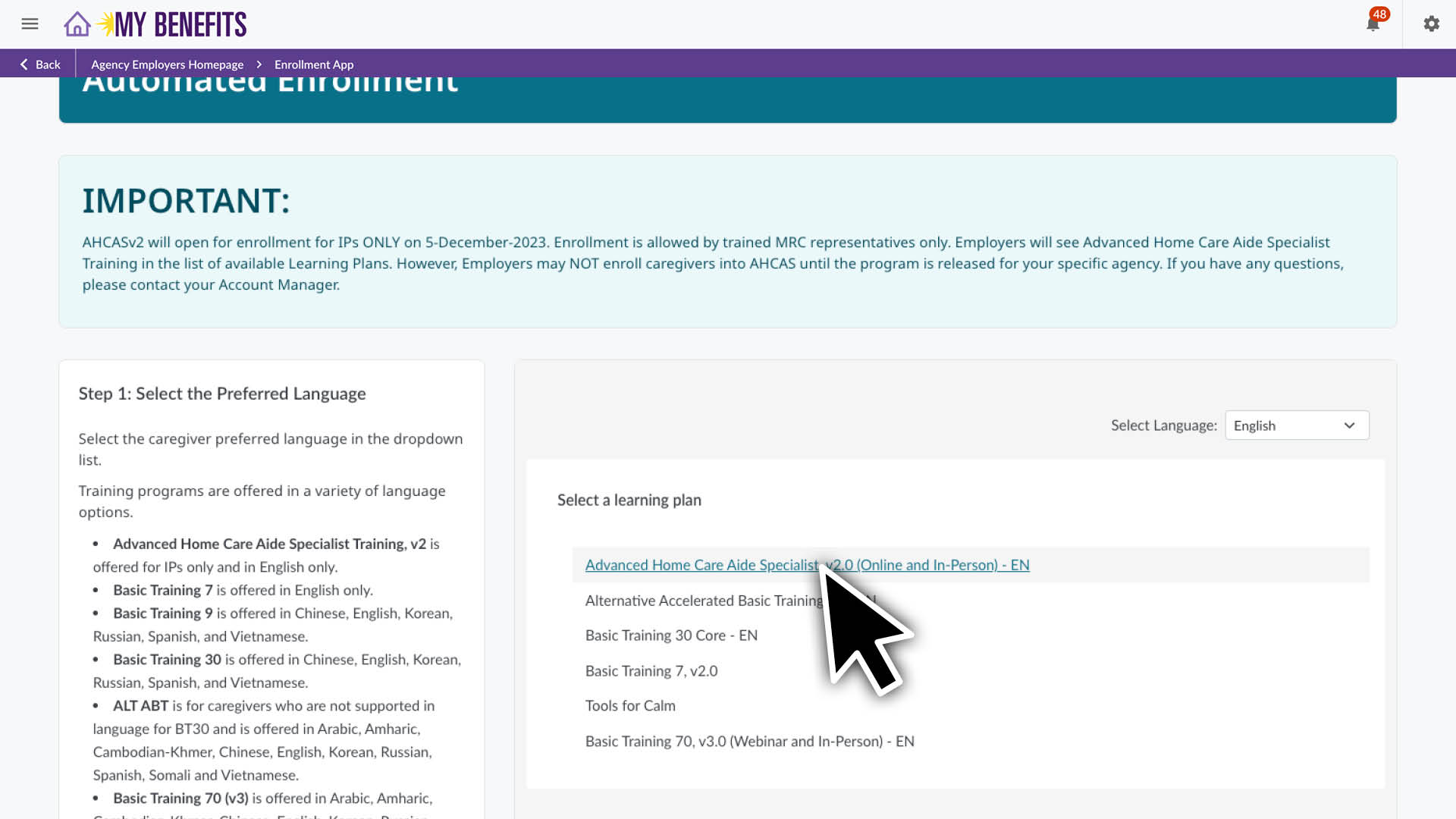
Select language and click the desired Learning Plan.
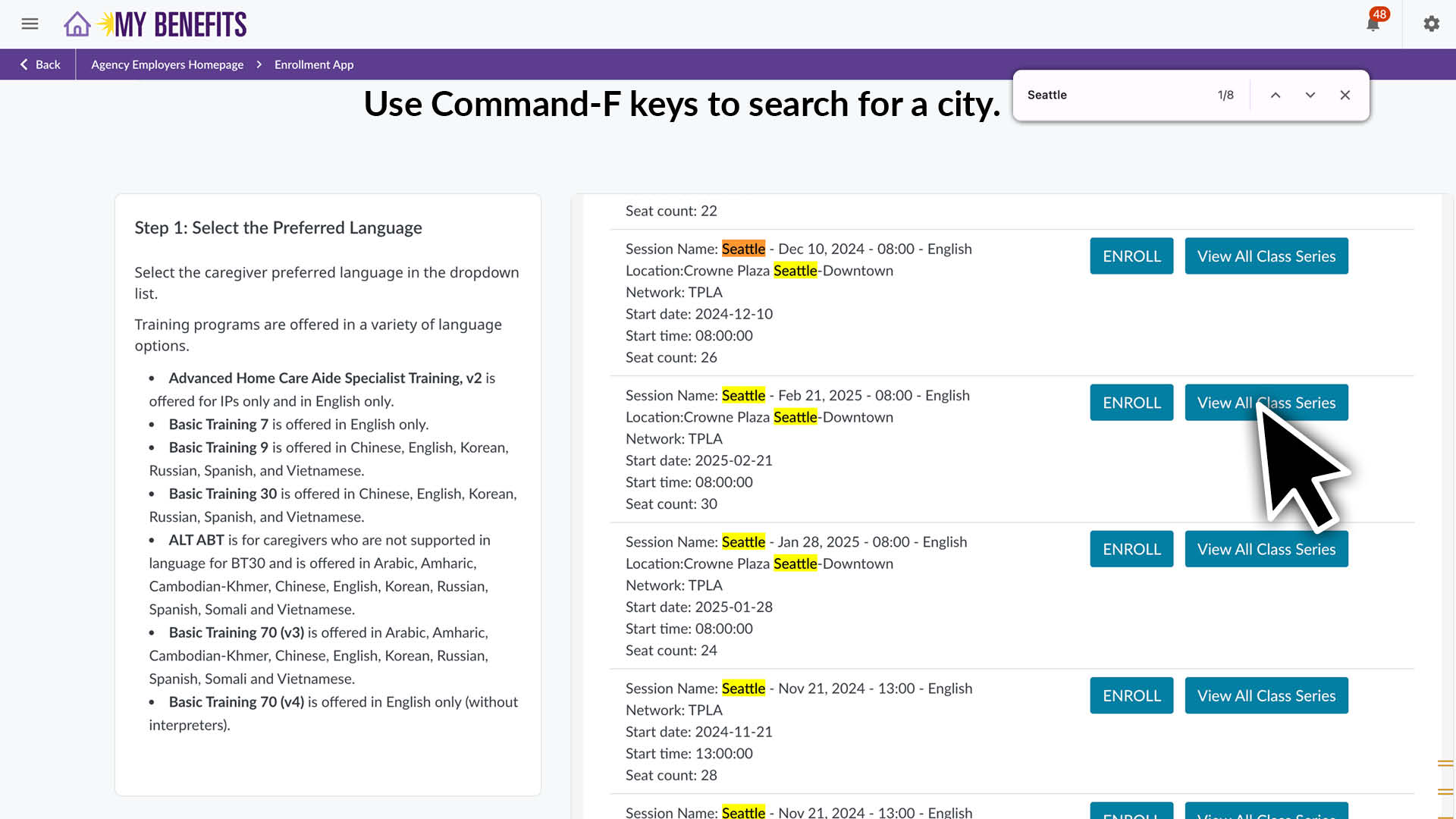
You will see a class list, sorted by location and start date. • Use the Select Location dropdown and the calendar inputs to filter results. • You can also use the CTRL-F keys to search for a city name. (Macs: use Command-F)
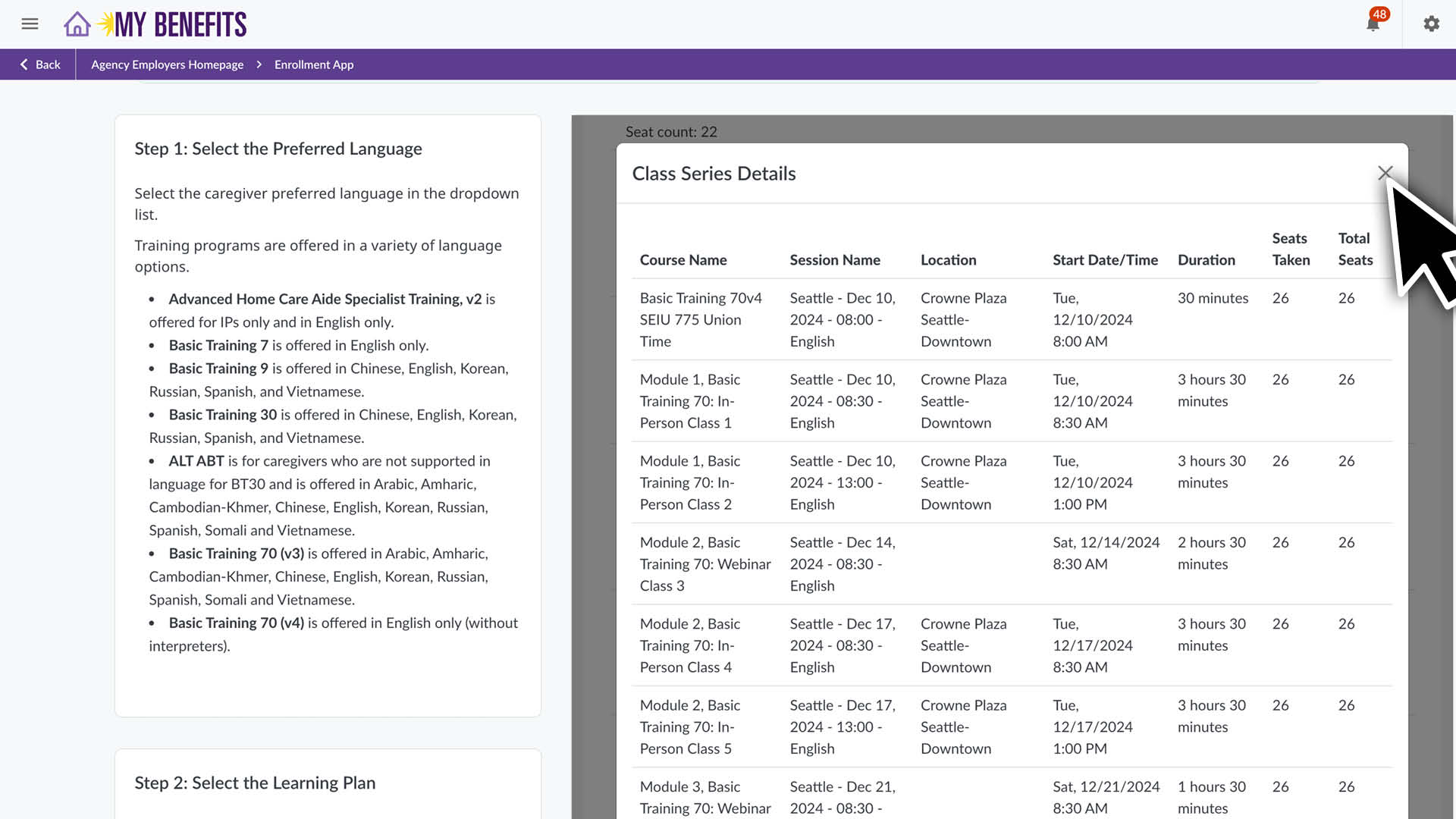
Click the View All Class Series button to see the full schedule. • Click X to close the window.
Click the ENROLL button on the desired class series.
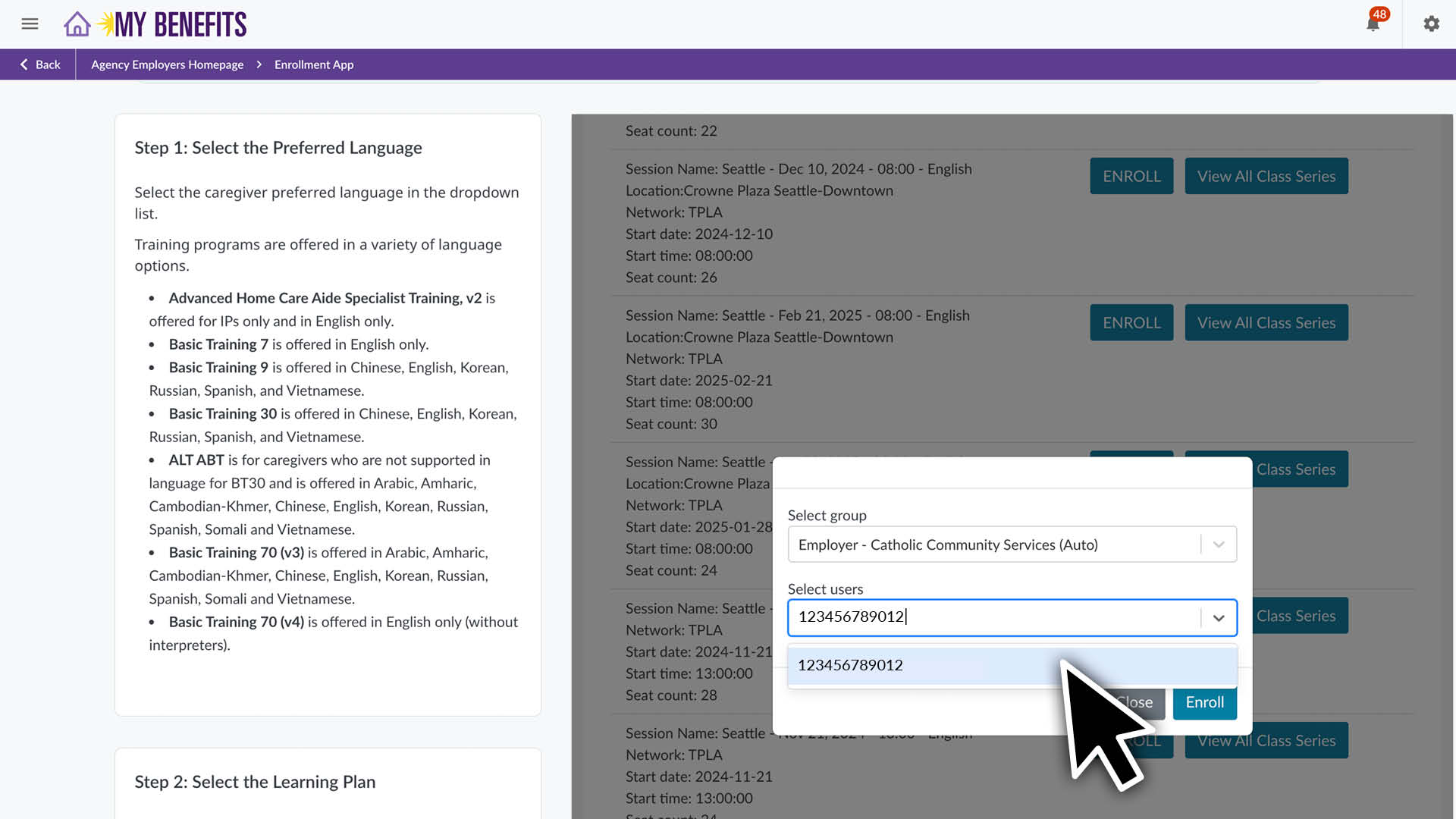
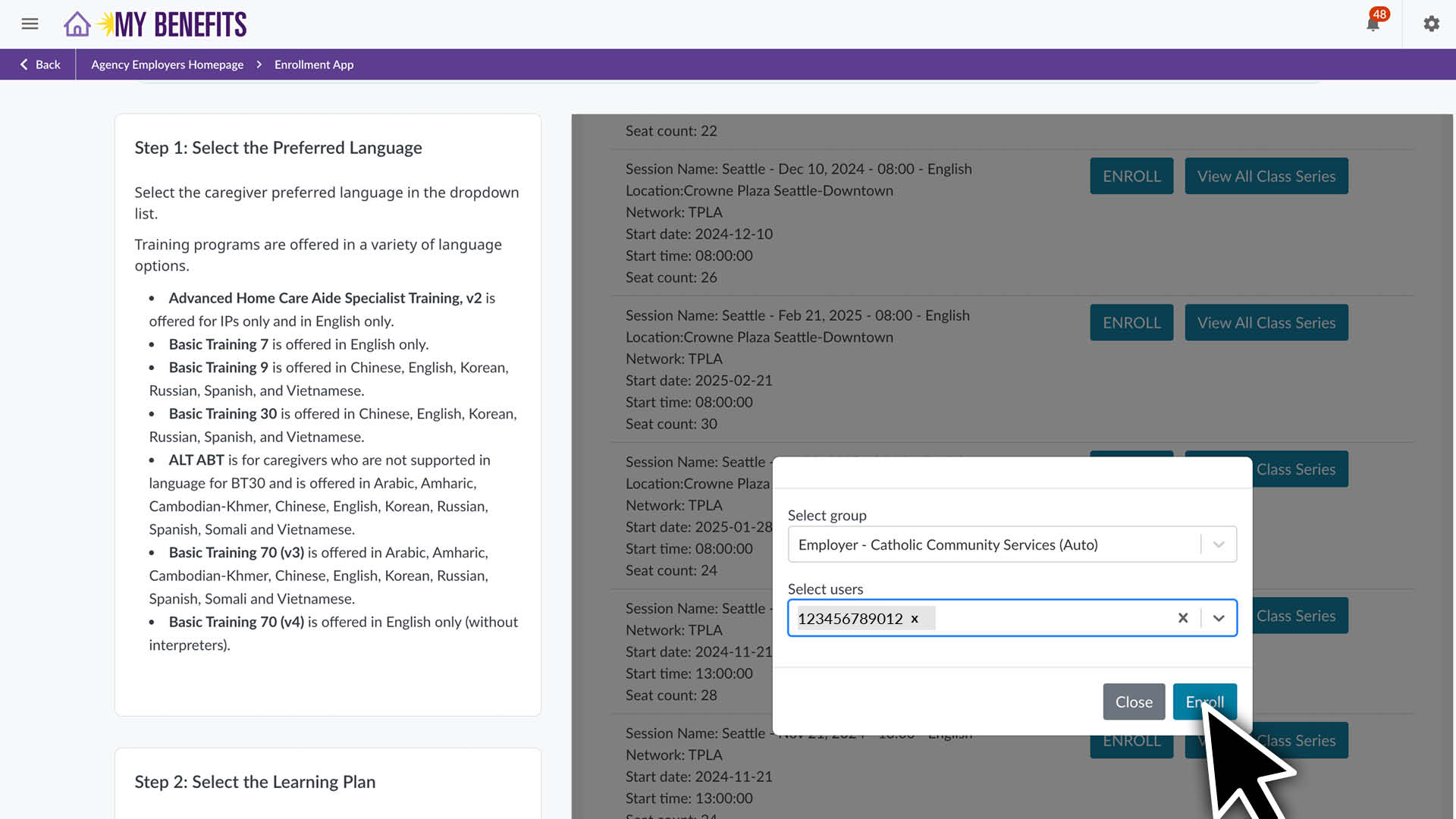
Select your group and user(s). • Paste the User ID into the select users field to search for a caregiver. • Click on the user in the dropdown.
Click the Enroll button.
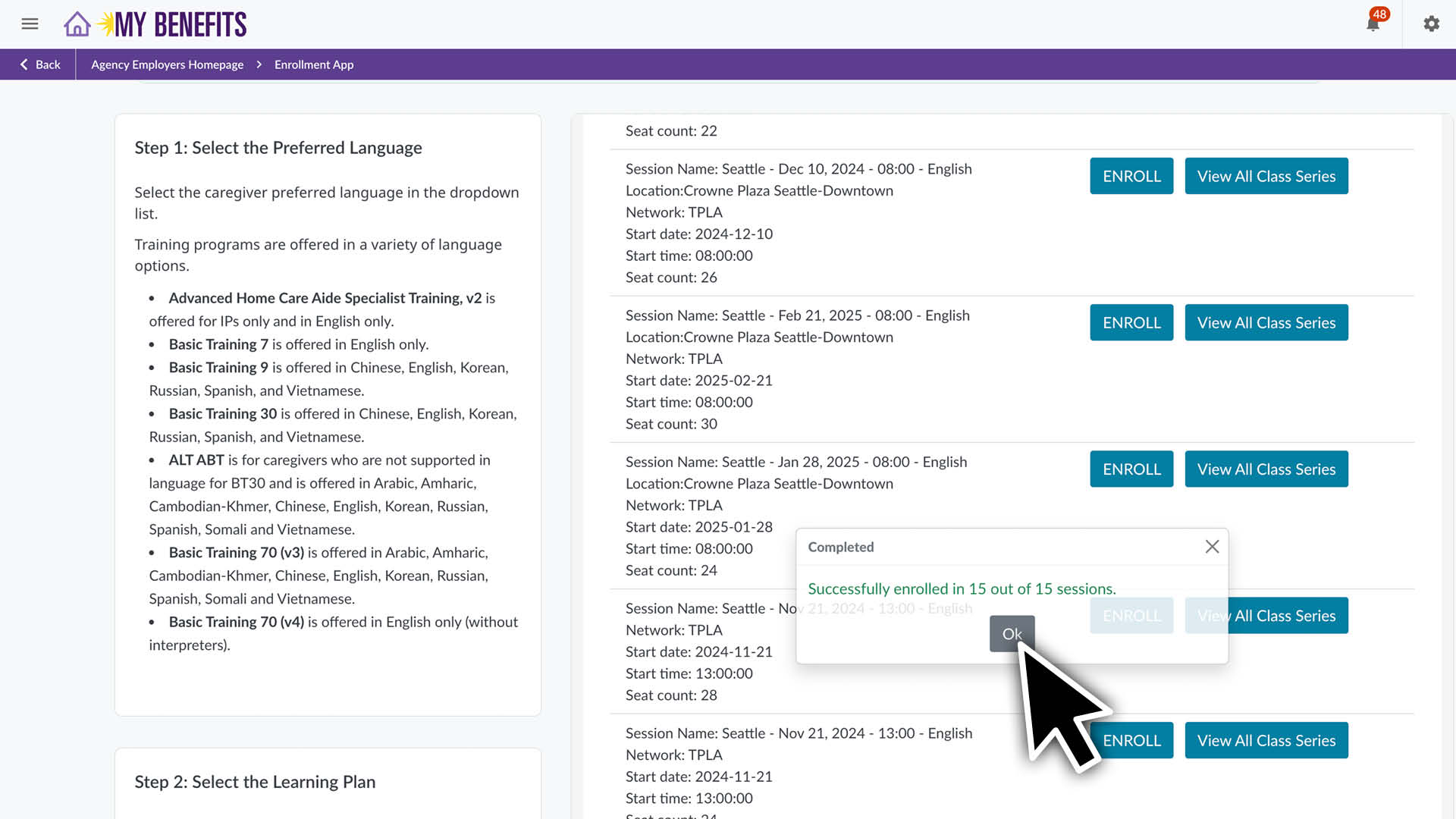
Click Ok.
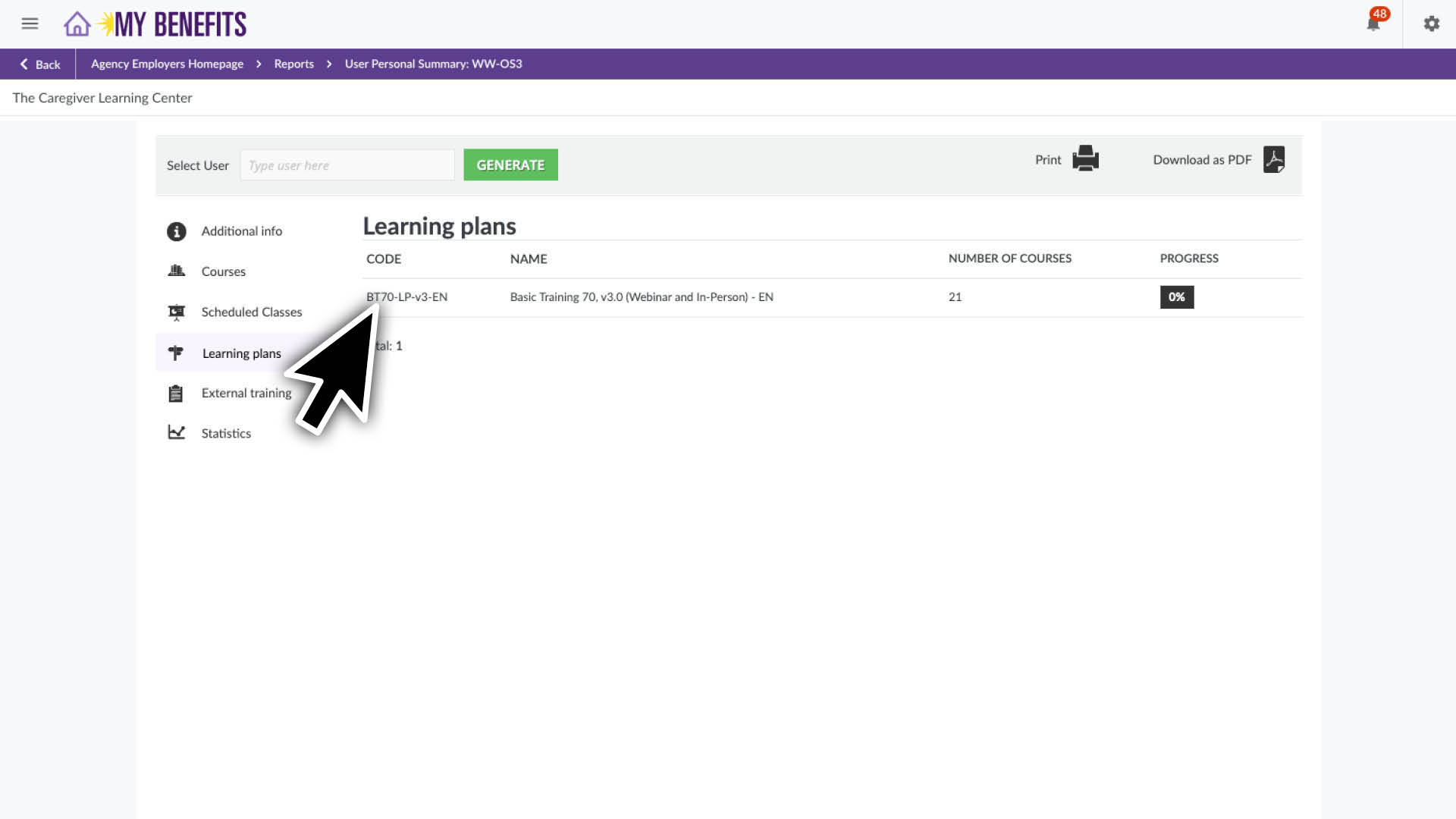
You can verify enrollment by viewing the caregiver’s personal summary. Learn how.
Unenroll Caregiver(s)
Go to the User Management page to look up the code for the Learning Plan the caregiver is enrolled in.
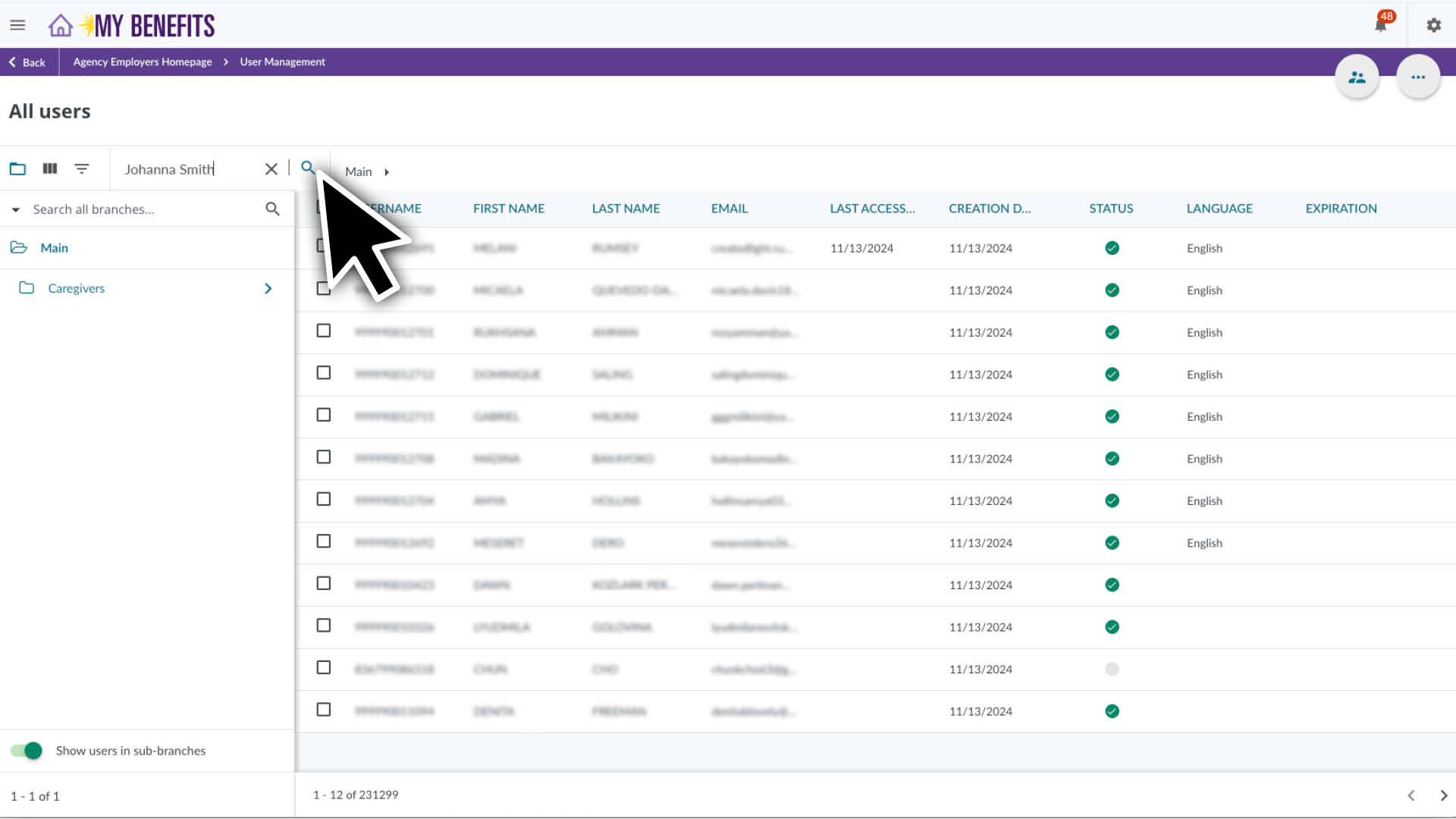
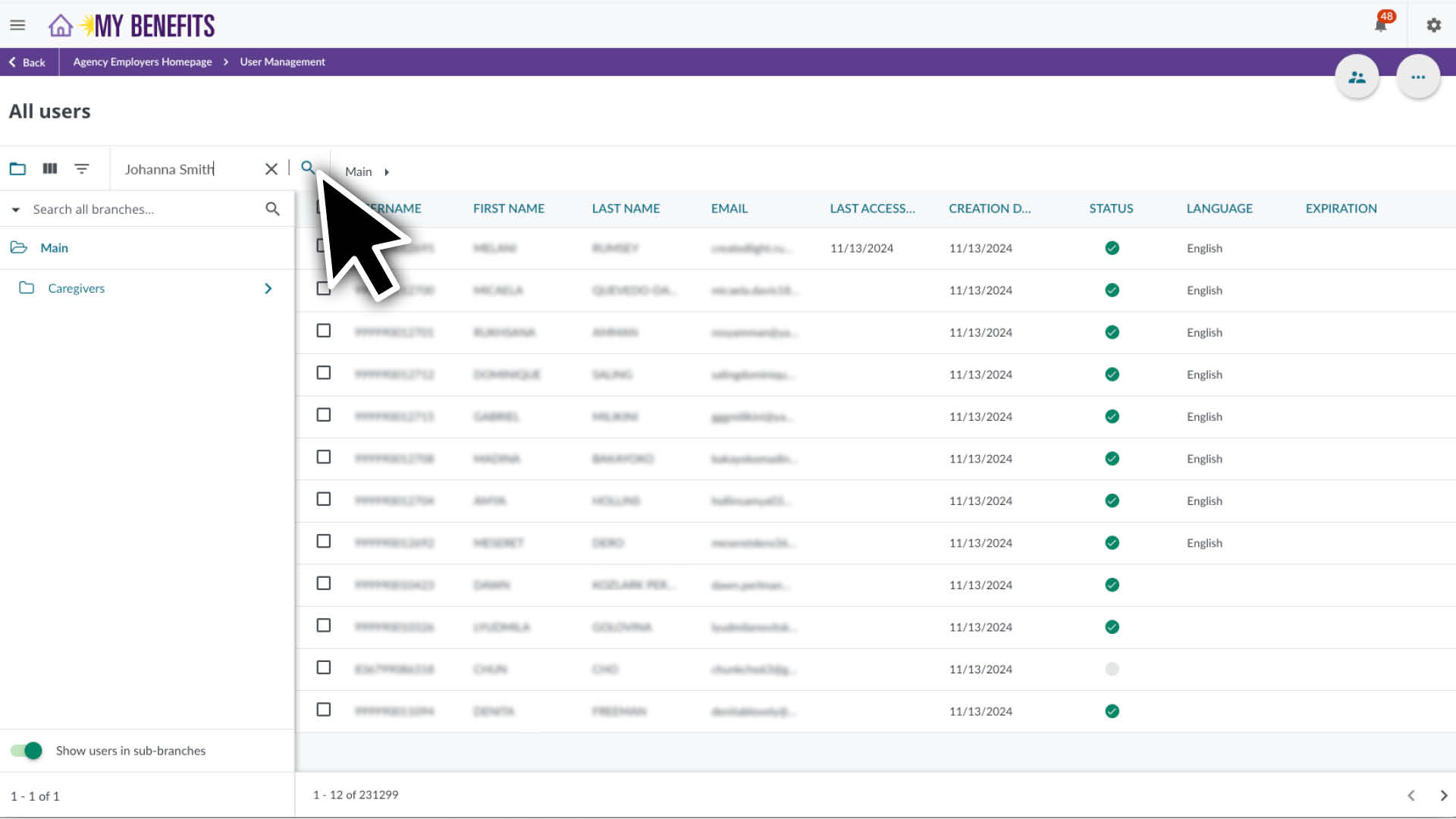
Enter the caregiver’s ID or name in the search bar and click the search icon.
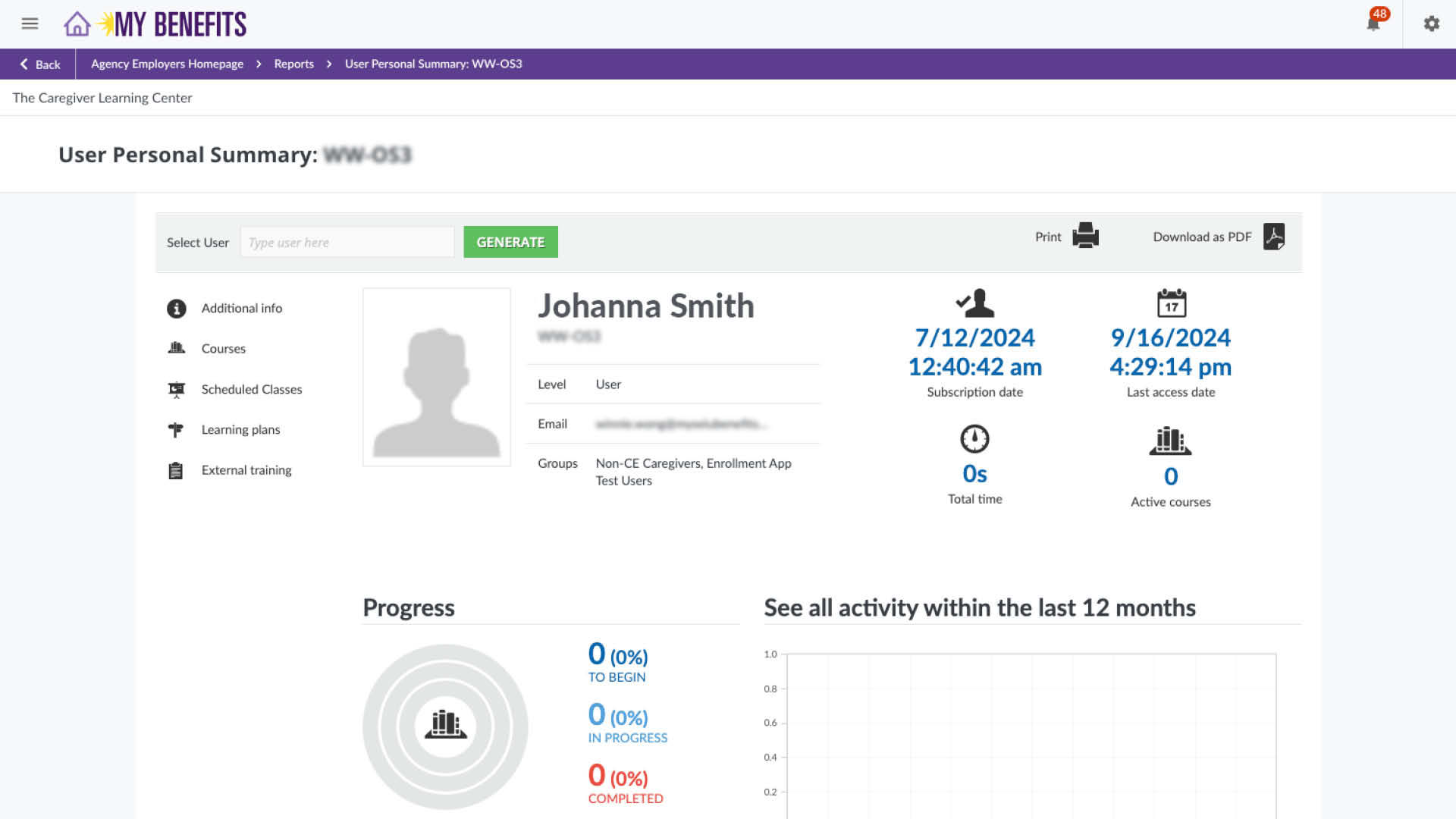
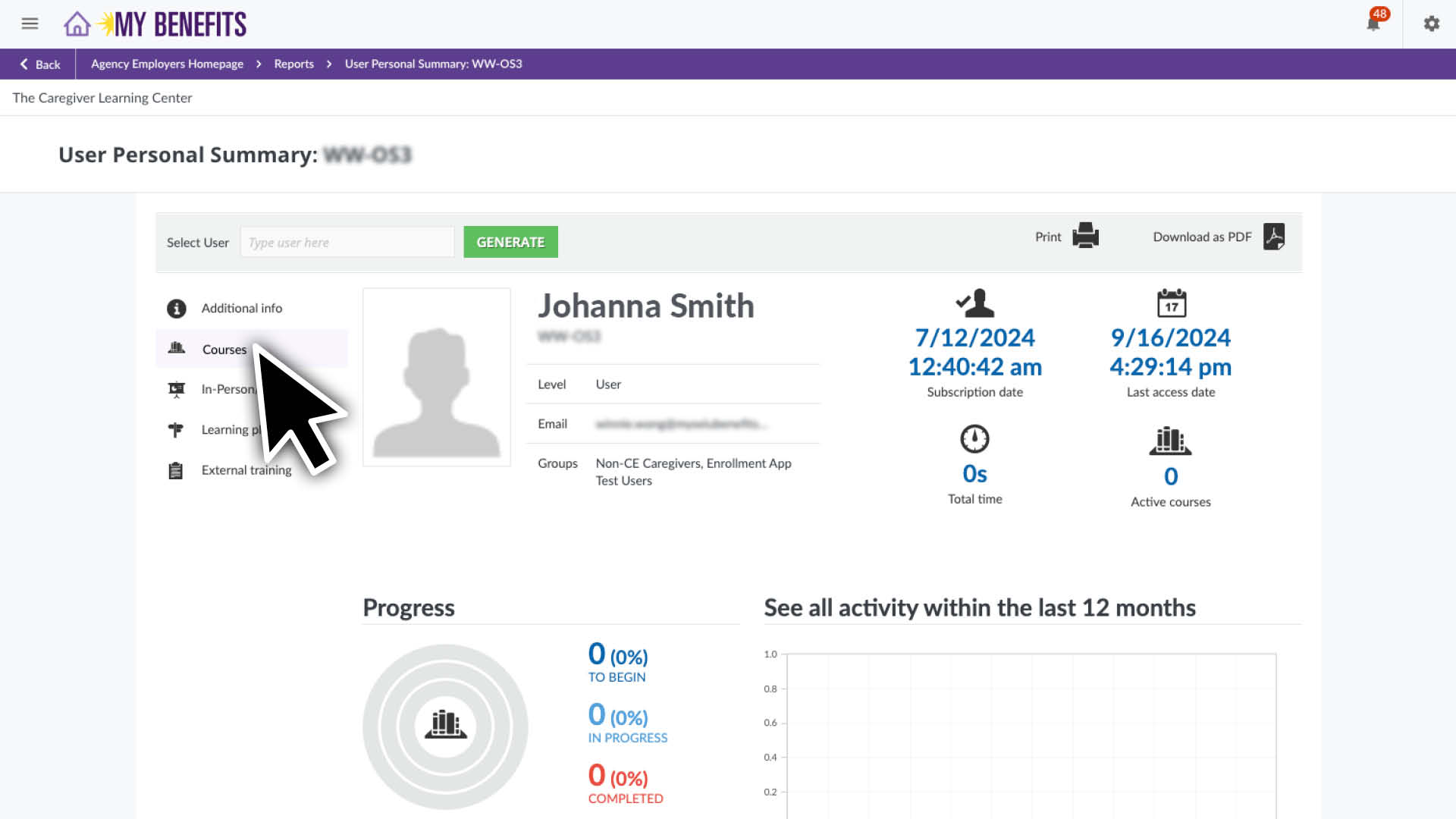
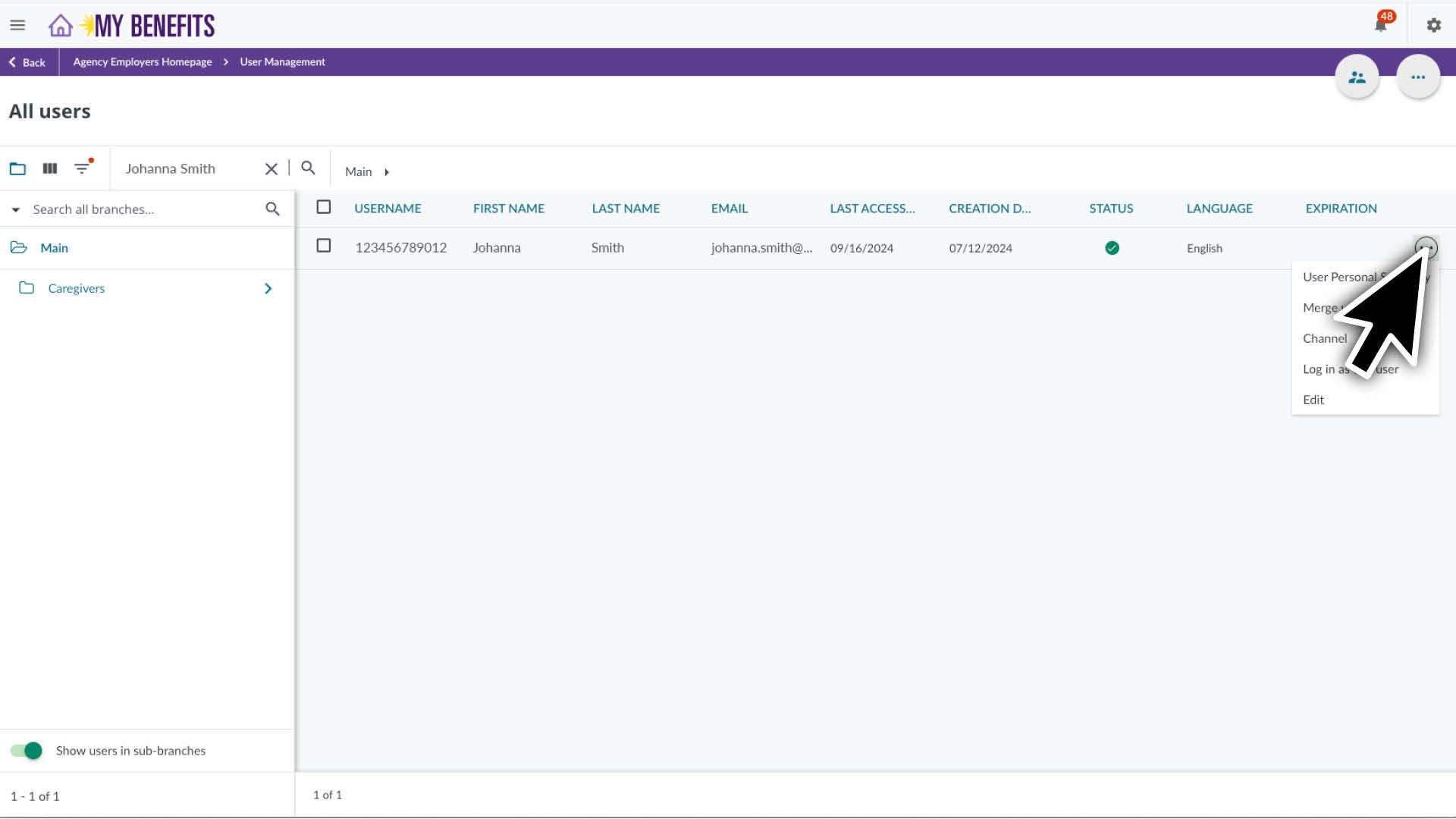
Hover over a caregiver row, click the 3 dots to reveal a pop up menu and click User Personal Summary.
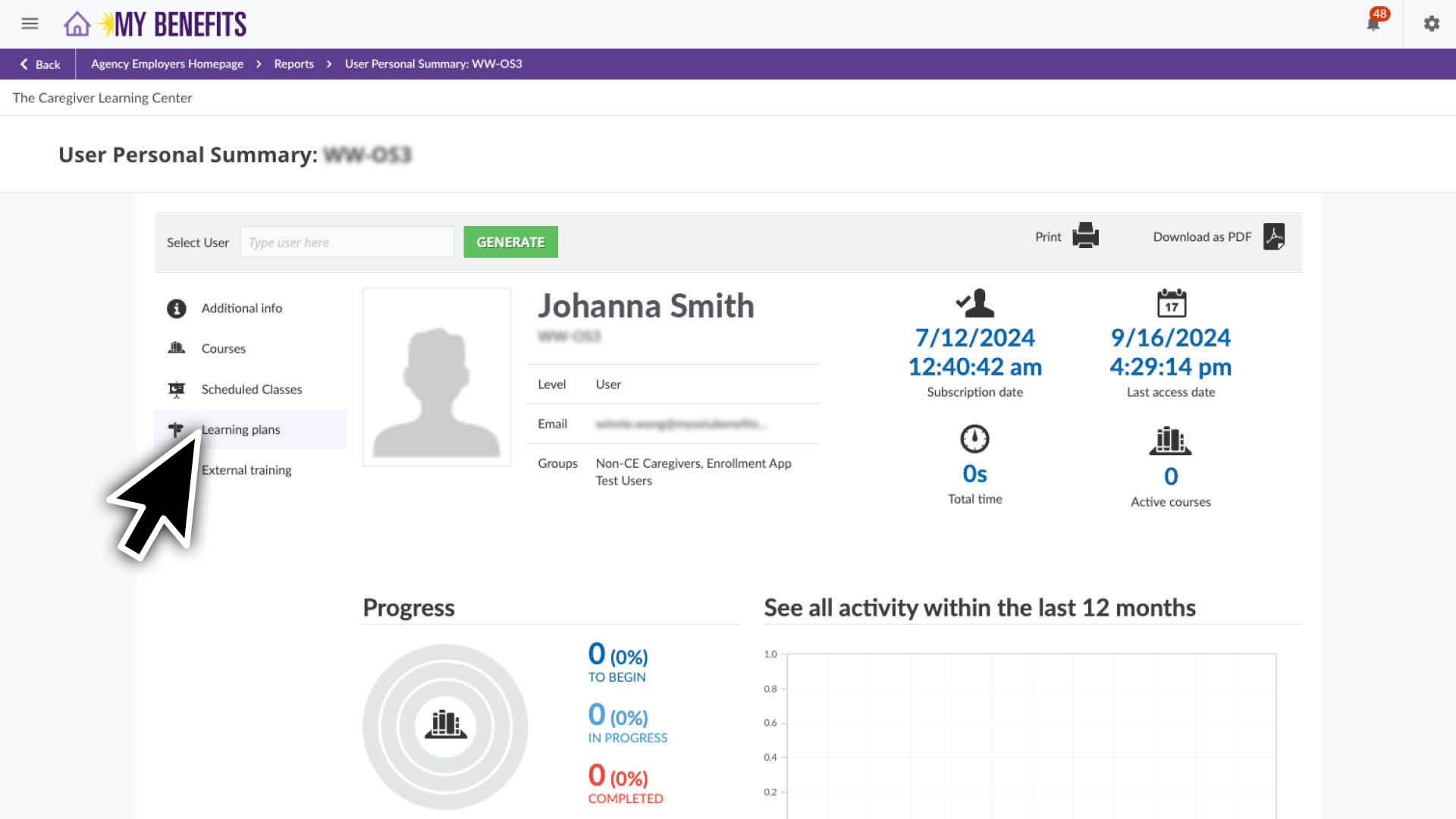
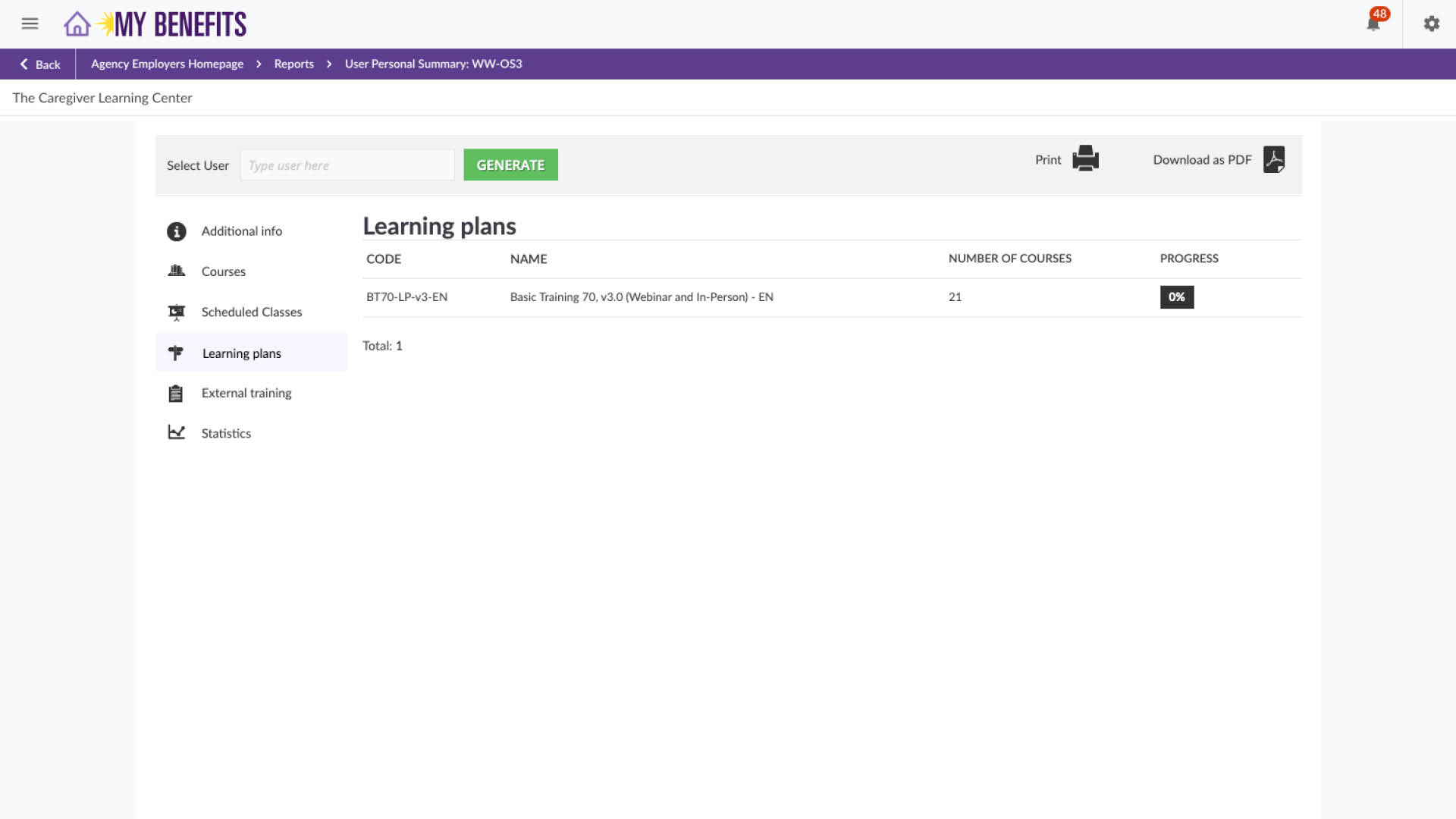
Click the Learning Plans tab on the left.
Copy the Learning Plan Code.
Open a new browser tab, prior to executing the next steps in case you need to return to the previous page to retrieve the Learning Plan Code.
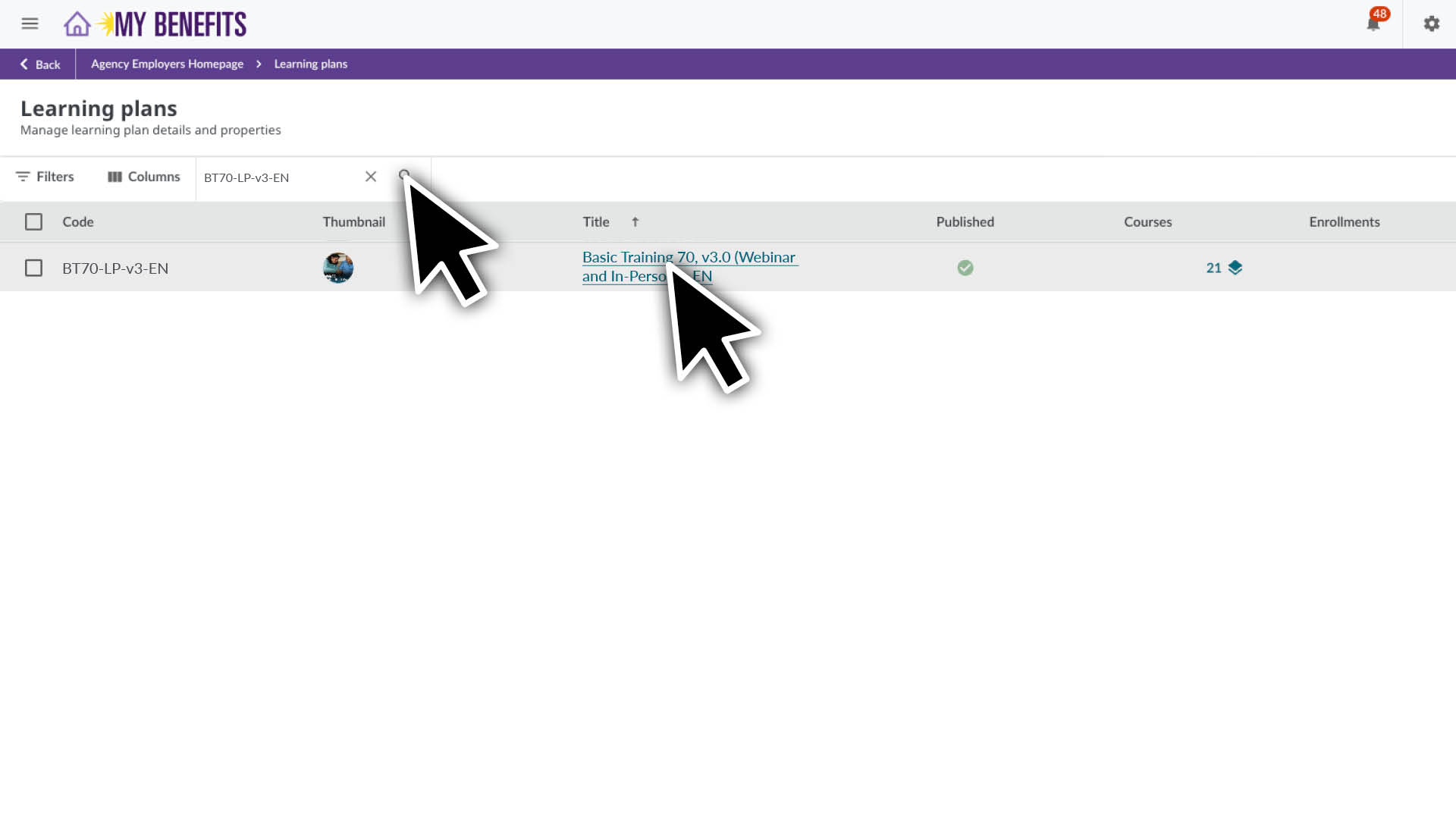
Paste the Learning Plan code into the search bar to filter your results, then click the Learning Plan link.
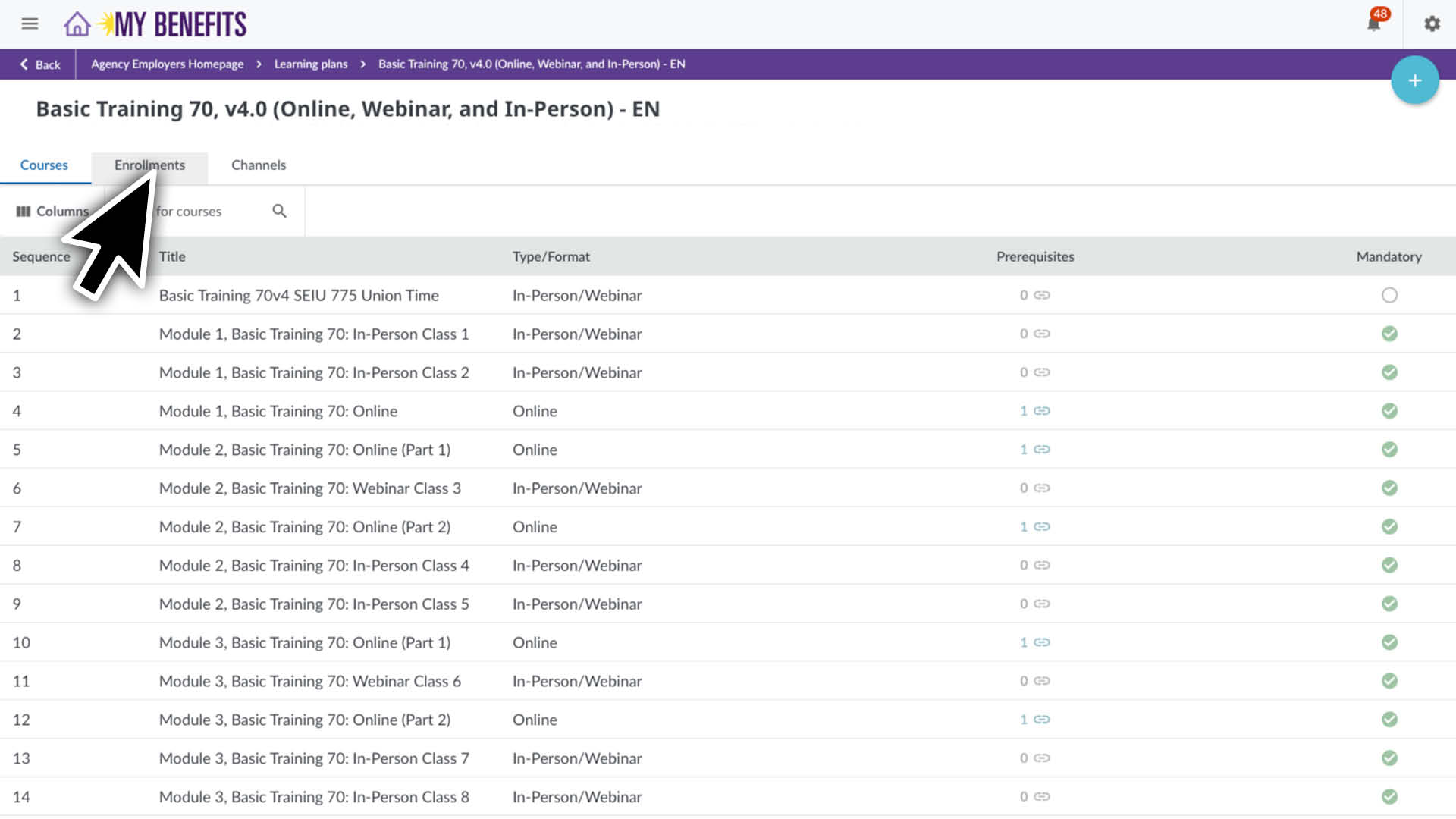
Click Enrollments tab at the top.
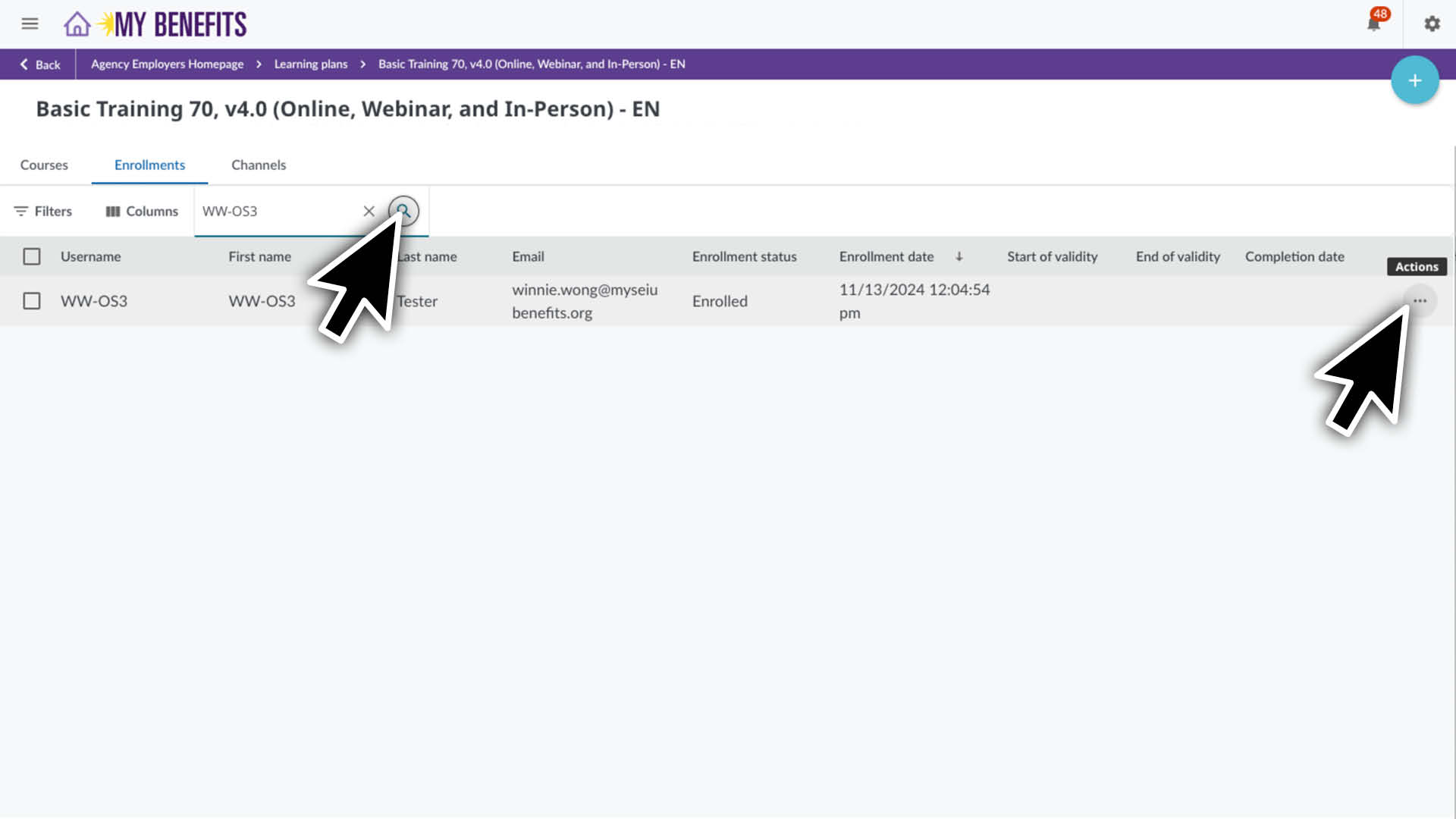
Enter the caregiver’s ID or name in the search bar and click the search icon. Hover over a caregiver, click the 3 dots on the far right.
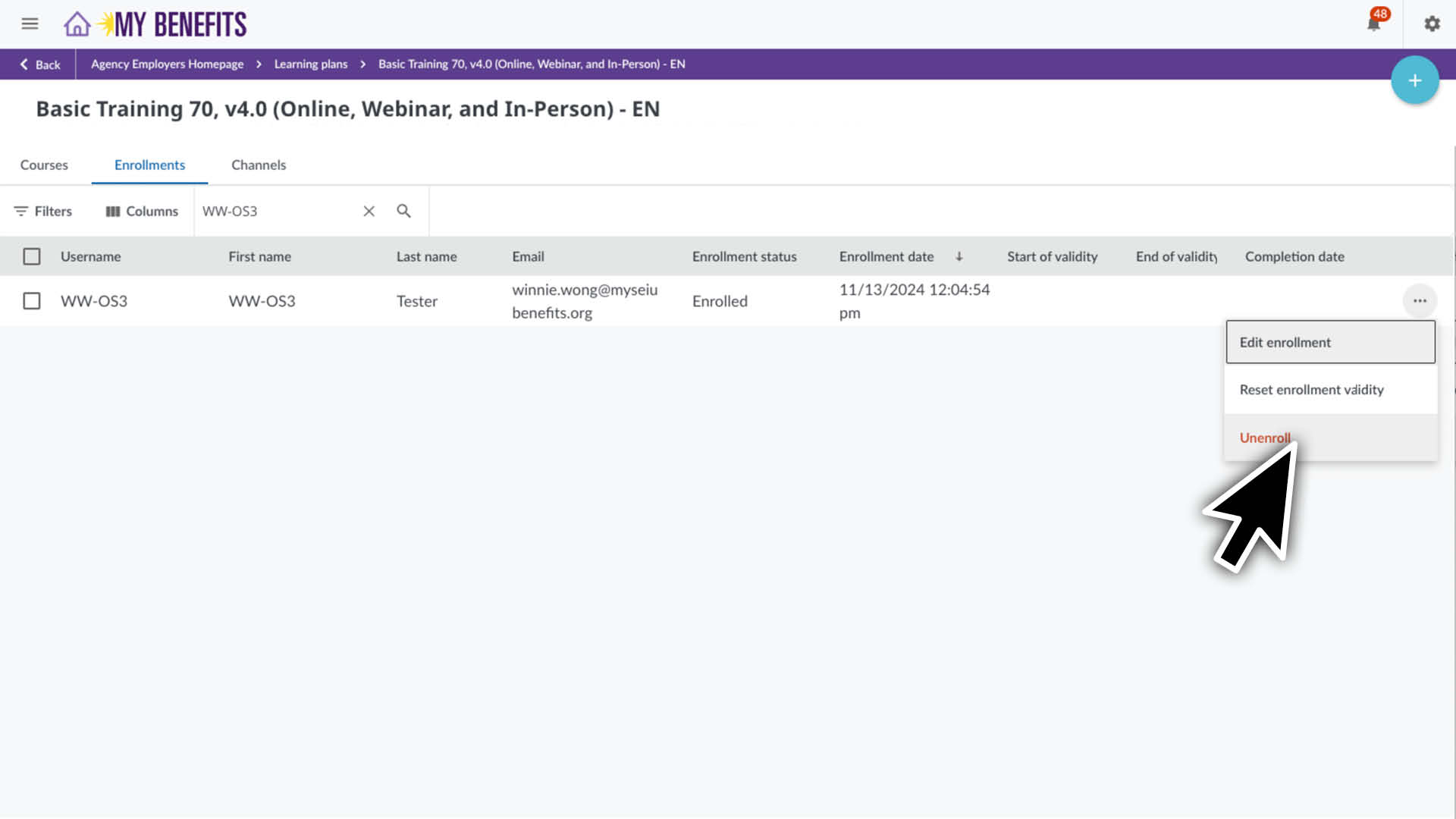
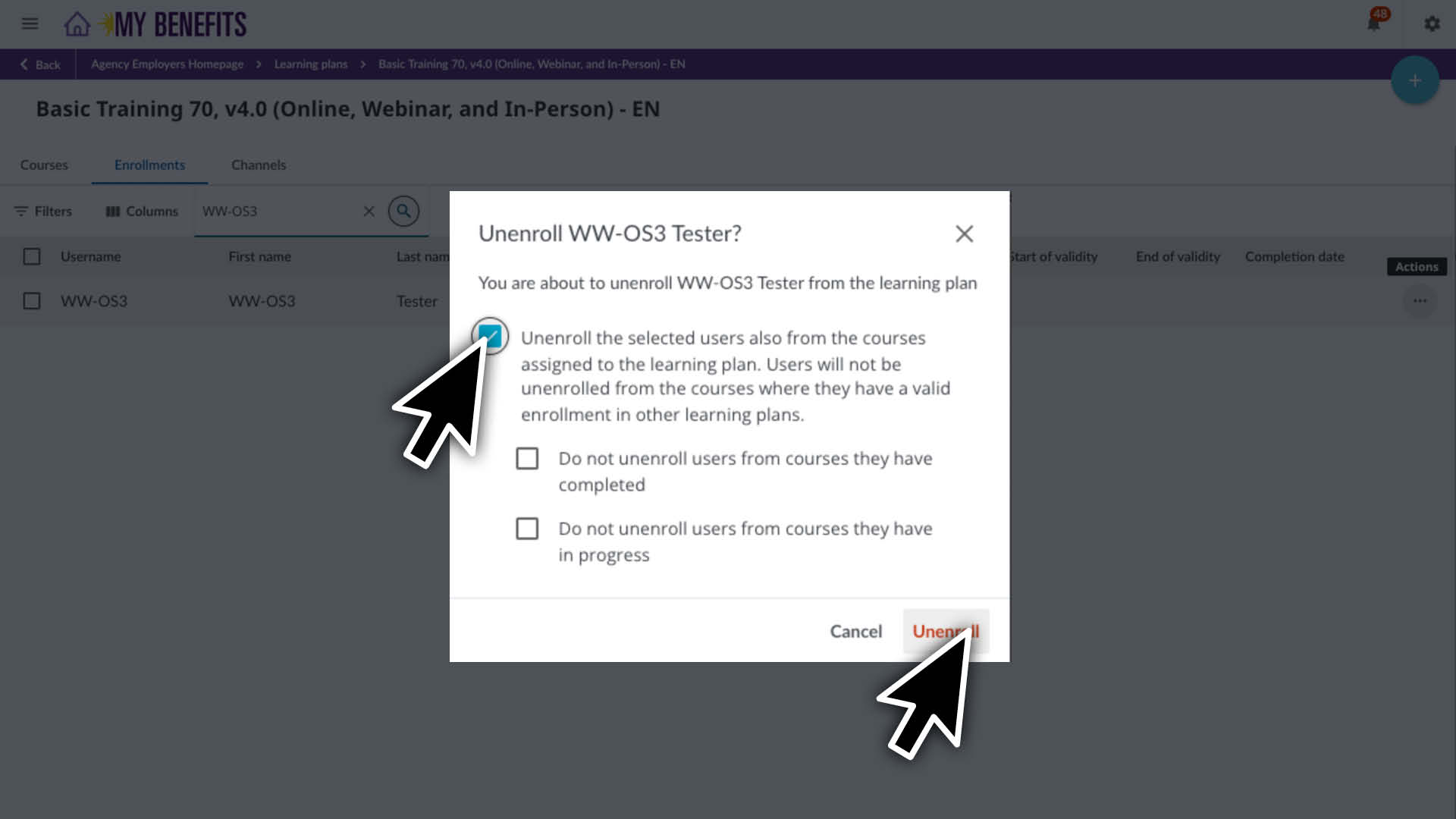
Click Unenroll.
Check the box to unenroll the user also from all courses and click the Unenroll button.
Switch BT70 Learning Plans
To switch BT70 Learning Plans you will need to unenroll the caregiver from the current one and then enroll them into the new one. Follow the instructions provided above.
BT70 Individual Courses
Individual courses are for caregivers who only need one or a few modules of BT70. Learn how to enroll or unenroll individual courses.
Continuing Education (CE) Courses
Learn how to enroll / unenroll caregivers into CE courses.
Enroll & Unenroll
You can enroll caregivers in new CE courses or in courses they’ve already completed.
Enroll Caregiver in New Course(s)
The Impersonate Method (below) is most efficient way to enroll and unenroll caregivers. The system will automatically show courses that best align with the caregiver’s remaining required hours.
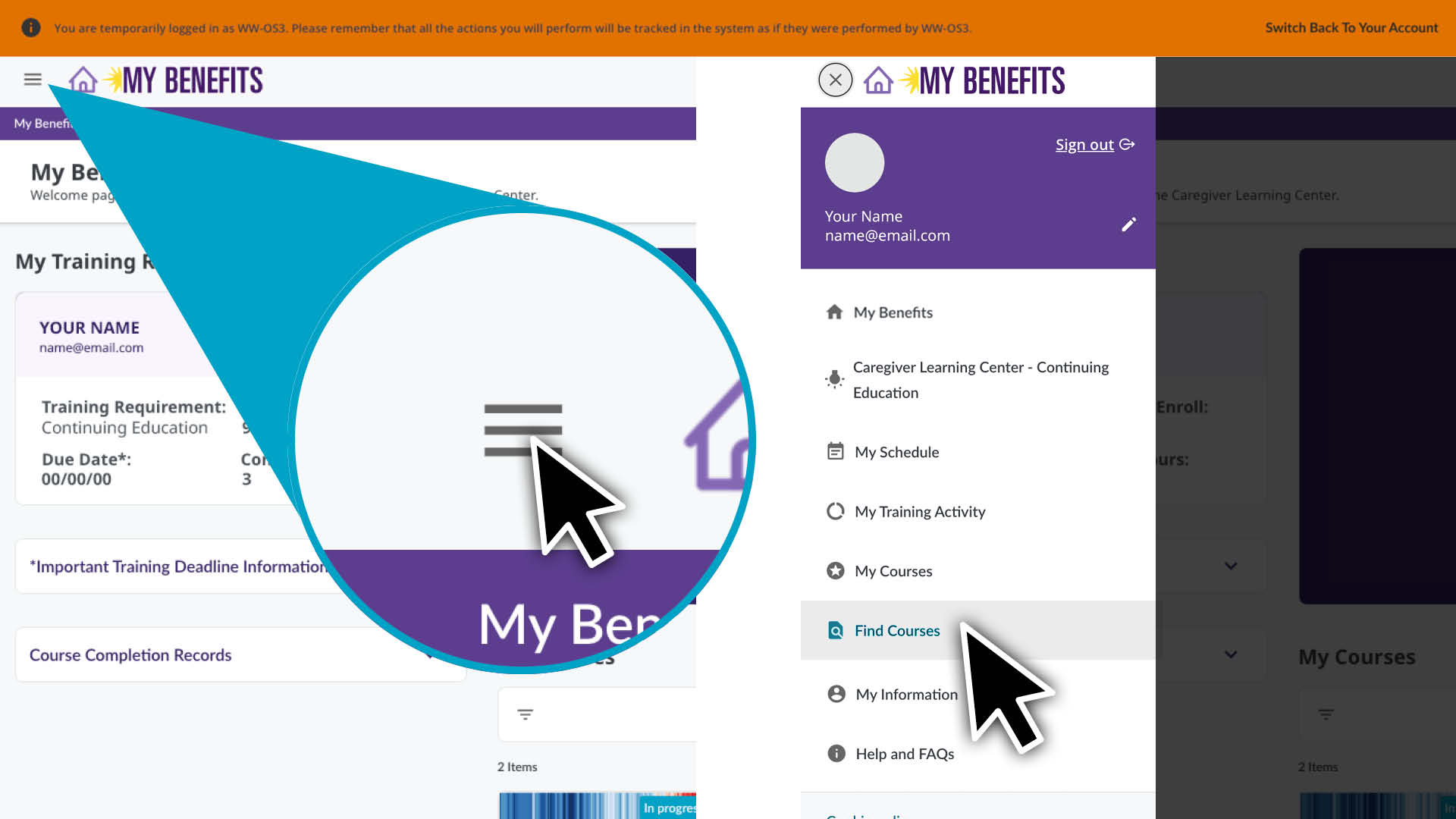
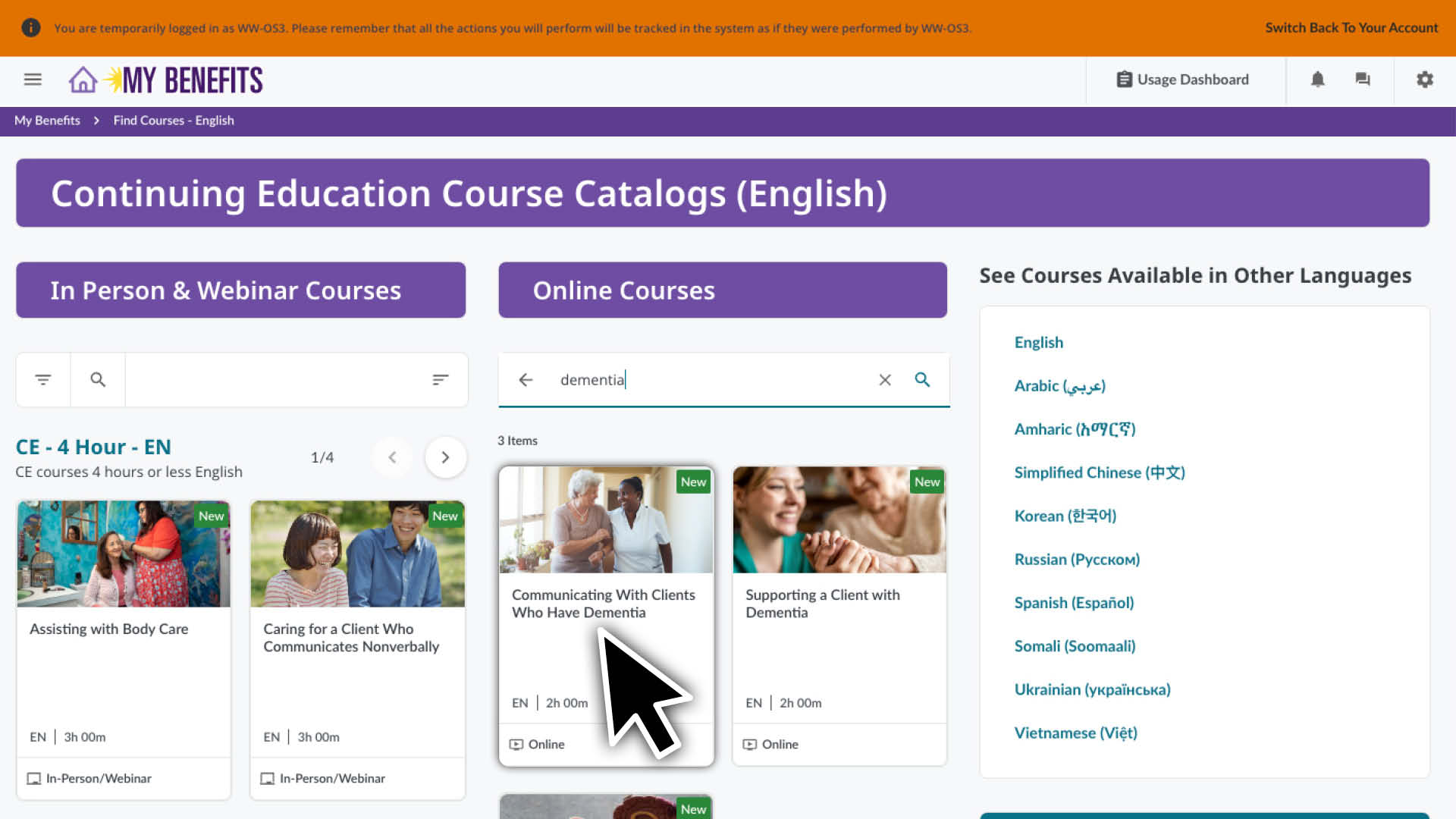
Click the menu icon and select the Find Courses Page.
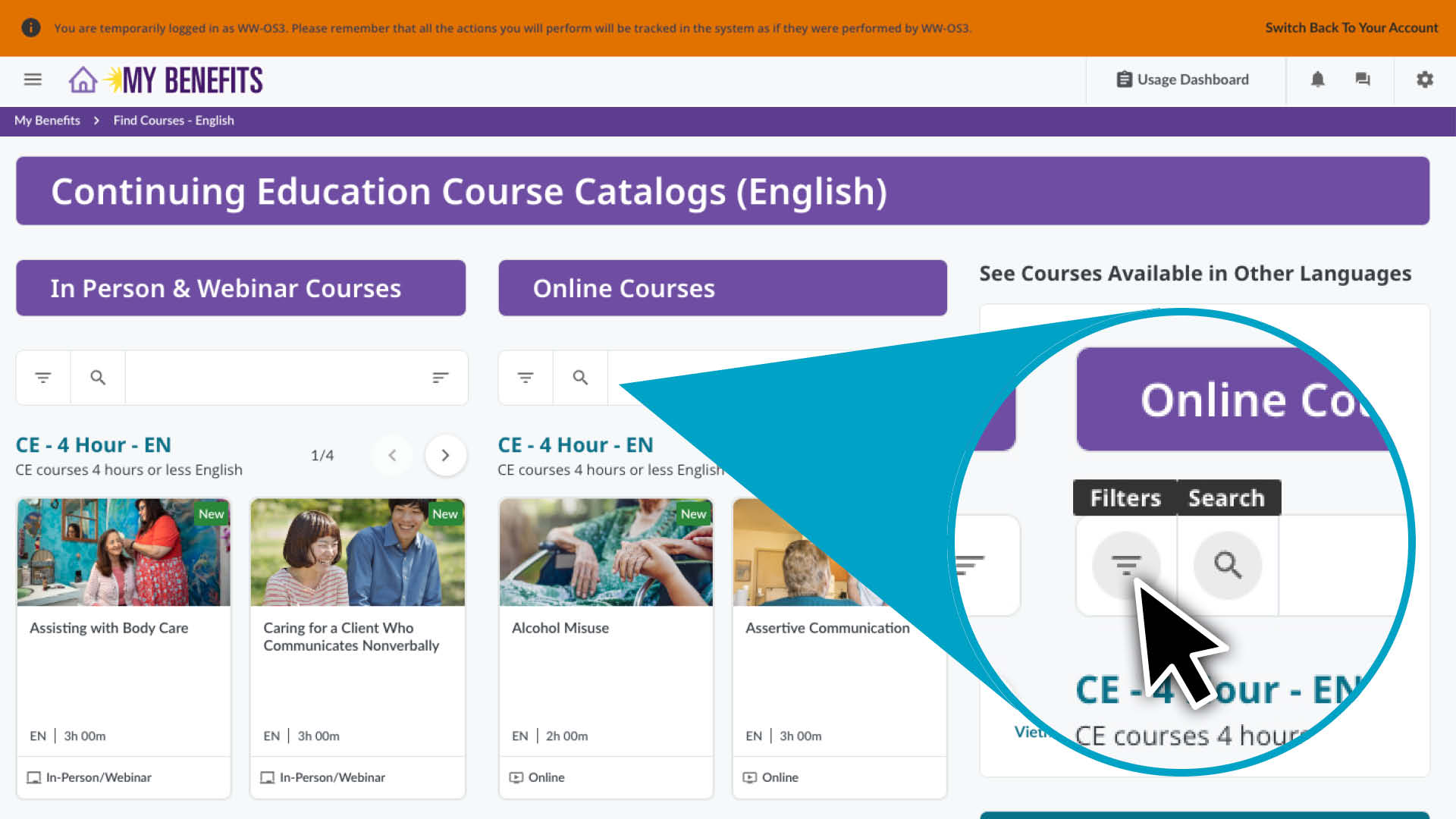
Choose between Online or In Person & Webinar Courses.
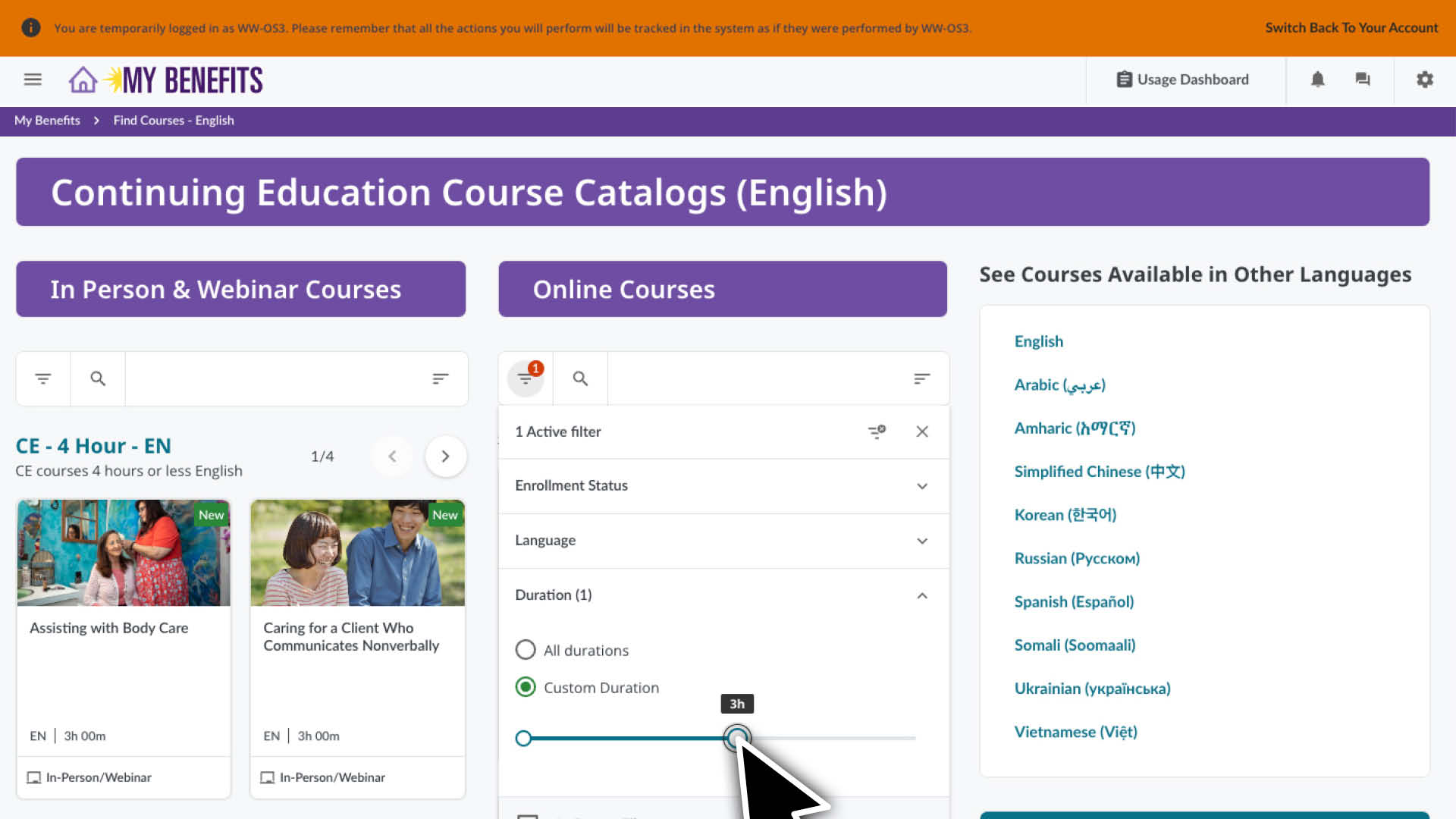
Use the filter to select another language or search to find relevant topics.
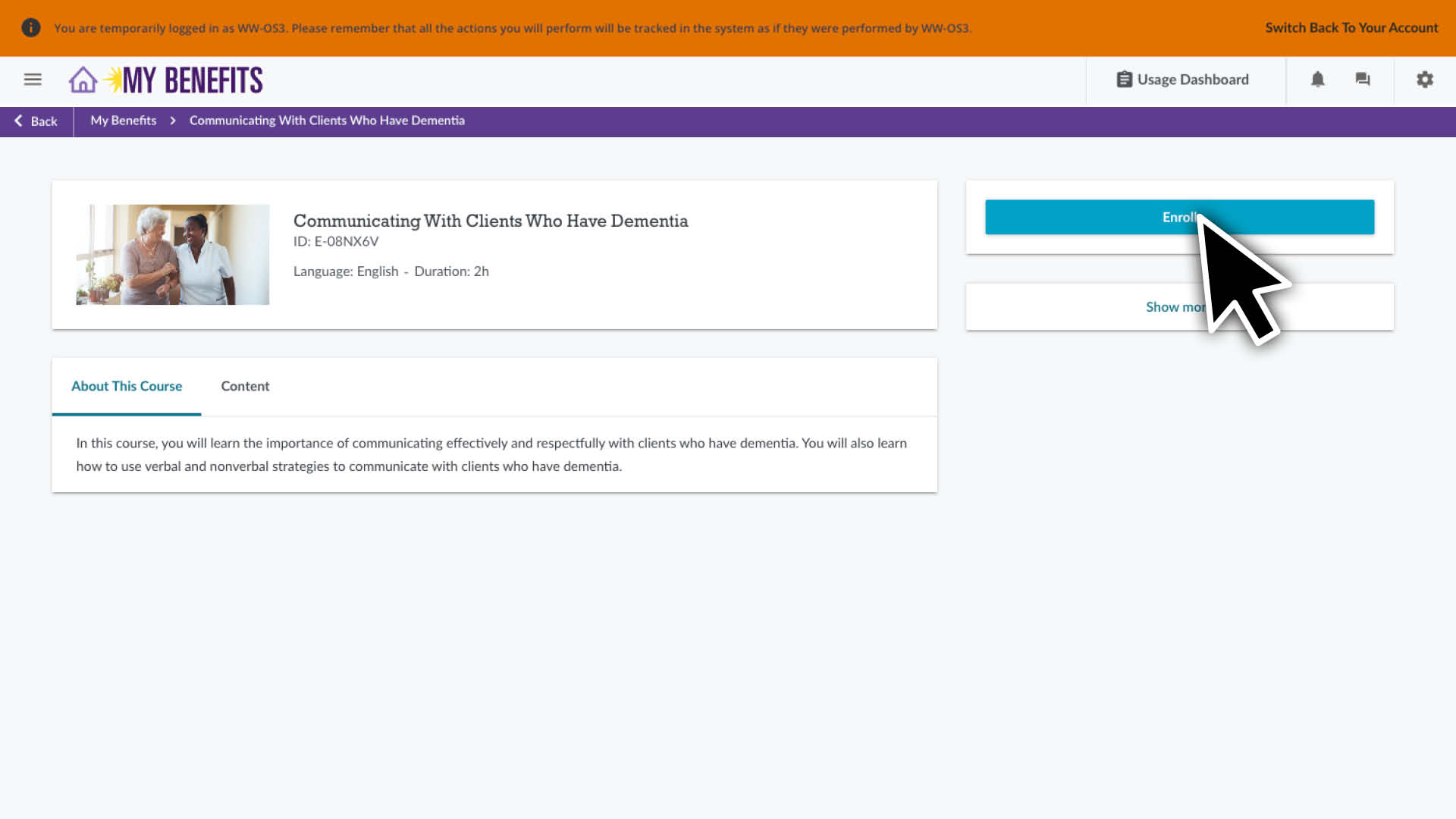
Click on a course to see the course detail page.
Click the Enroll button to enroll in the course. • You will be prompted to select a session for In-person and Webinar courses.
Click Switch Back To Your Account in the orange banner at the top of the page to exit.
Enroll Caregiver in Previously Completed Course(s)
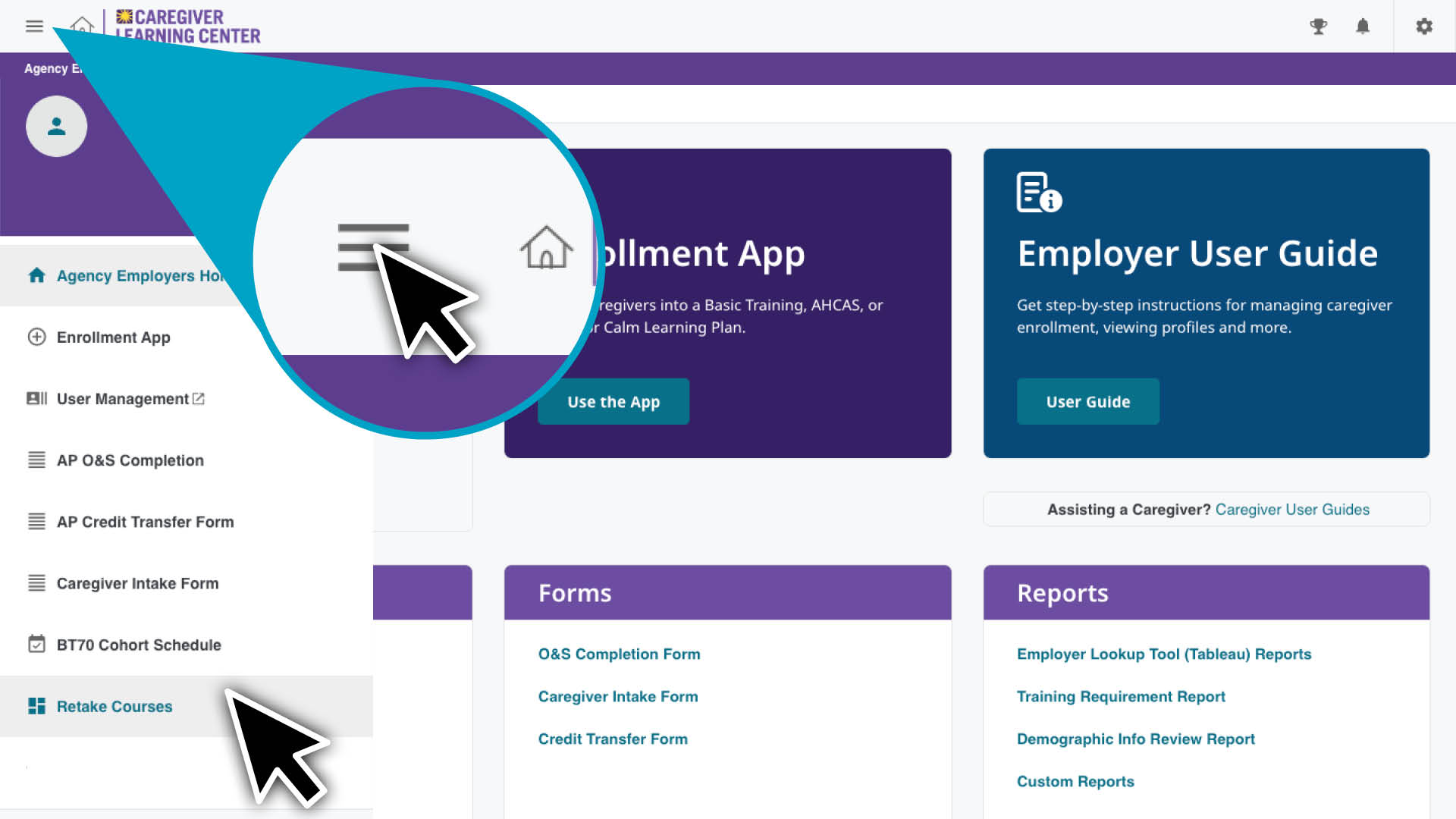
Caregivers can retake courses from past compliance years or in another language the same year. They can not retake courses completed in the past 90 days (they will not appear).
Go to the Retake Courses Page: Open the navigation menu in the upper-left corner and select the page from the drop-down.
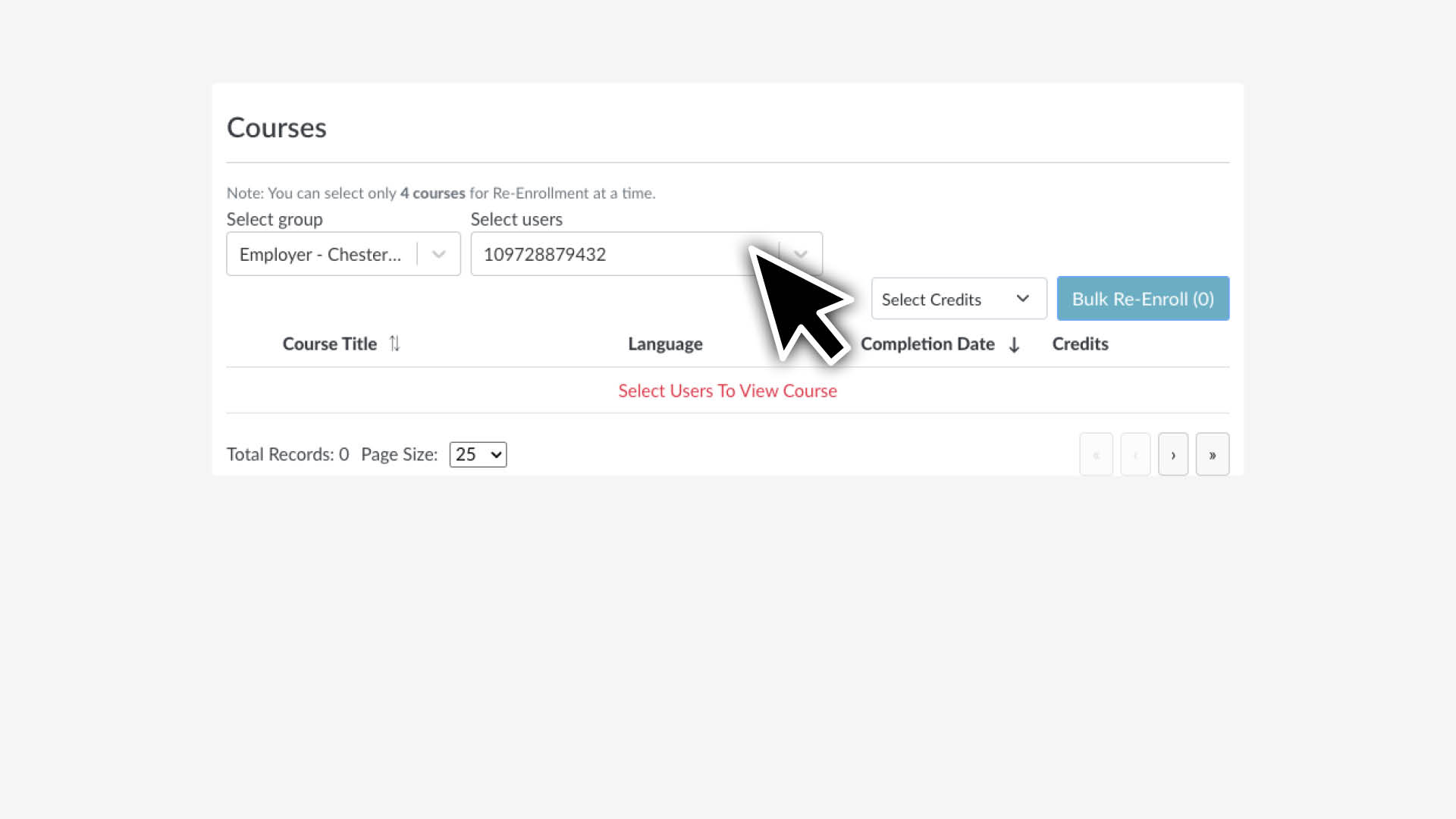
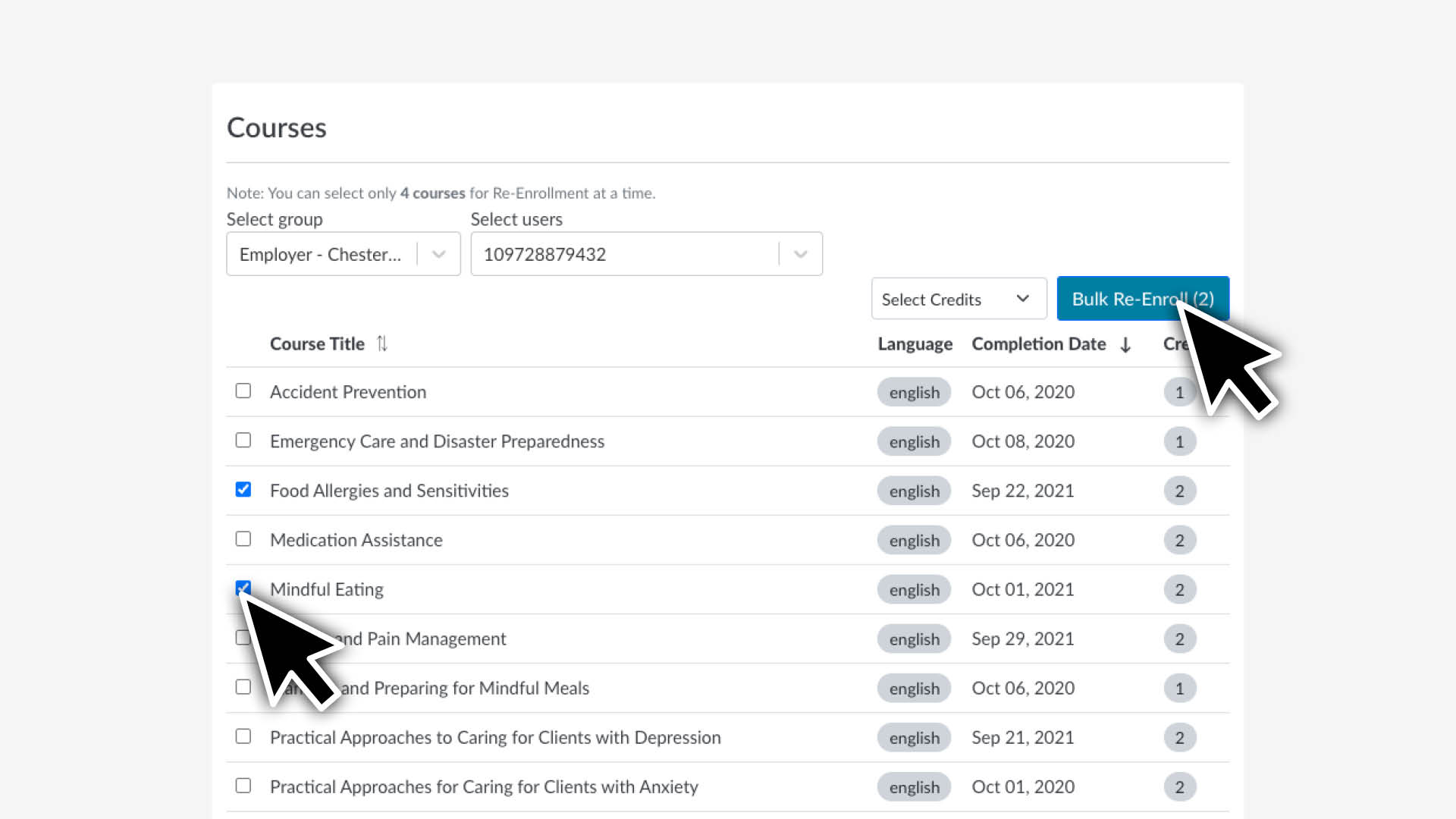
Select a Caregiver: Enter the caregiver’s User ID in the Select Users field, then choose their ID from the drop-down.
Review & Select Courses: A list of eligible courses will appear. Check the box next to each course you want to enroll the caregiver in, then select Bulk Re-enroll.
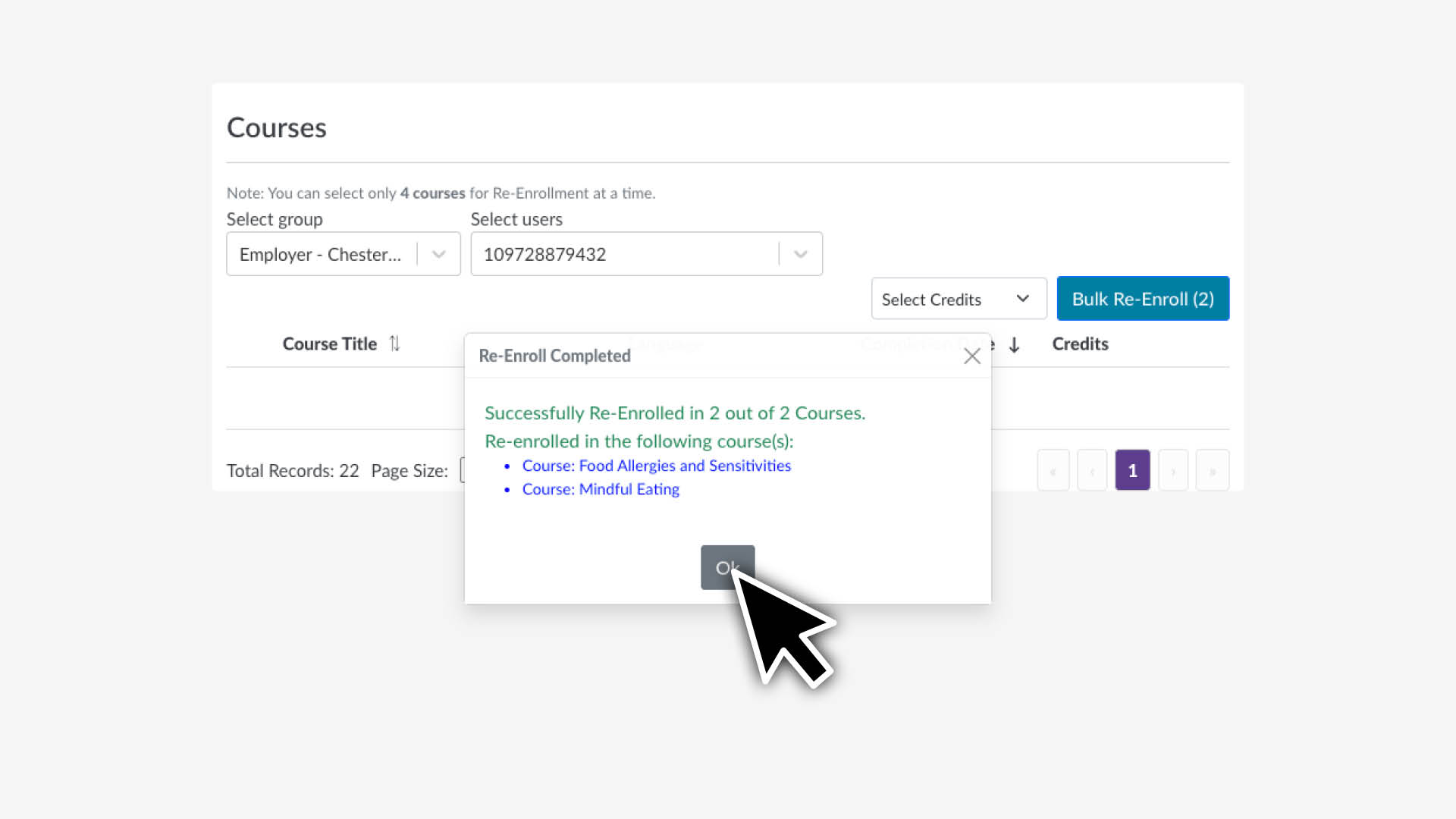
Confirm Selection: Review the confirmation showing the selected course(s), then select OK to complete enrollment.
If you wish to enroll in more than 4 courses, repeat these steps.
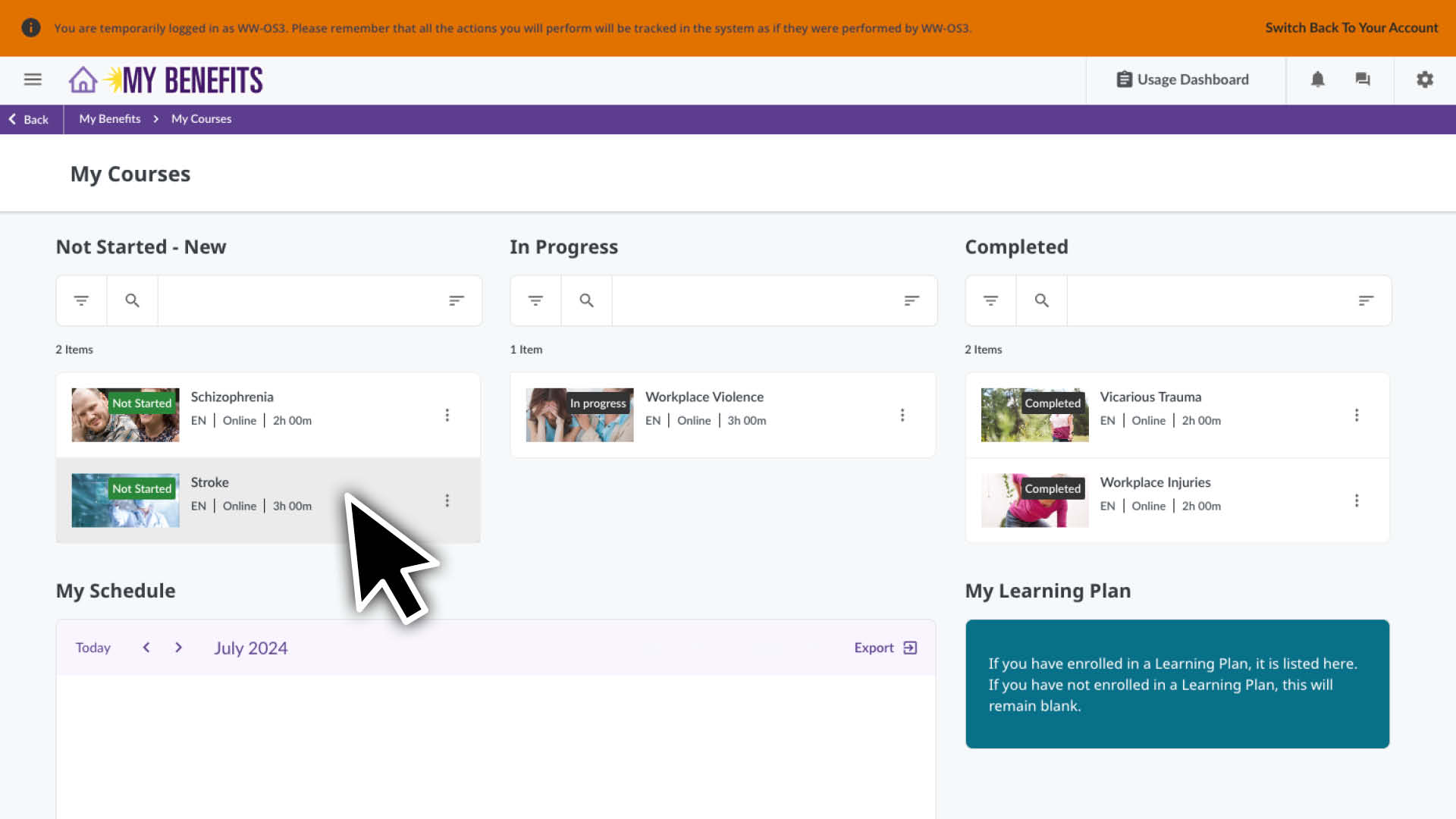
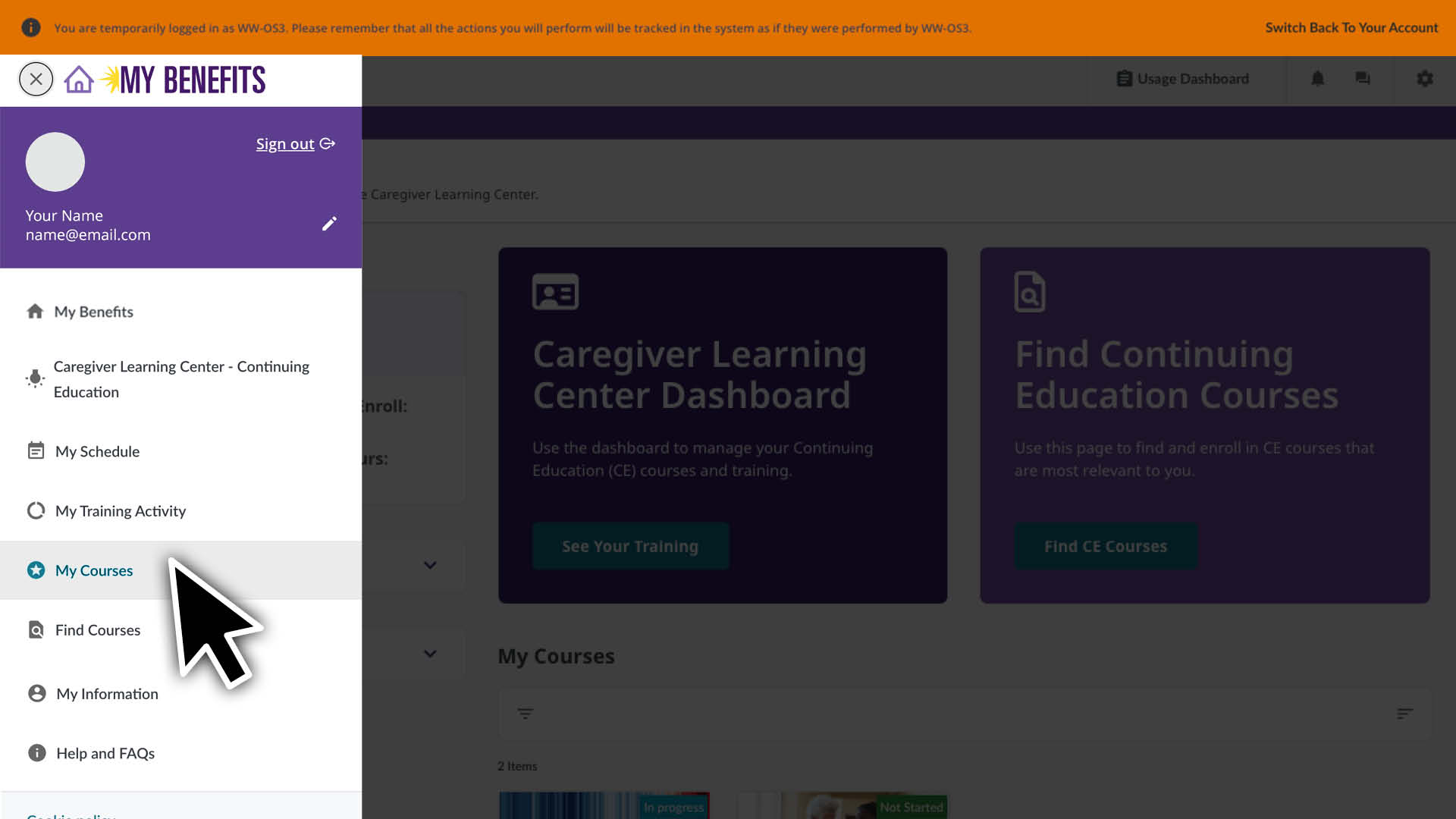
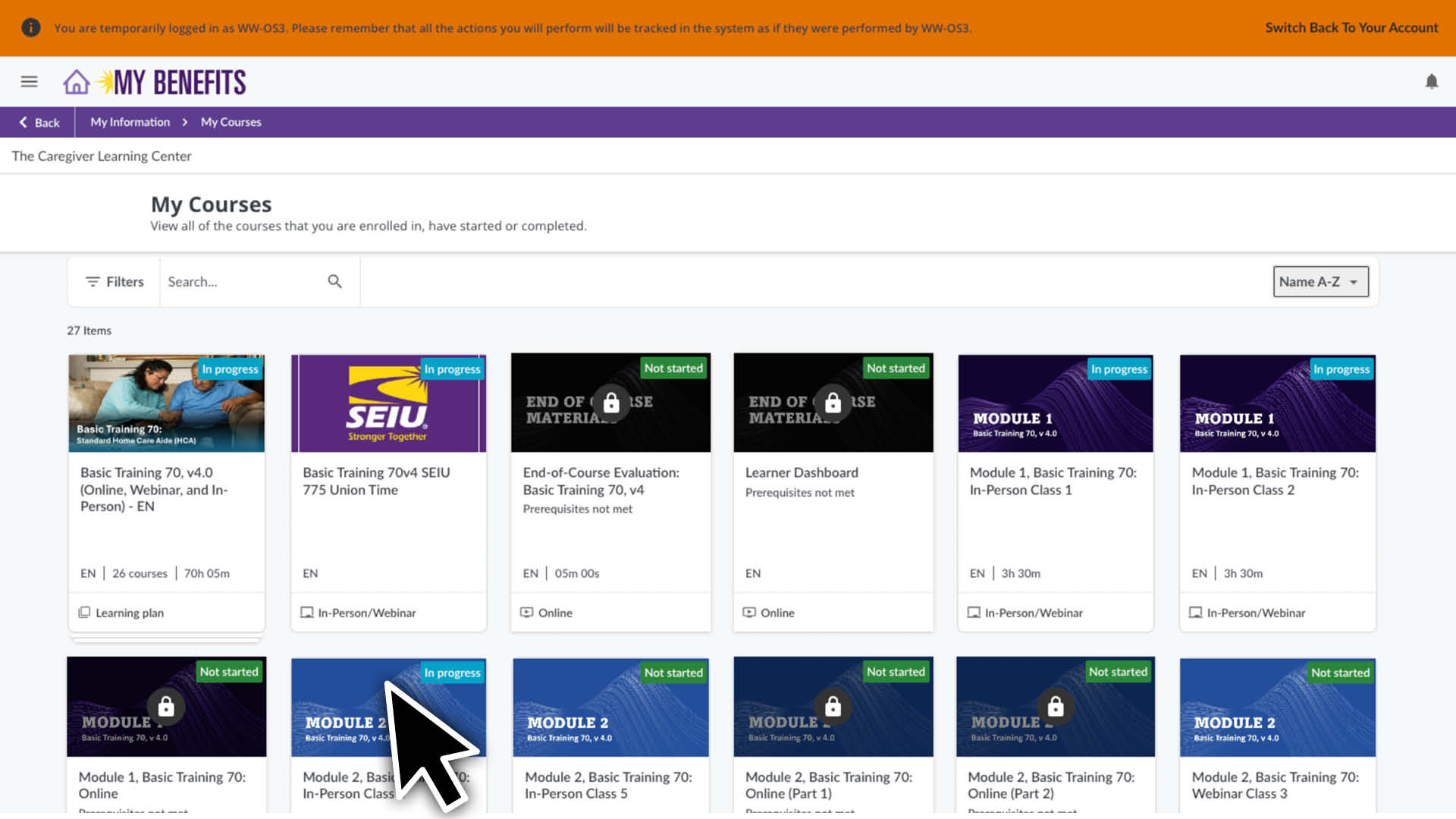
Click the menu icon and select the My Courses page.
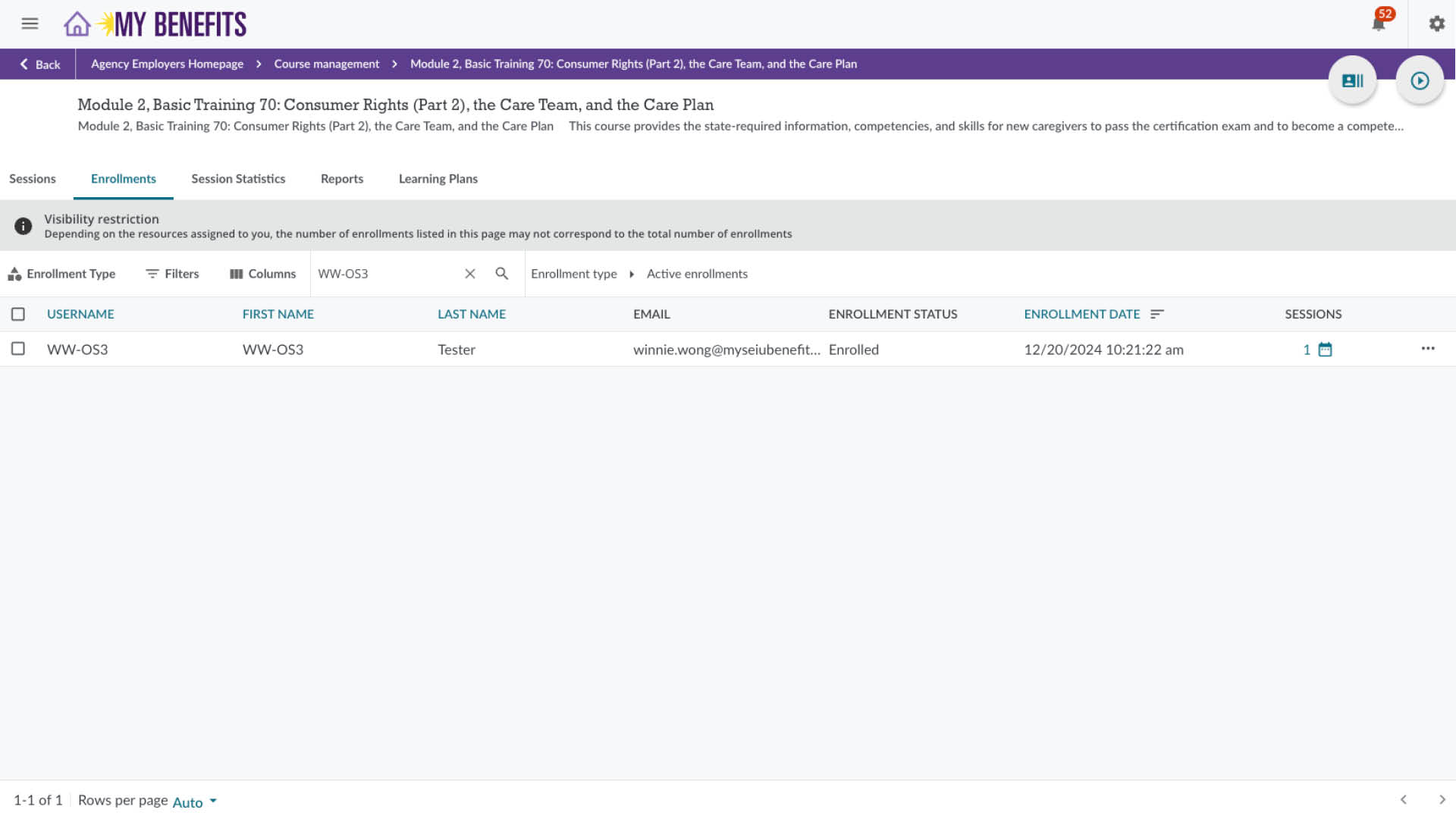
Click on the course you would like to unenroll the caregiver from.
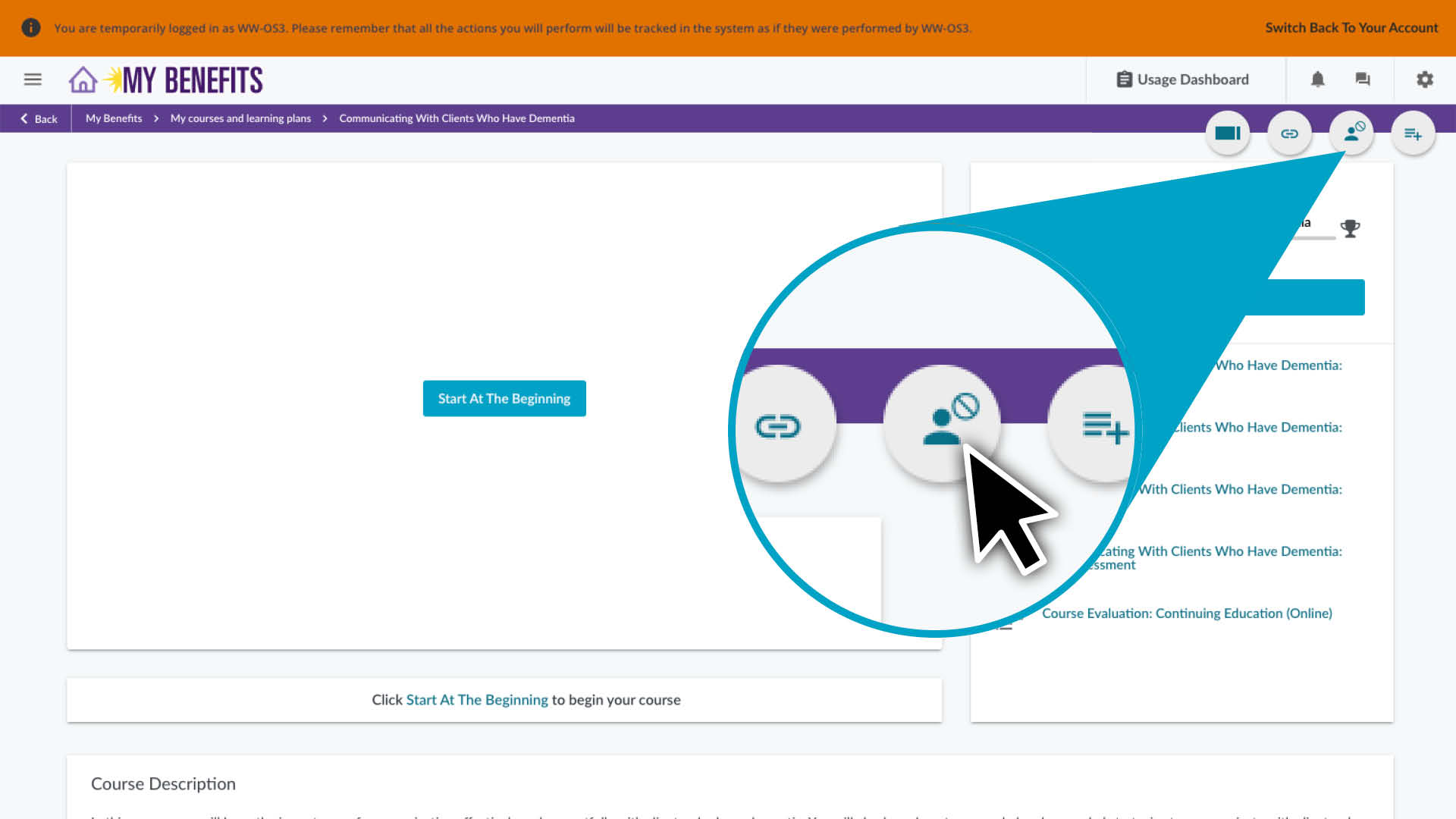
On the course page click the User icon in the top right corner.
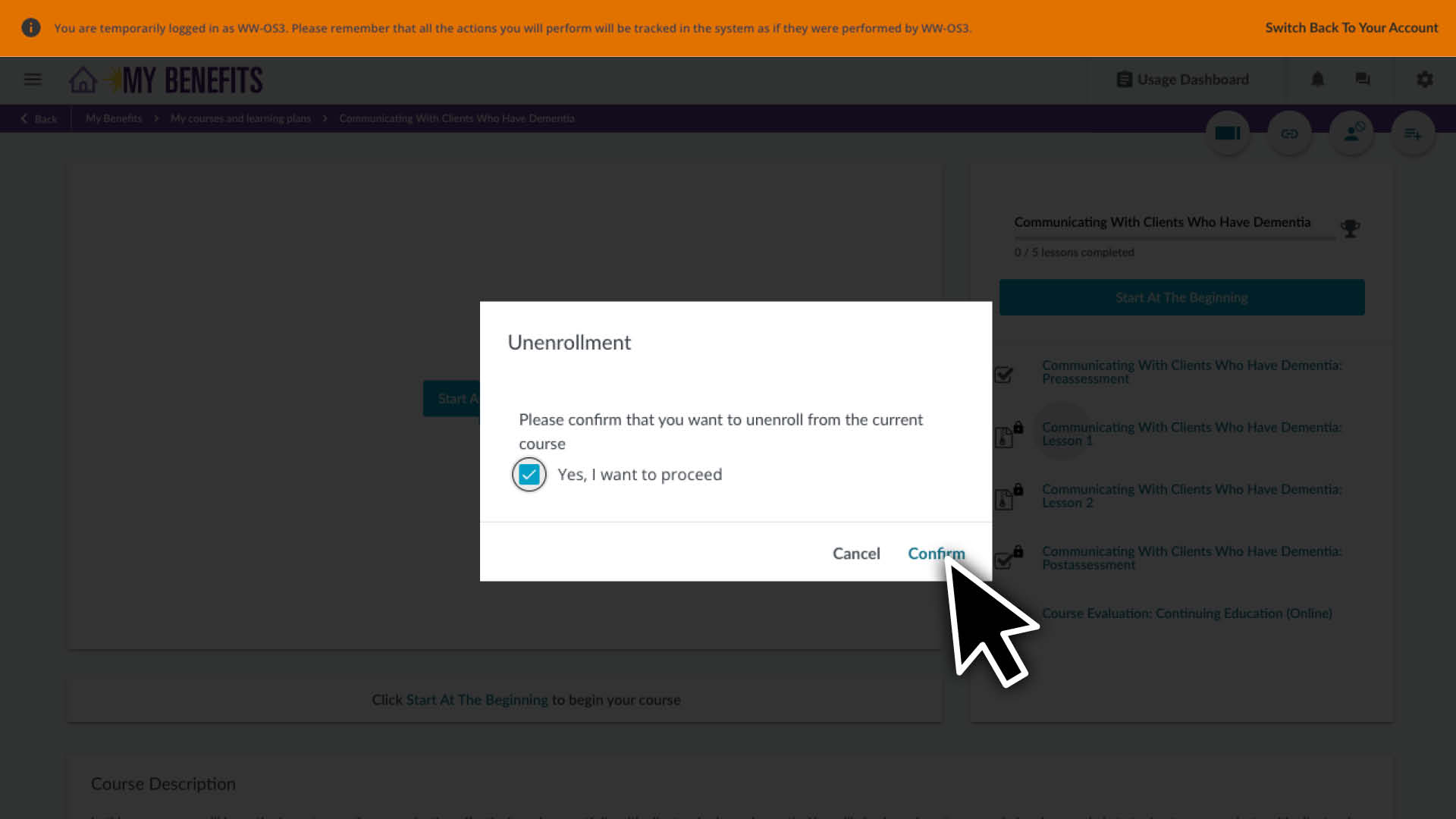
In the pop up, check the box and click Confirm.
Click Switch Back To Your Account in the orange banner at the top of the page to exit.
Tools For Calm Webinar Series
Tools for Calm is a 6-week series of weekly 1-hour courses. Caregivers can receive up to 6 credits, 1 credit for each session they complete.
Enroll Caregiver(s)
The Enrollment App automatically schedules all of the webinar courses. If one of the course schedules does not work for a caregiver you can reschedule that session after they are enrolled in the Learning Plan.
You will need the caregivers User ID to use the Enrollment App. You can find it on the User Management page where you look up caregivers.
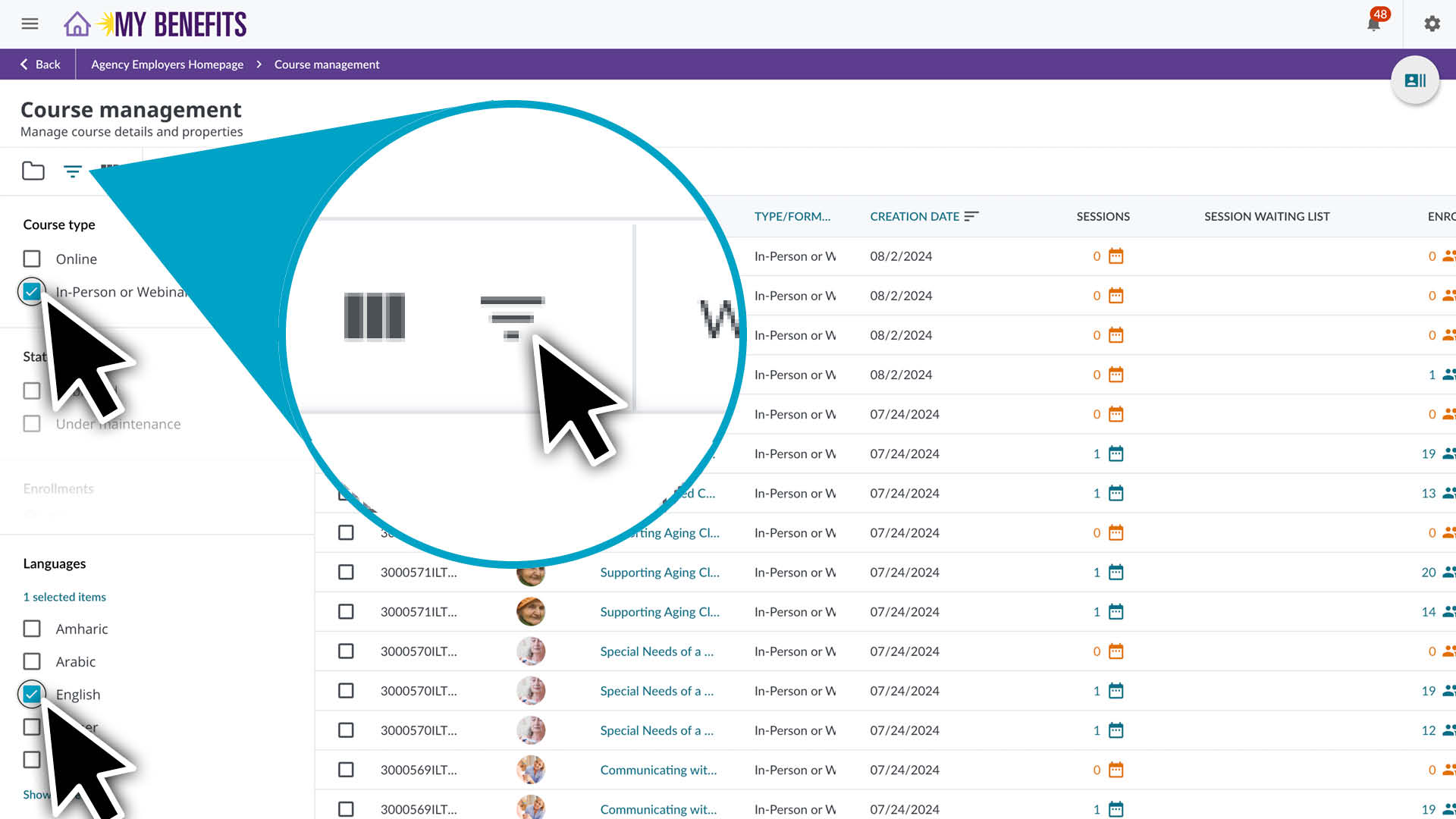
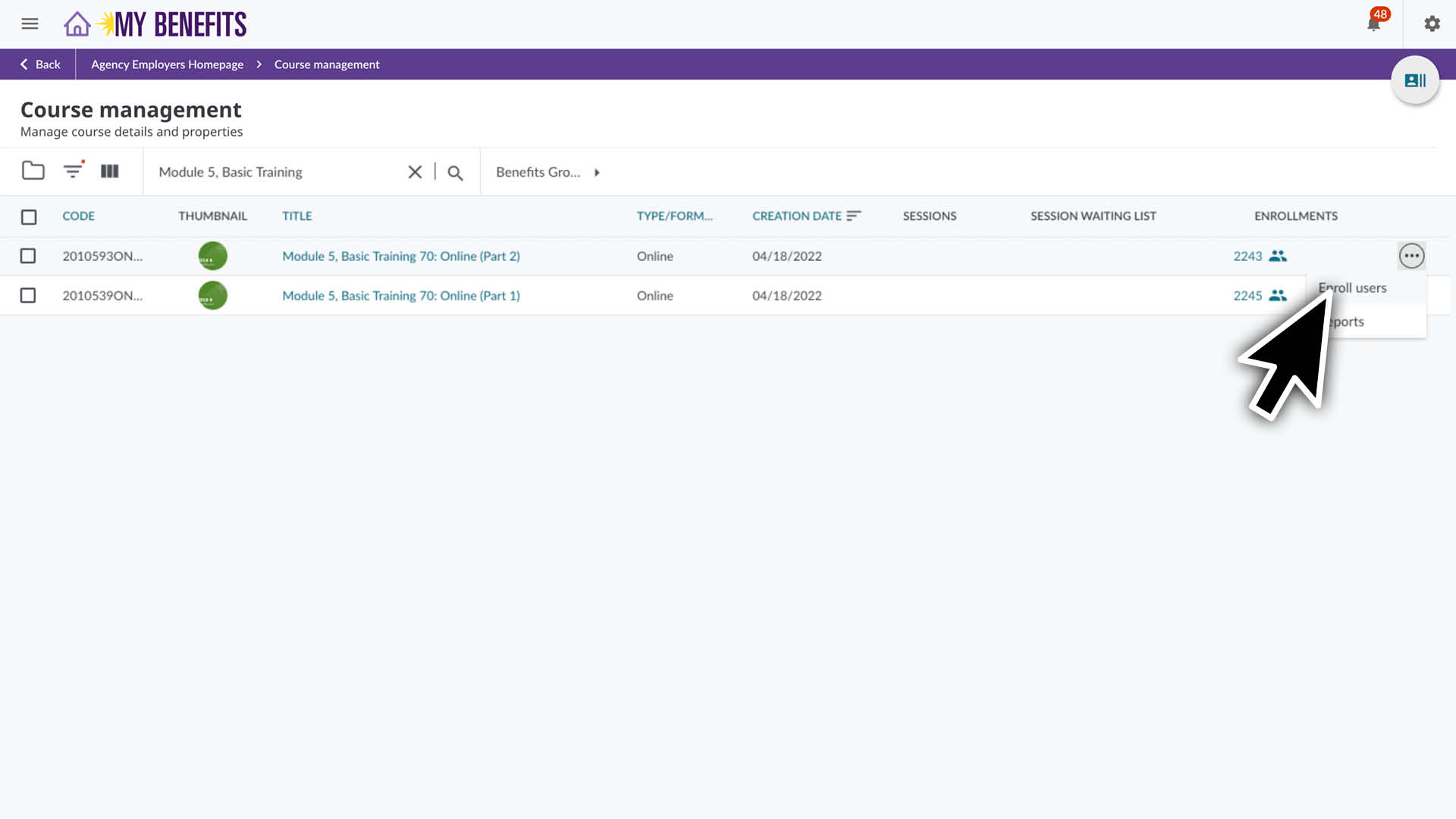
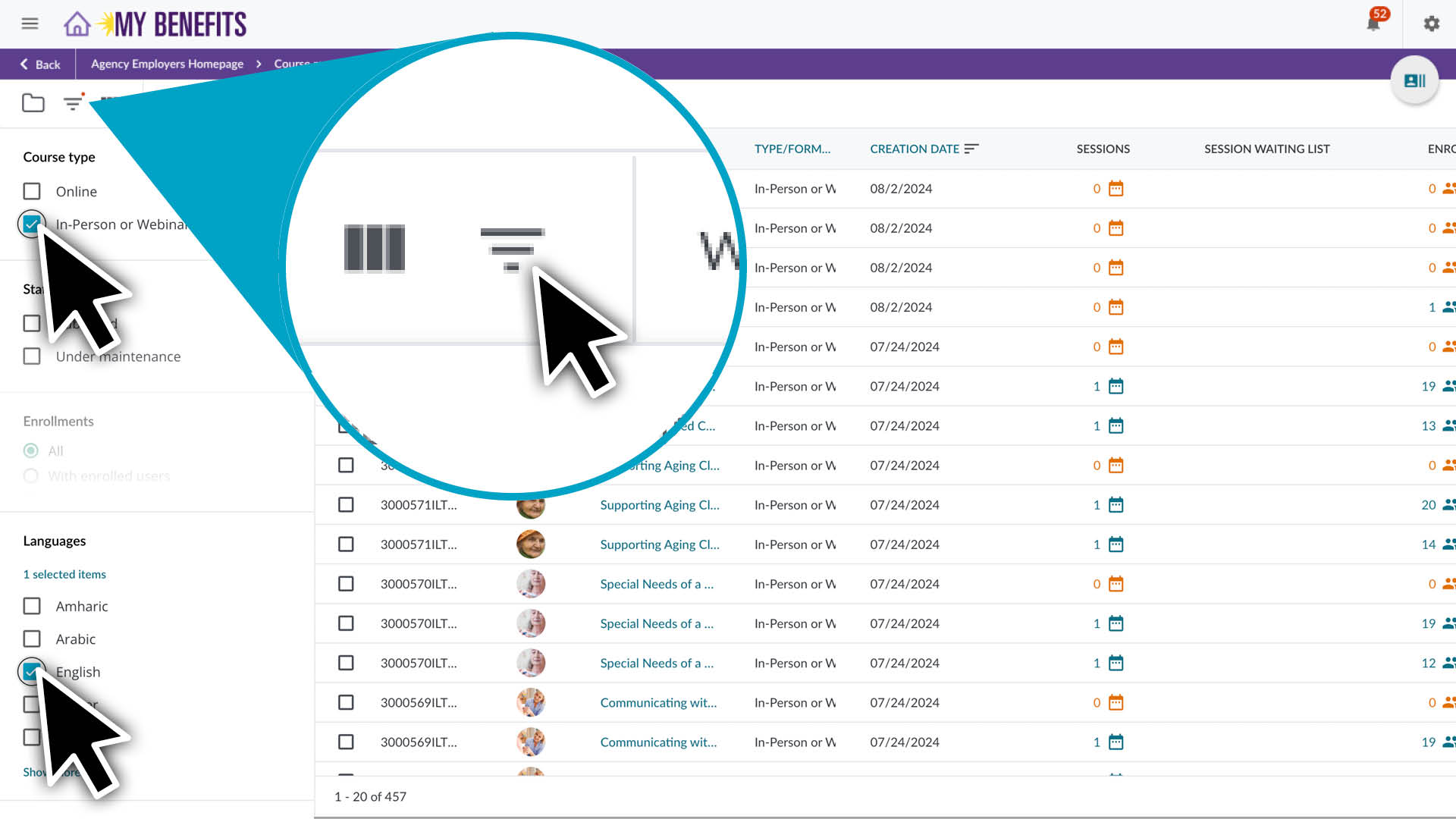
Click the Filters icon to open the filter panel. • Check Online under Course Type. • Scroll down to check the desired language under Languages. • Click the filter icon to close the panel.
Enter the course name into the search bar and click the search icon.
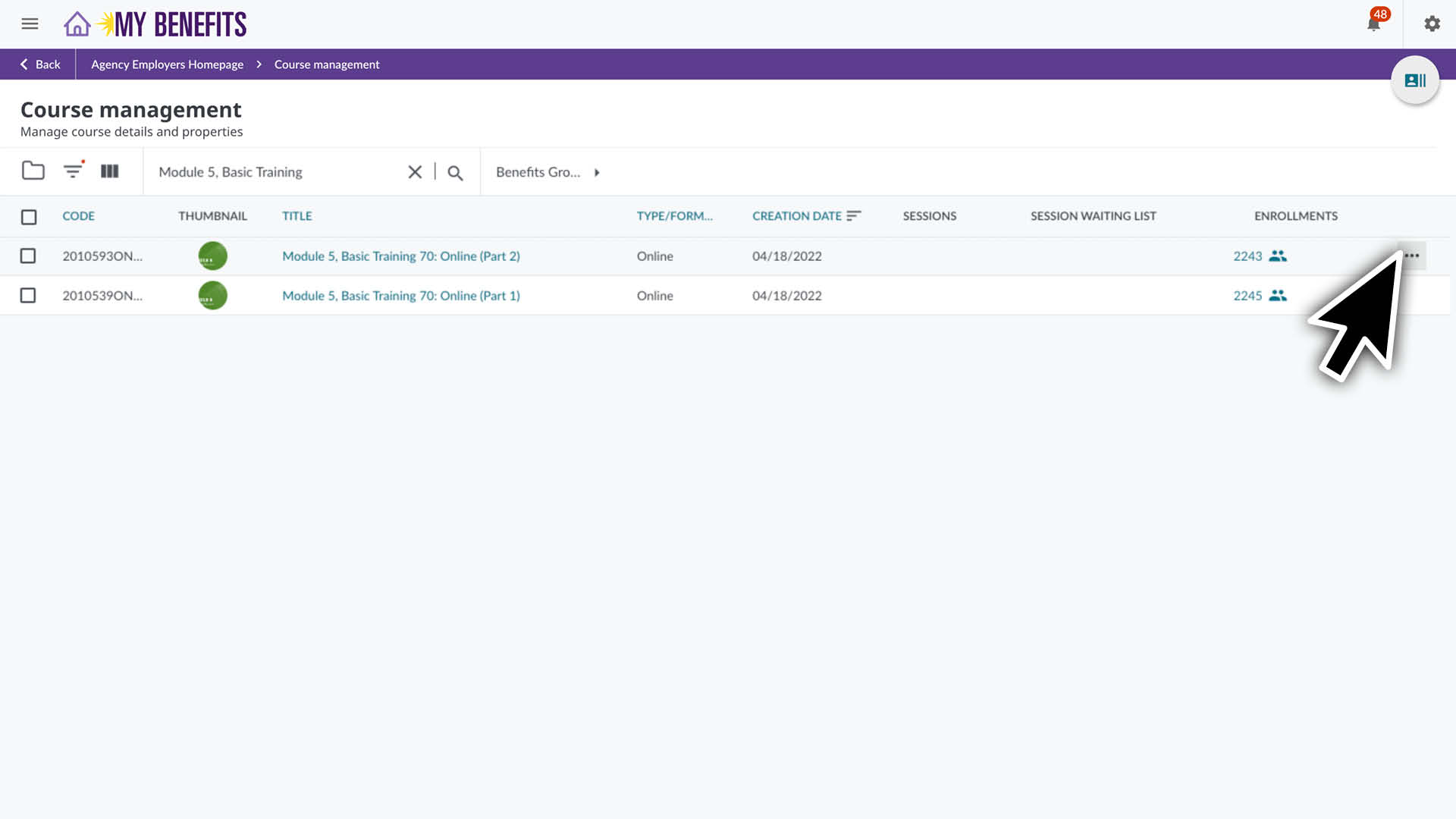
Hover over a course row, you will see 3 dots appear on the far right. Click the 3 dots.
Click on Enroll Users.
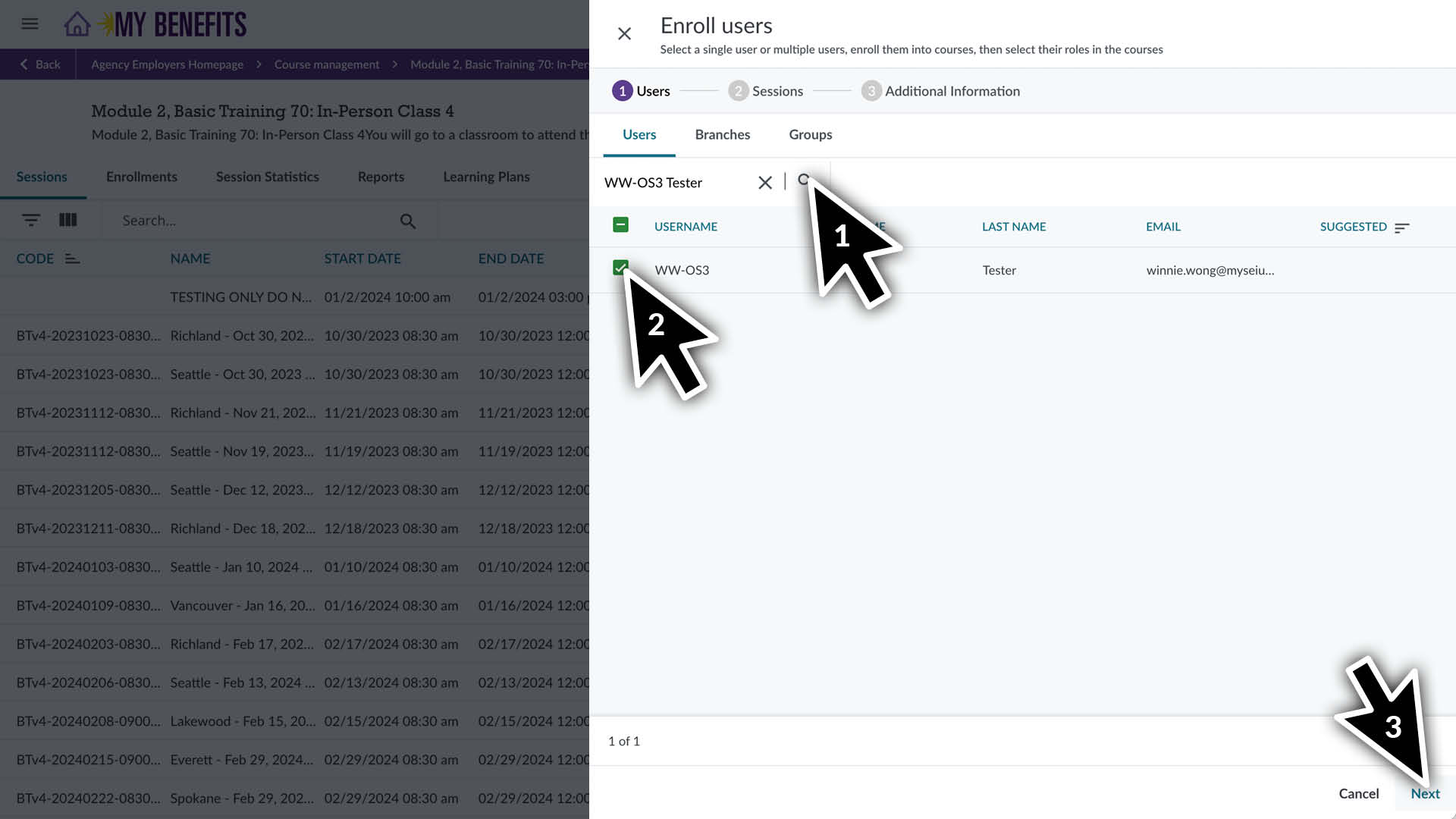
Select the caregiver in the Enroll Users Panel. • Search for the caregivers name or User ID and click the search icon. • Check the box next to their name. • Click Next in the bottom right of the screen.
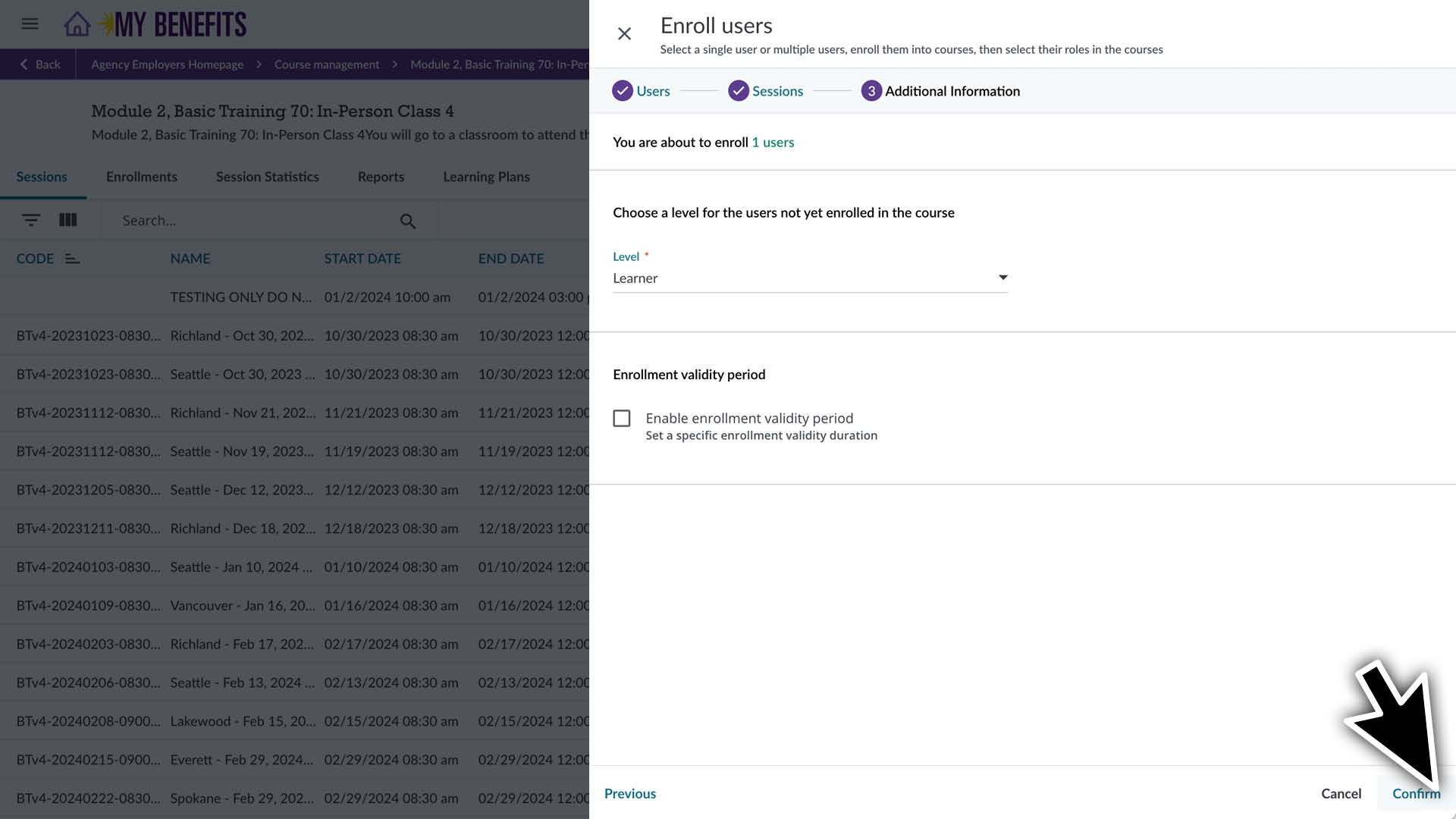
Click Confirm in the bottom right of the screen. You don’t need to enter enrollment validity period.
Unenroll Caregiver(s)
If the Caregiver was enrolled in a course through a Learning Plan you can NOT unenroll them from that course.
Enter the caregiver’s ID or name in the search bar and click the search icon.
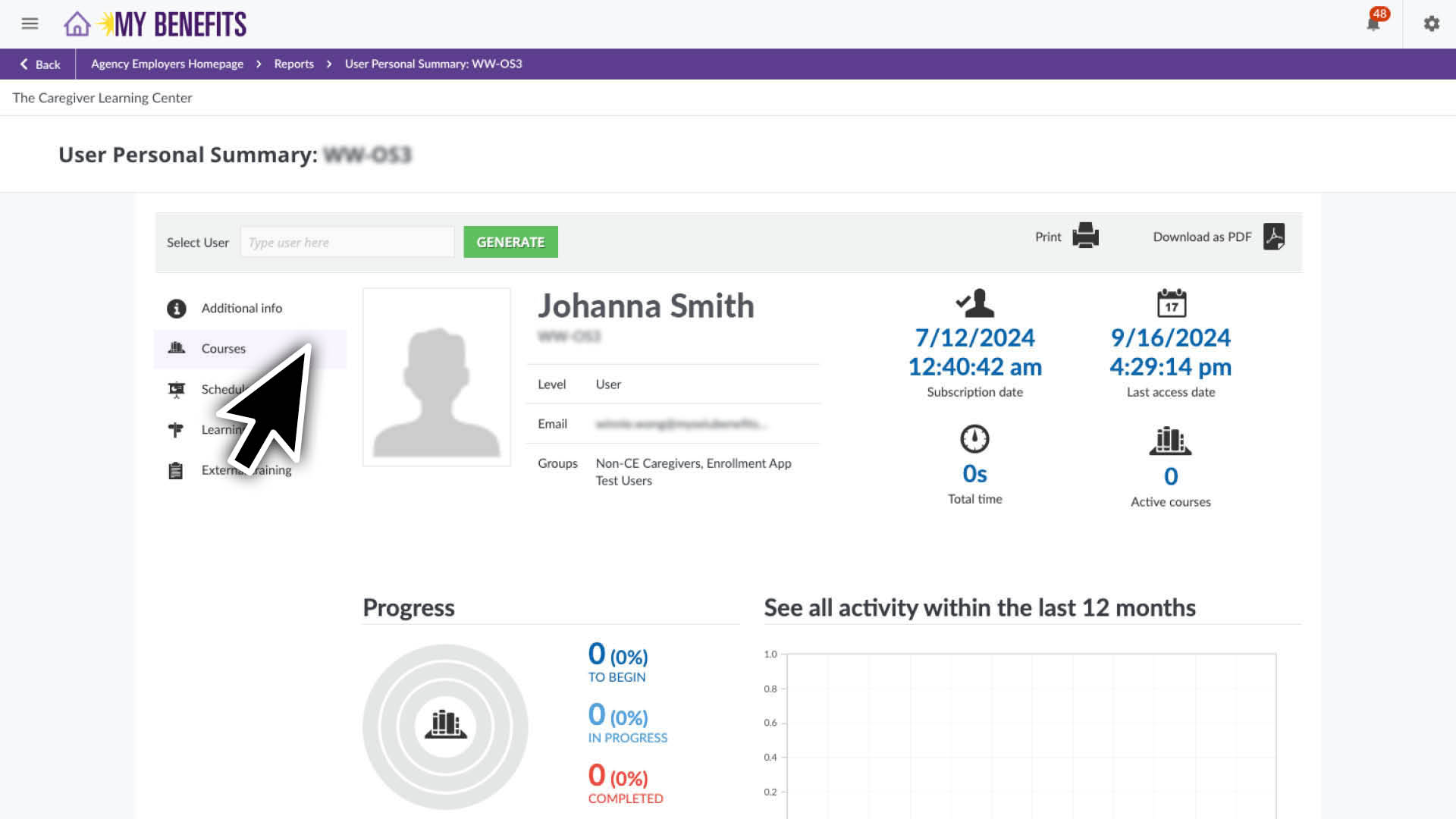
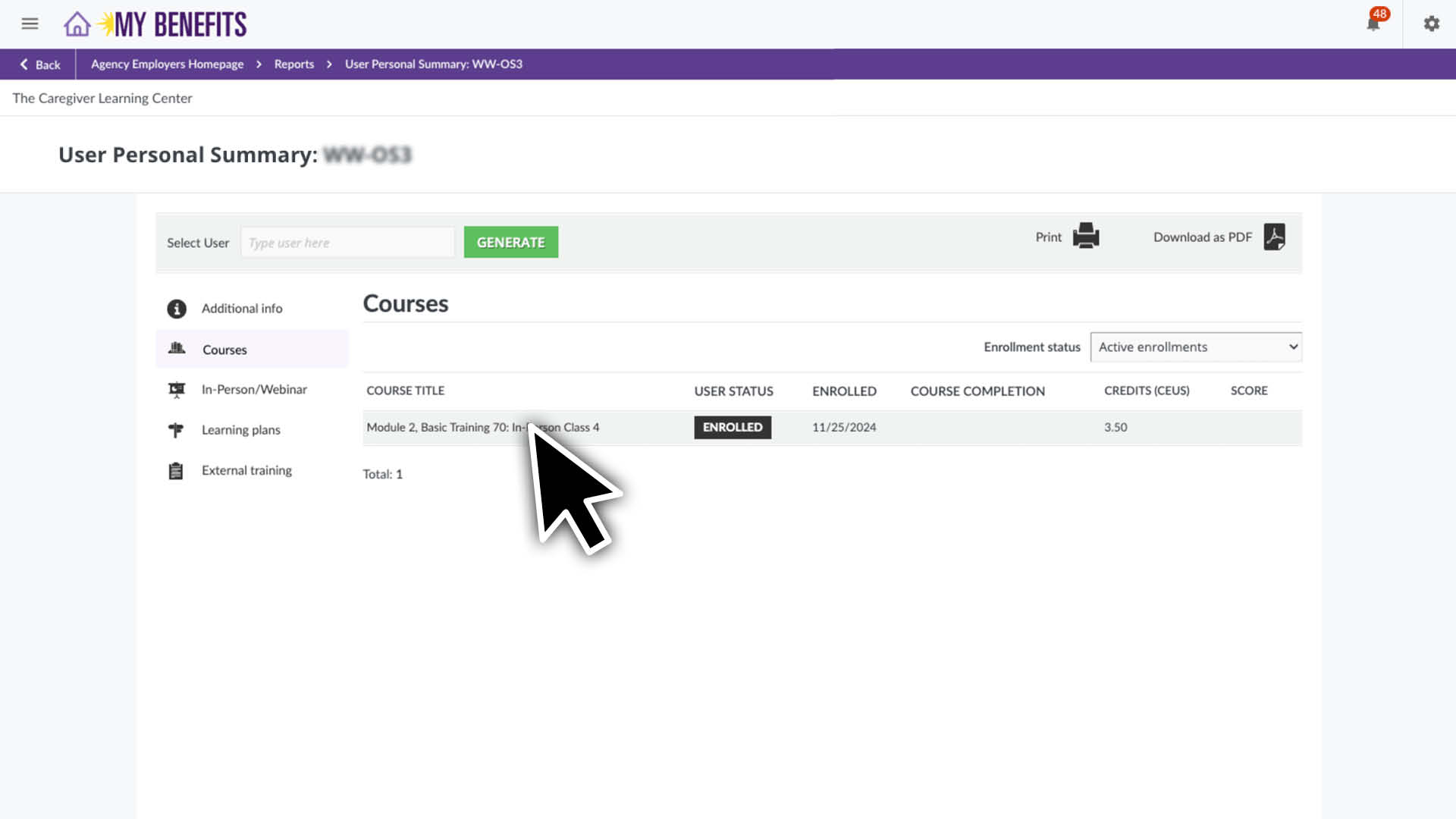
Hover over a caregiver row, you will see 3 dots appear on the far right. • Click the 3 dots. • Click on User Personal Summary.
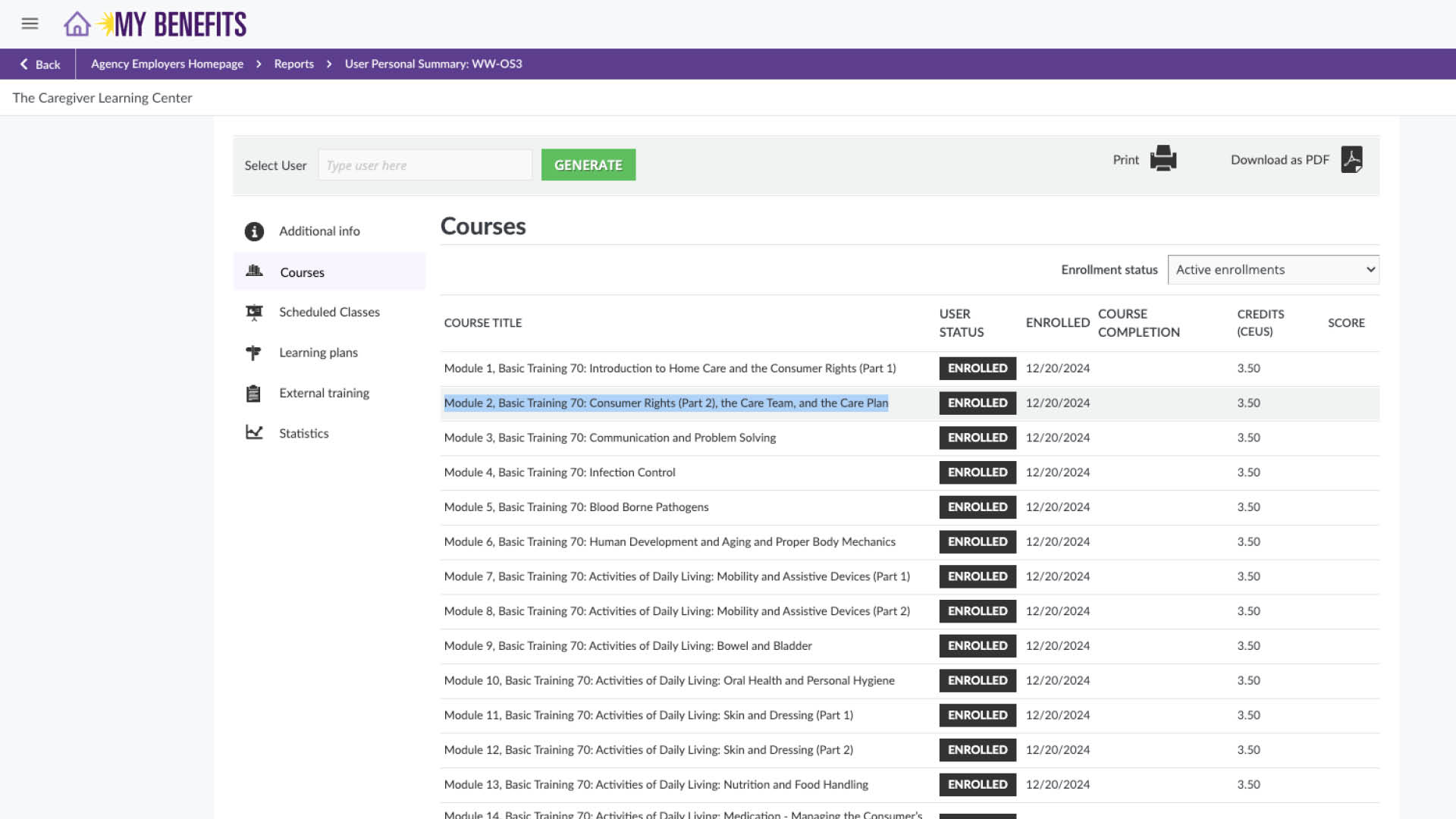
Click the specified Courses tab on the left.
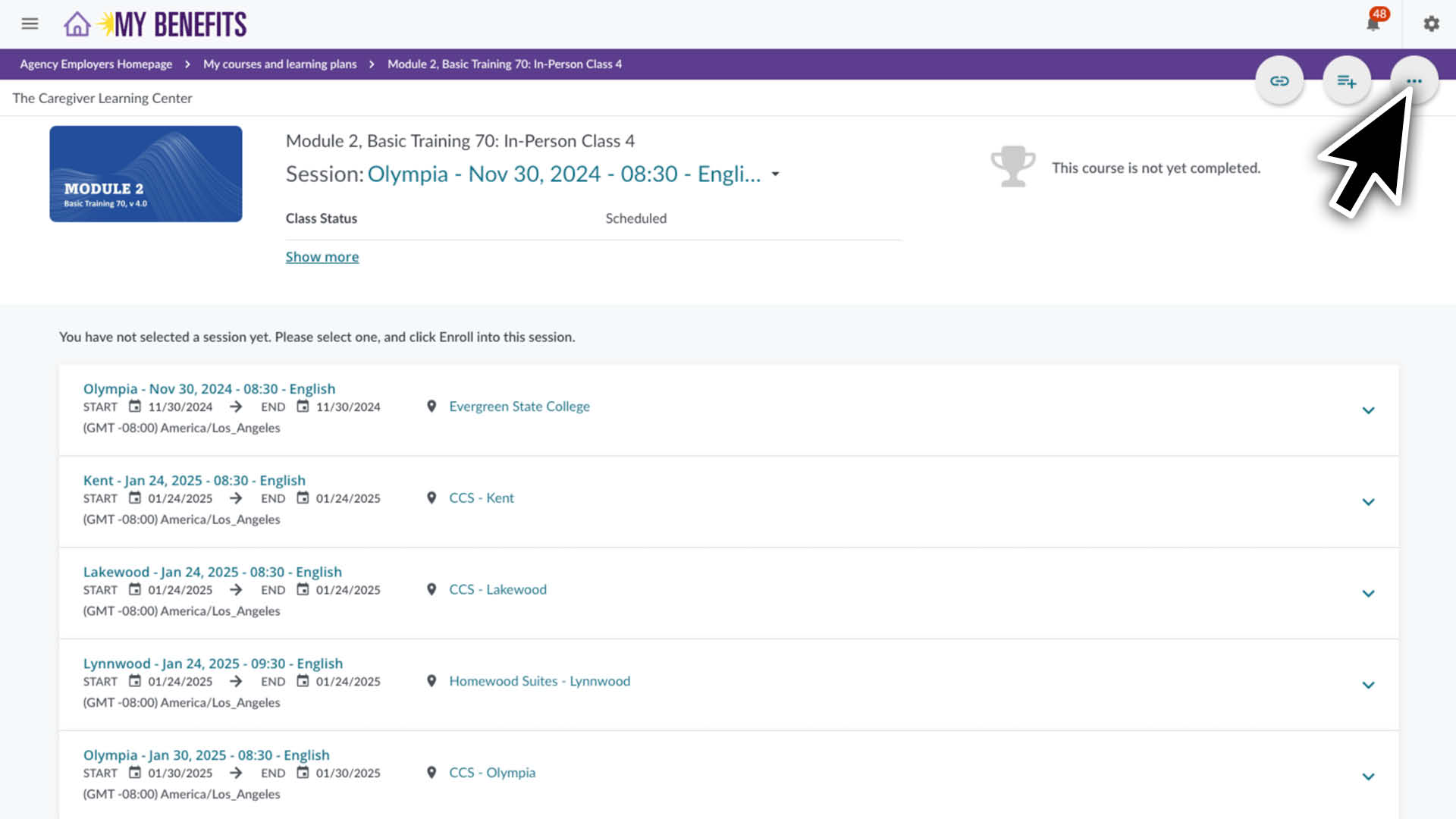
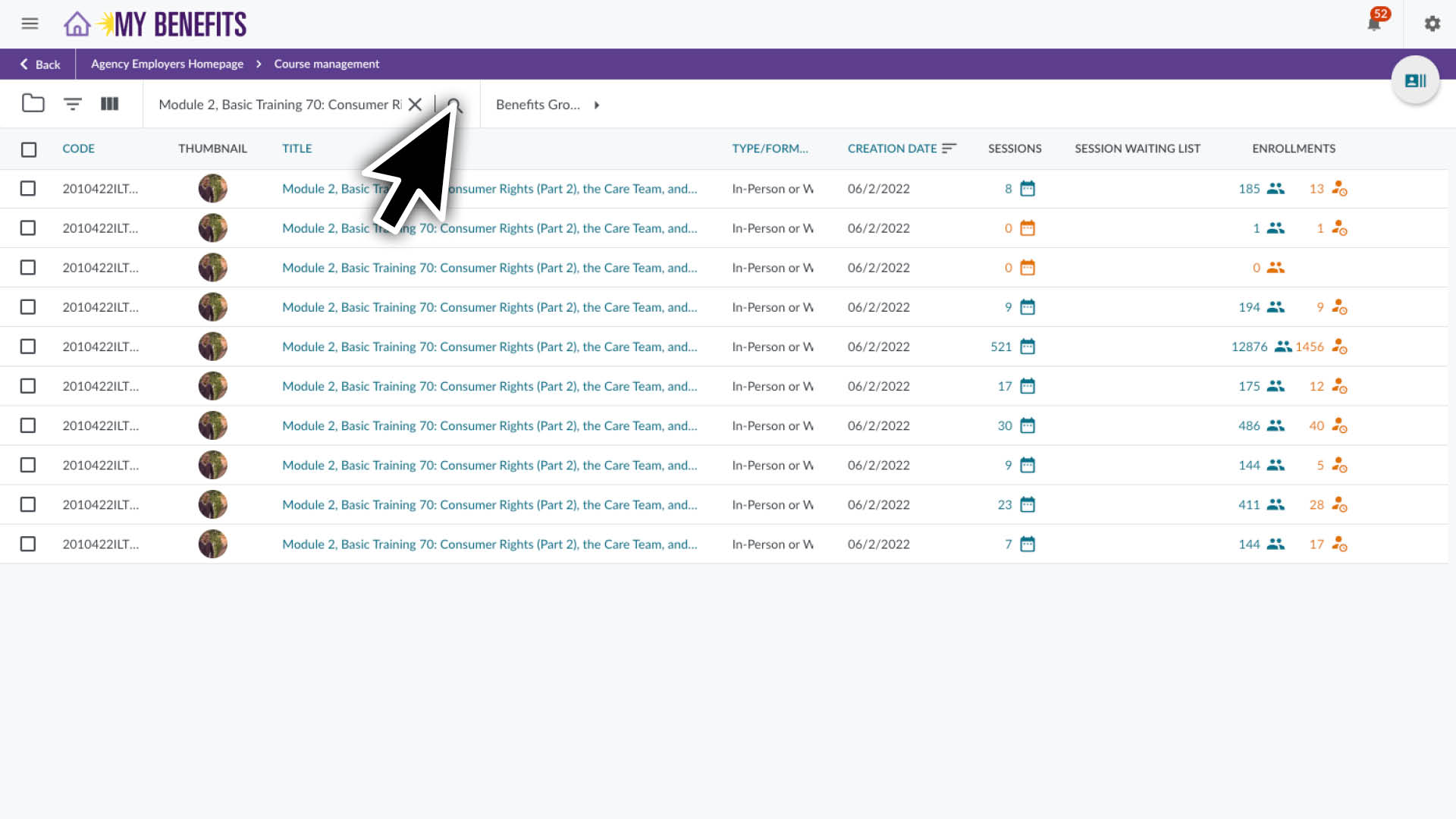
Click on the Course you want to unenroll the caregiver from.
On the course page:
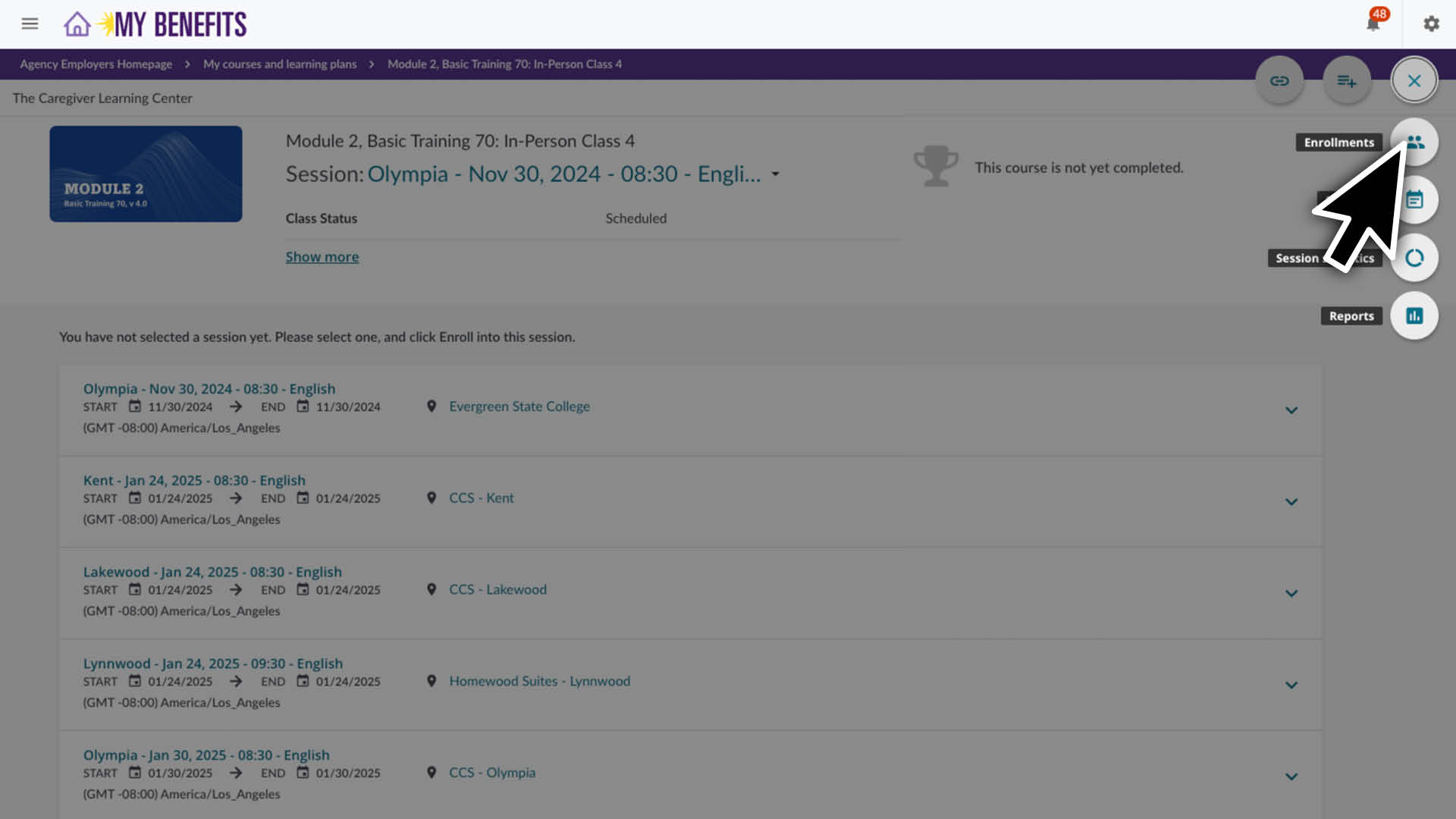
Click the three dots in the top right corner
Click Enrollments.
Search for the caregiver’s name or User ID and click the search icon.
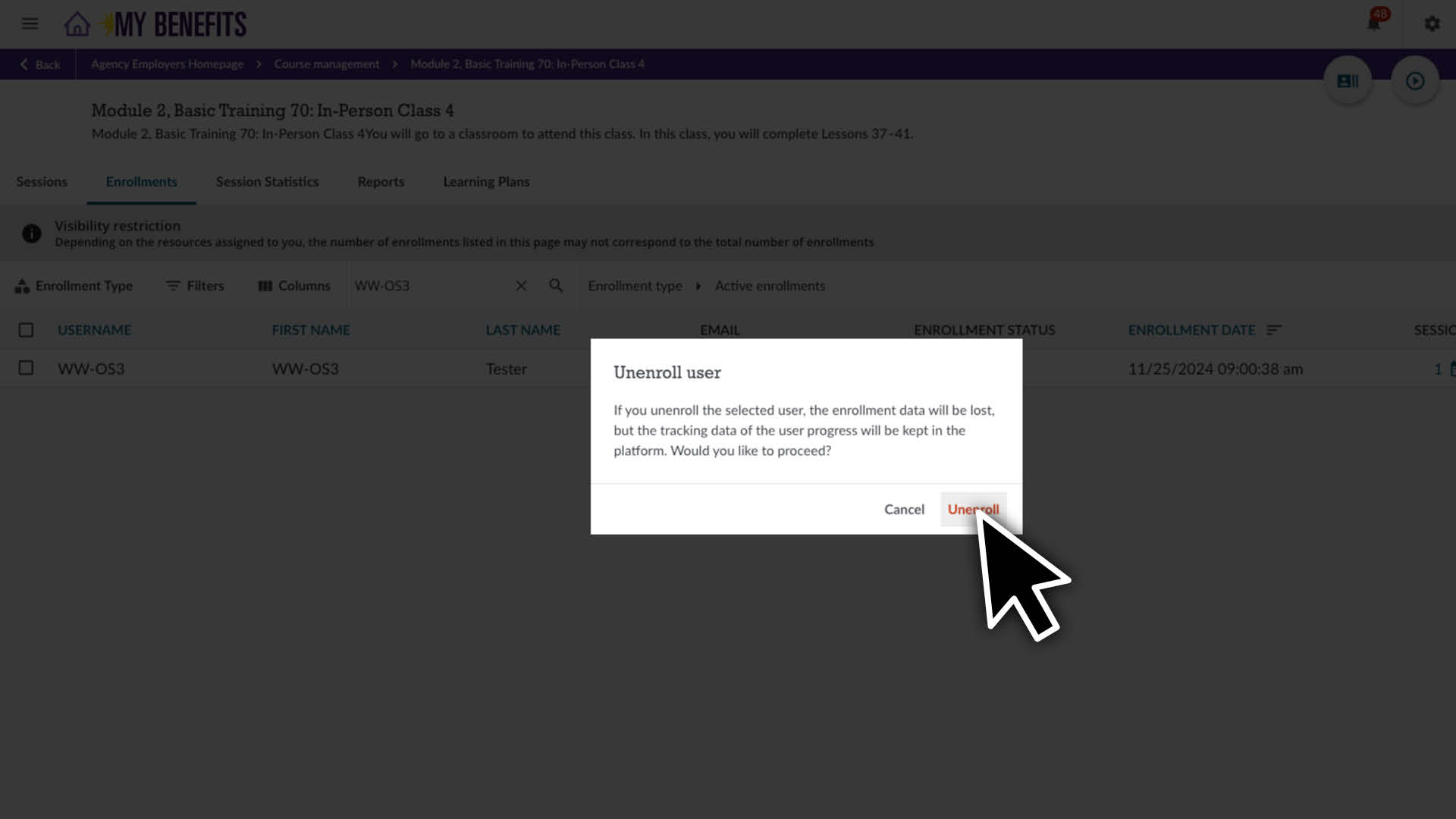
On the caregiver’s row, click the three dots and click unenroll in the drop down menu.
Enter the caregiver’s ID or name in the search bar and click the search icon.
Click the 3 dots on the far right of the caregiver’s row and click Unenroll.
Click Unenroll in the pop up box.
ILT Scheduled Classes
ILTs are scheduled classes that include both in-person and webinar formats. A session (the specific date, time and location of the ILT course) must be scheduled for the caregiver to the complete the course.
Enroll Caregiver(s) - Using Class Session Schedule Spreadsheets
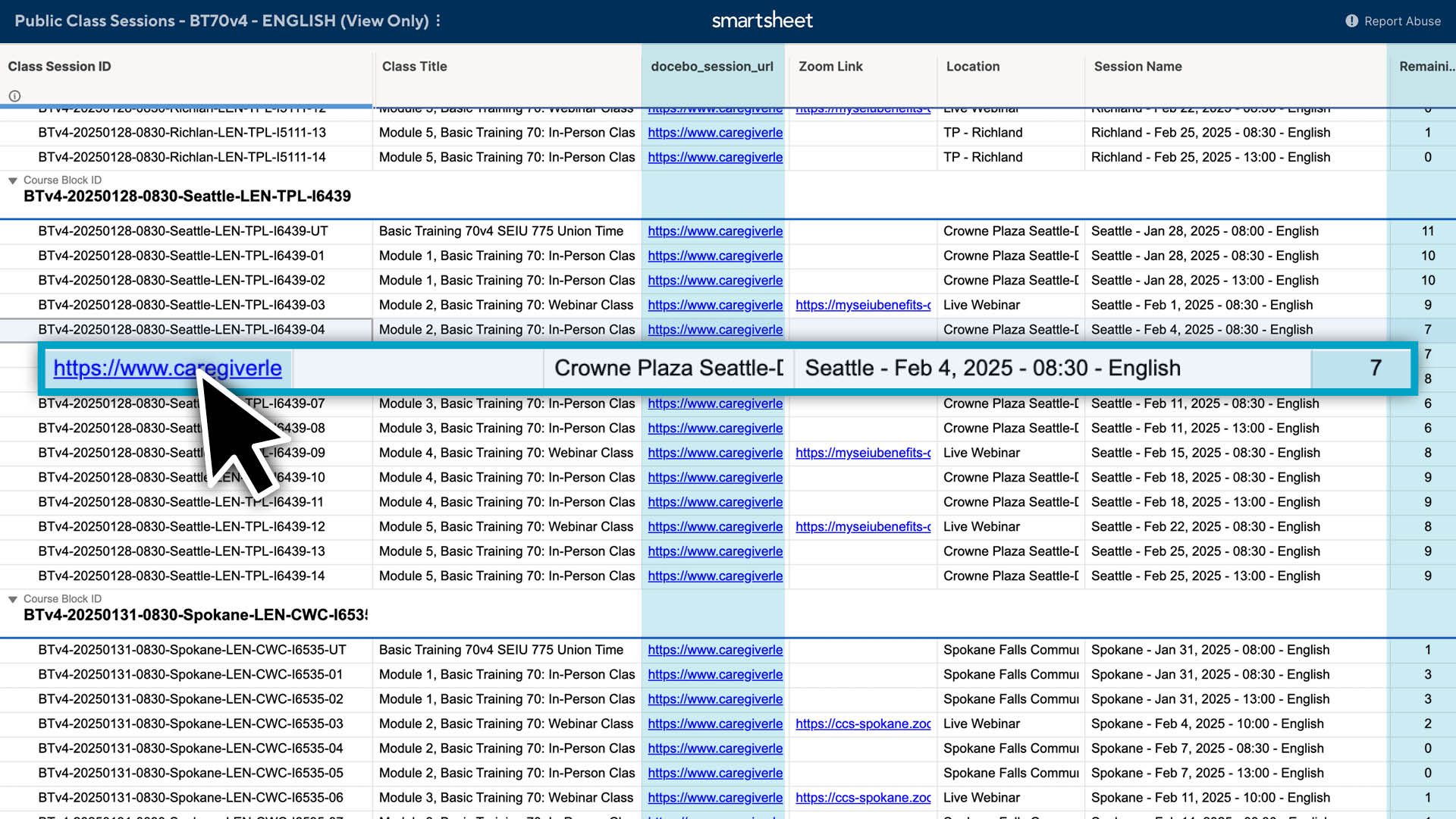
Find & select the class session from the Class Session Schedules:
From the homepage, click on the link for the desired Class Session Schedules.
Locate the desired session in the list: • Review the remaining seat count to ensure there are seats available. • Click on the Docebo Session URL.
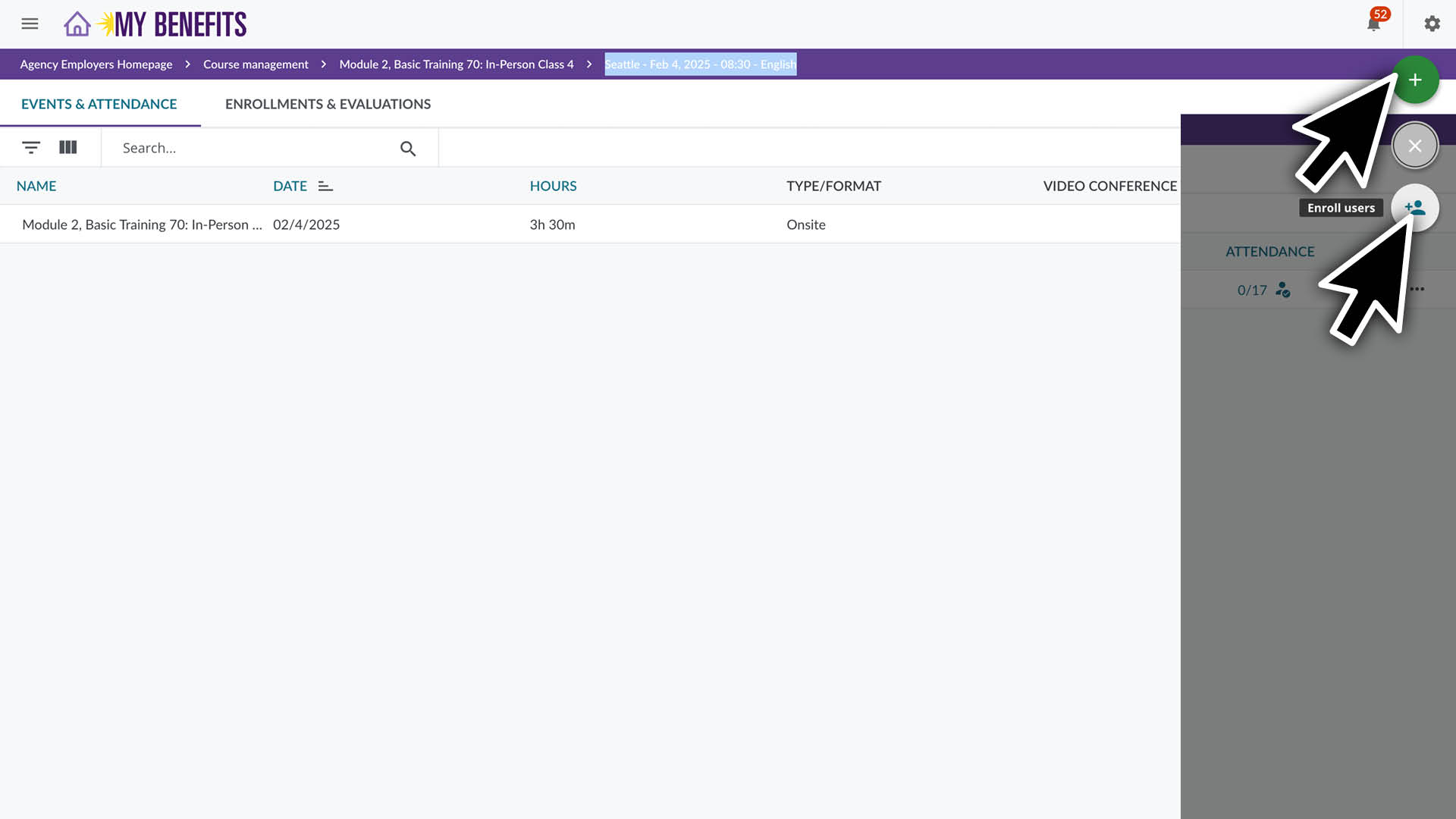
Open the Enroll Users Panel on the class page to enroll the caregiver:
Click the + button in the top right corner and click Enroll Users.
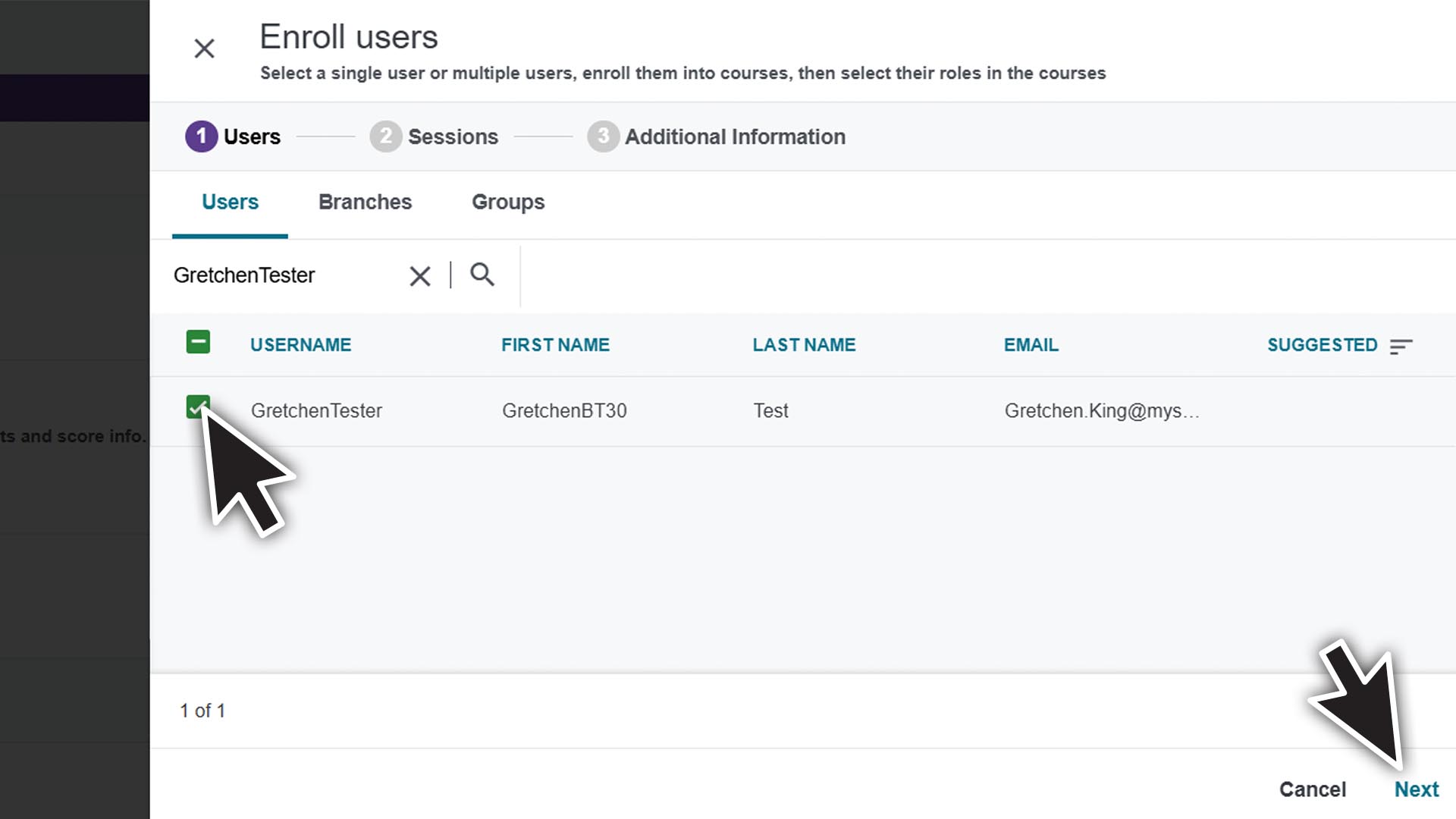
Select the caregiver. • Search for the caregivers name or User ID and click the search icon. • Check the box next to select a caregiver. (You may select multiple caregivers) • Click Next in the bottom right of the screen.
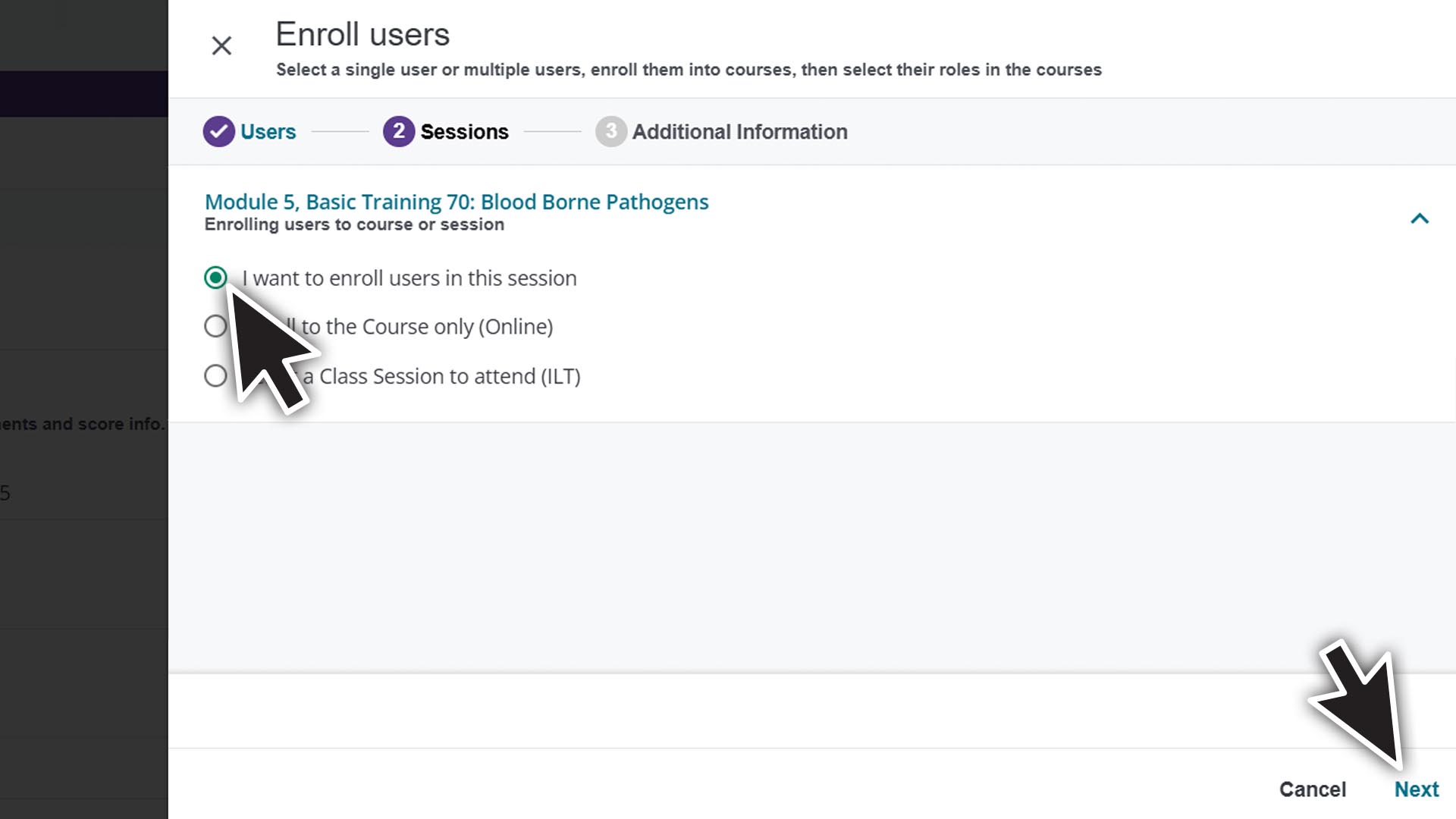
Select “I want to enroll users into this session” and click Next.
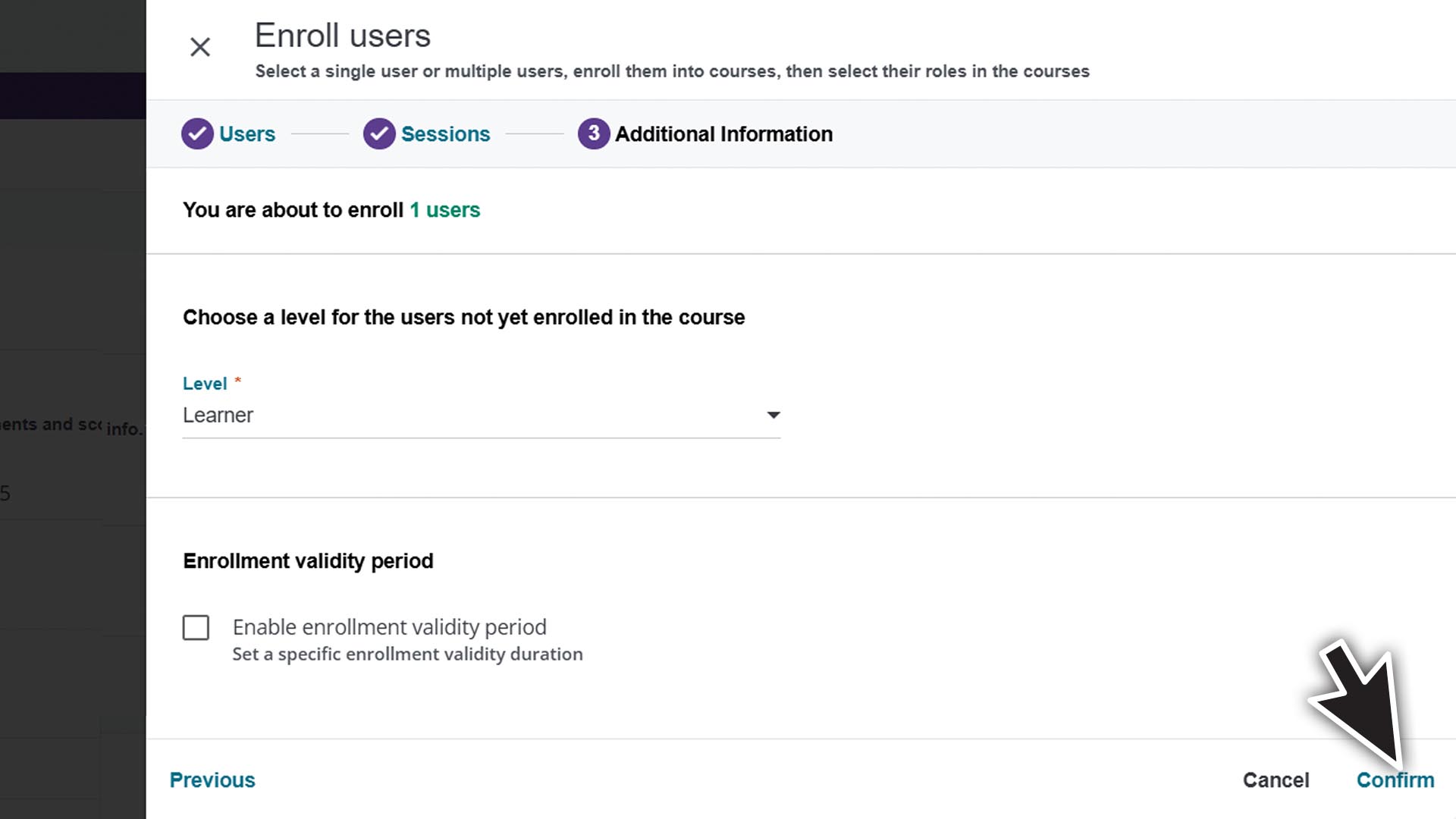
Click Confirm in the bottom right of the screen. • Level should be set to Learner. / Do not enter enrollment validity period.
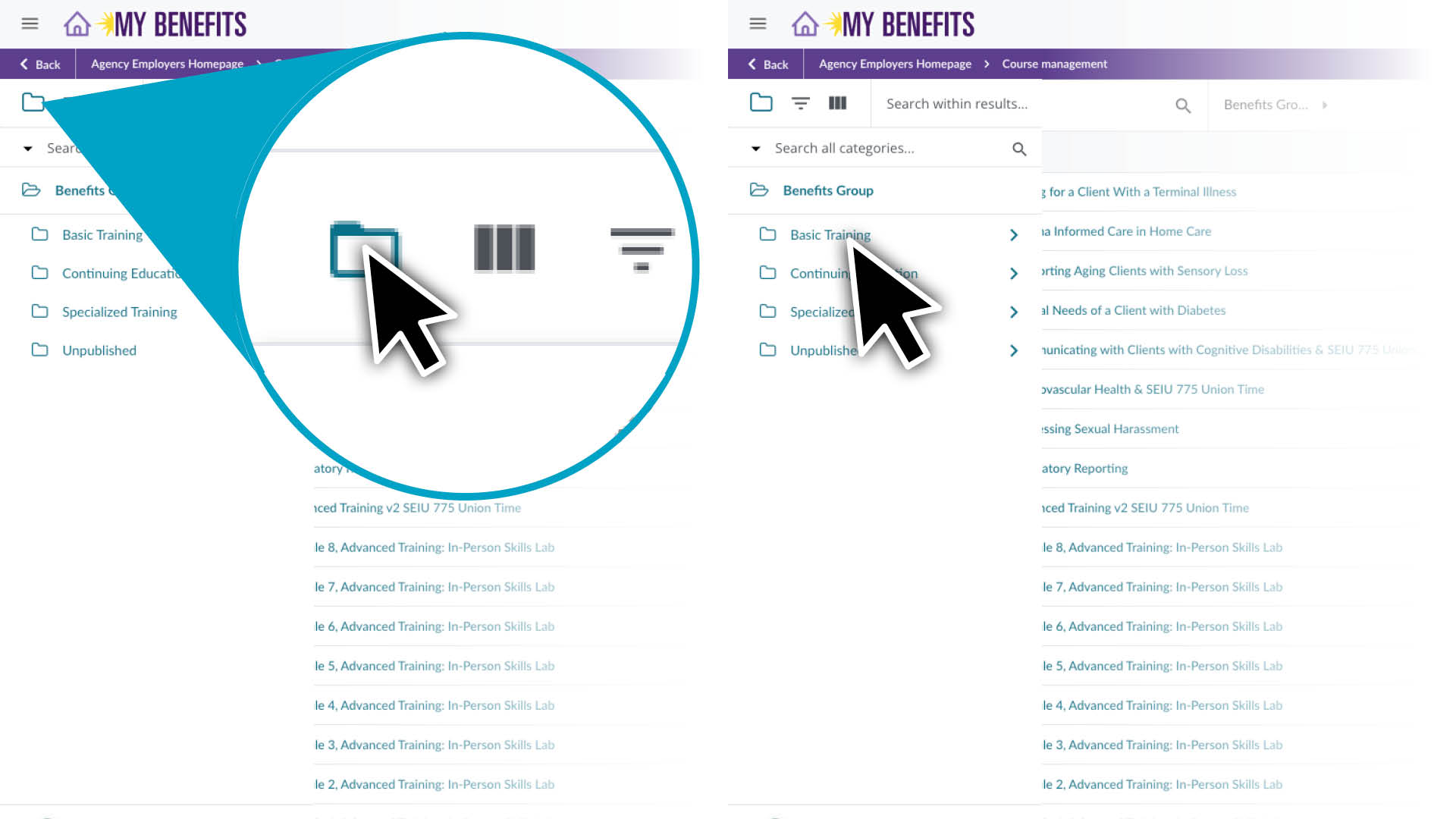
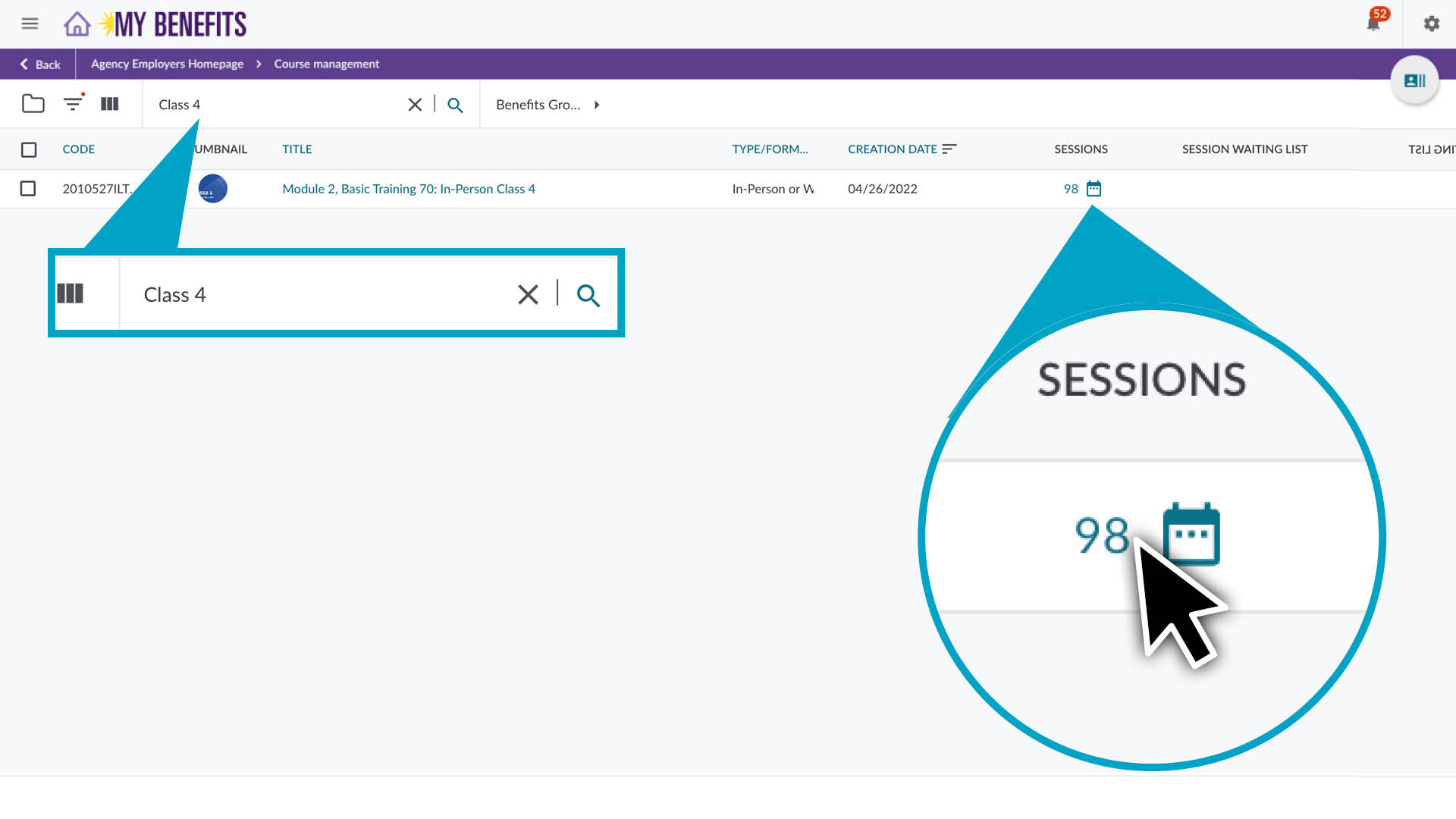
Find the course. Use the search function or refine results by click the folder icon to select a training group and use the filters to select course type and desired language.
Review the course options or search for a specific course.
Click the sessions calendar icon.
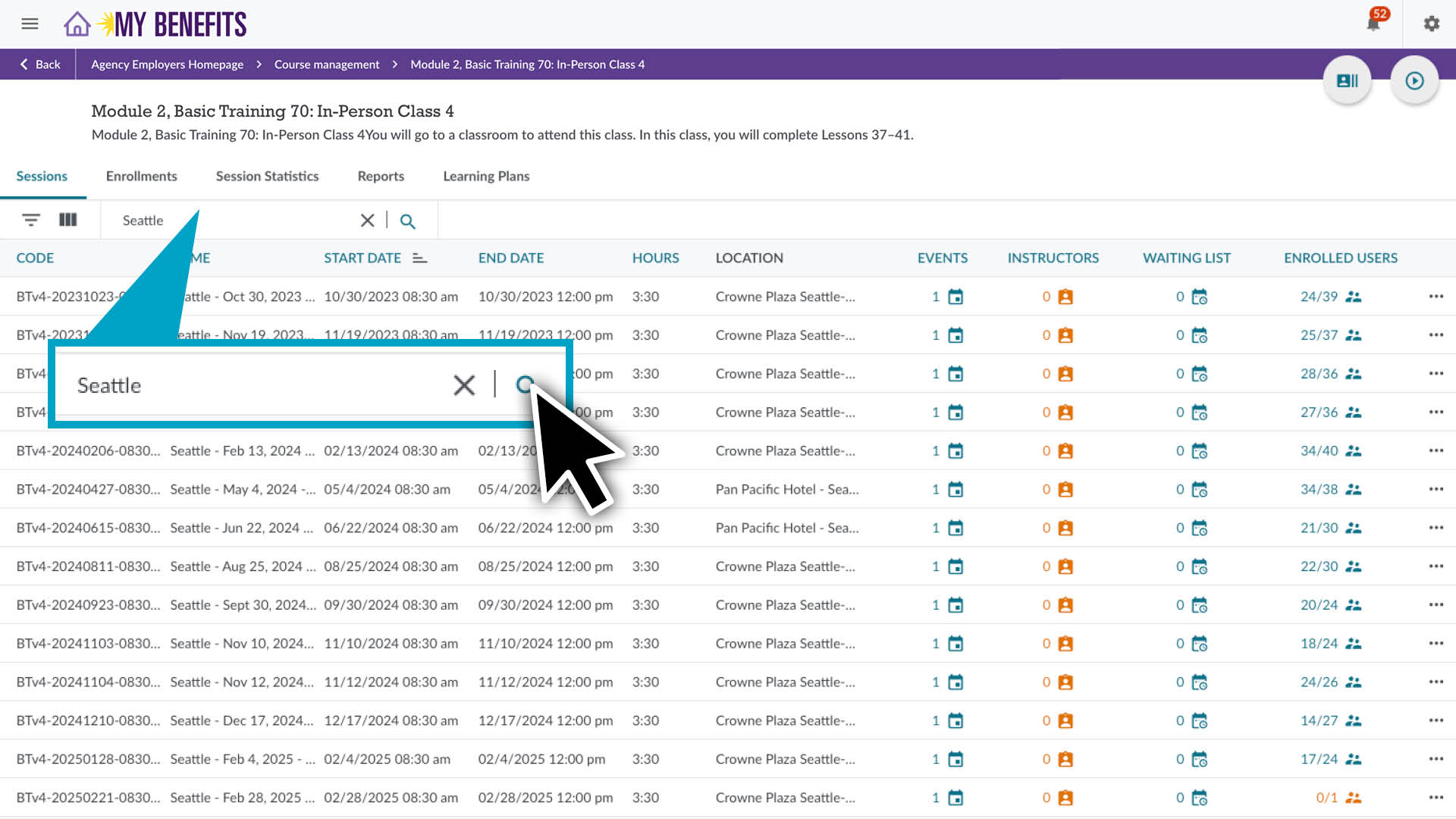
Search or sort by city to review options and check the enrolled users for seat availability.
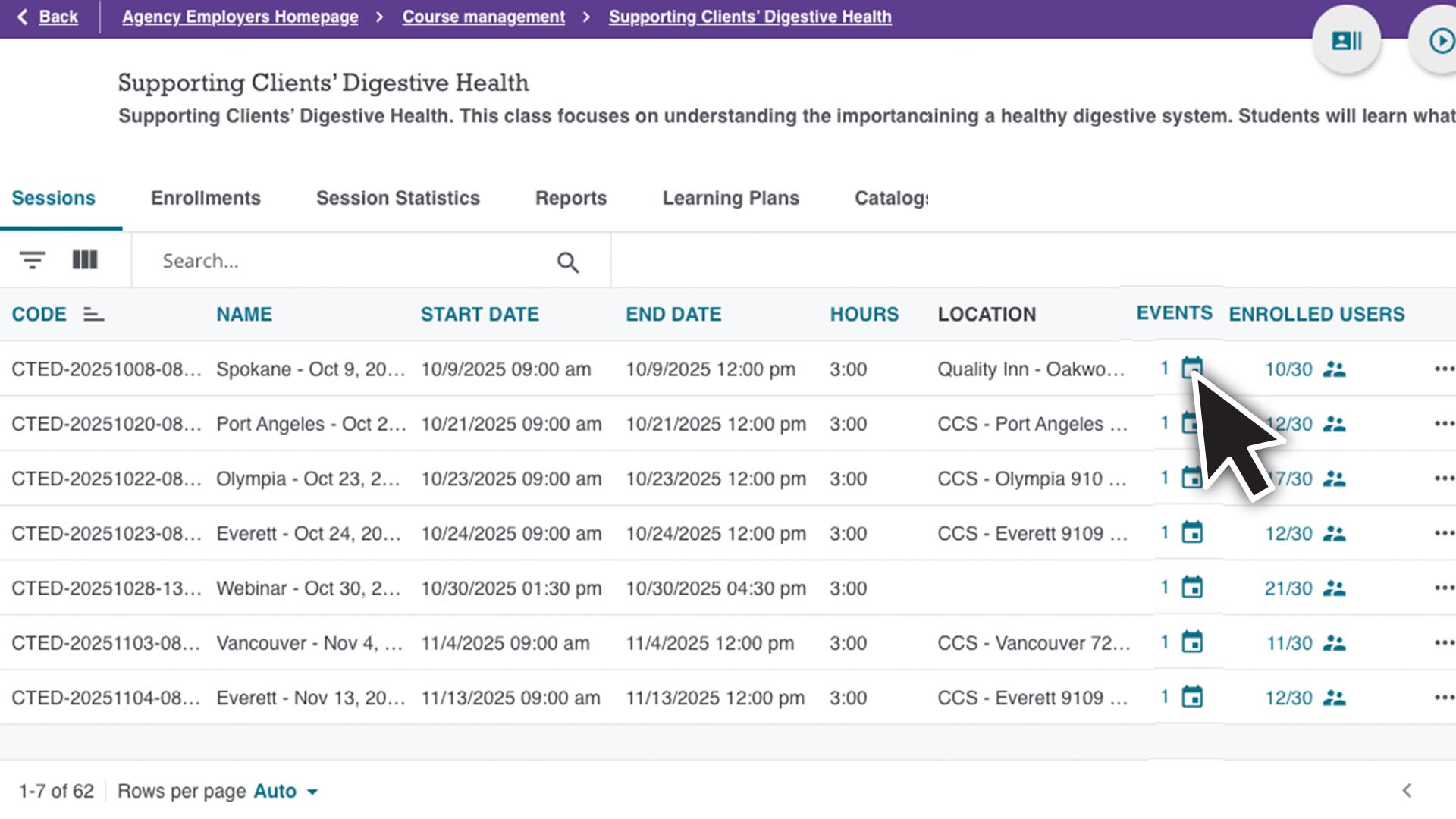
Click the EVENTS calendar icon on the preferred session to see the course page.
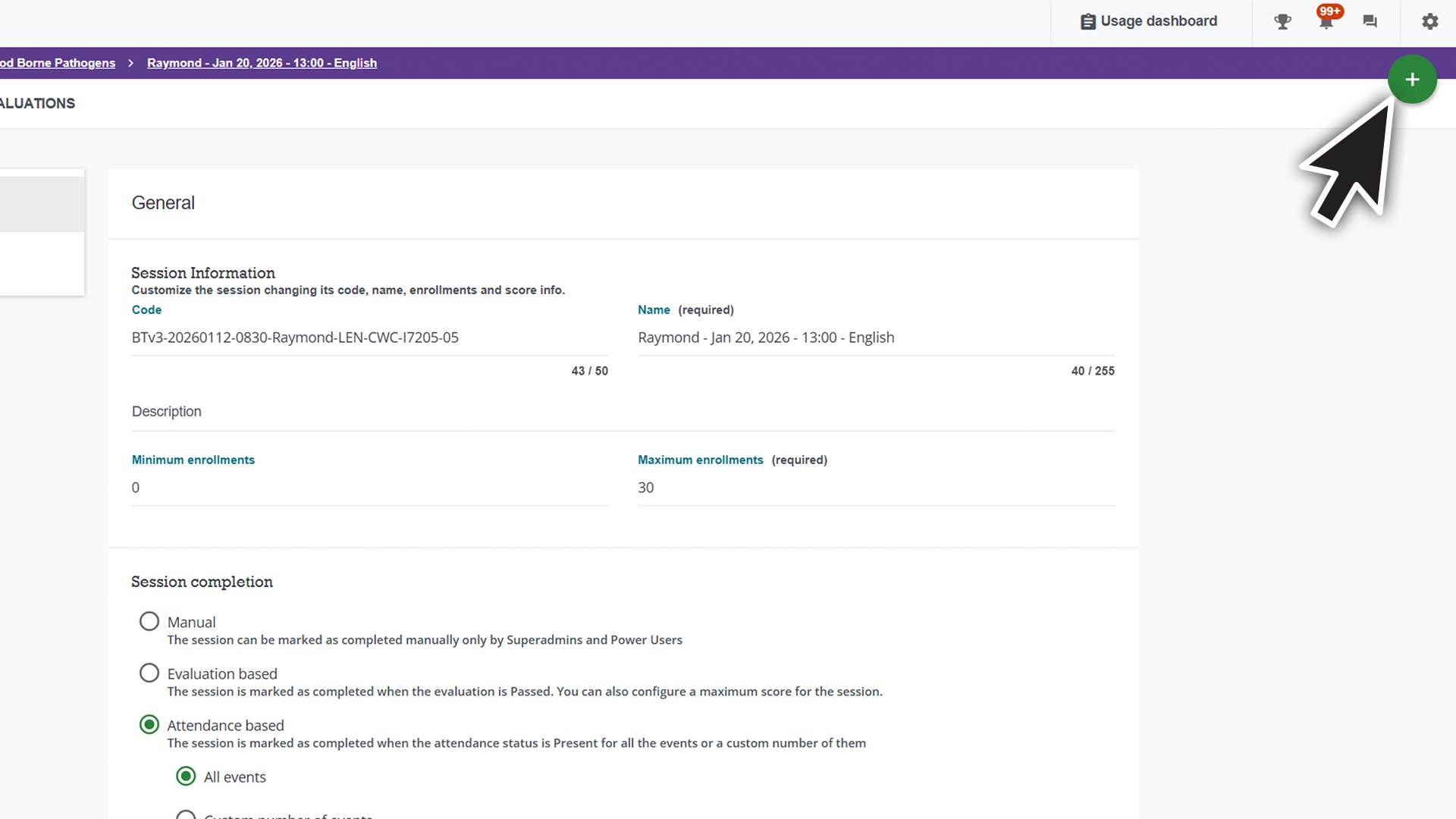
Open the Enroll Users Panel on the class page to enroll the caregiver:
Click the + button in the top right corner and click Enroll Users.
Select the caregiver. • Search for the caregivers name or User ID and click the search icon. • Check the box next to select a caregiver. (You may select multiple caregivers) • Click Next in the bottom right of the screen.
Select “I want to enroll users into this session” and click Next.
Click Confirm in the bottom right of the screen. • Level should be set to Learner. / Do not enter enrollment validity period.
Enter the caregiver’s ID or name in the search bar and click the search icon.
Hover over a caregiver row, you will see 3 dots appear on the far right. • Click the 3 dots. • Click on User Personal Summary.
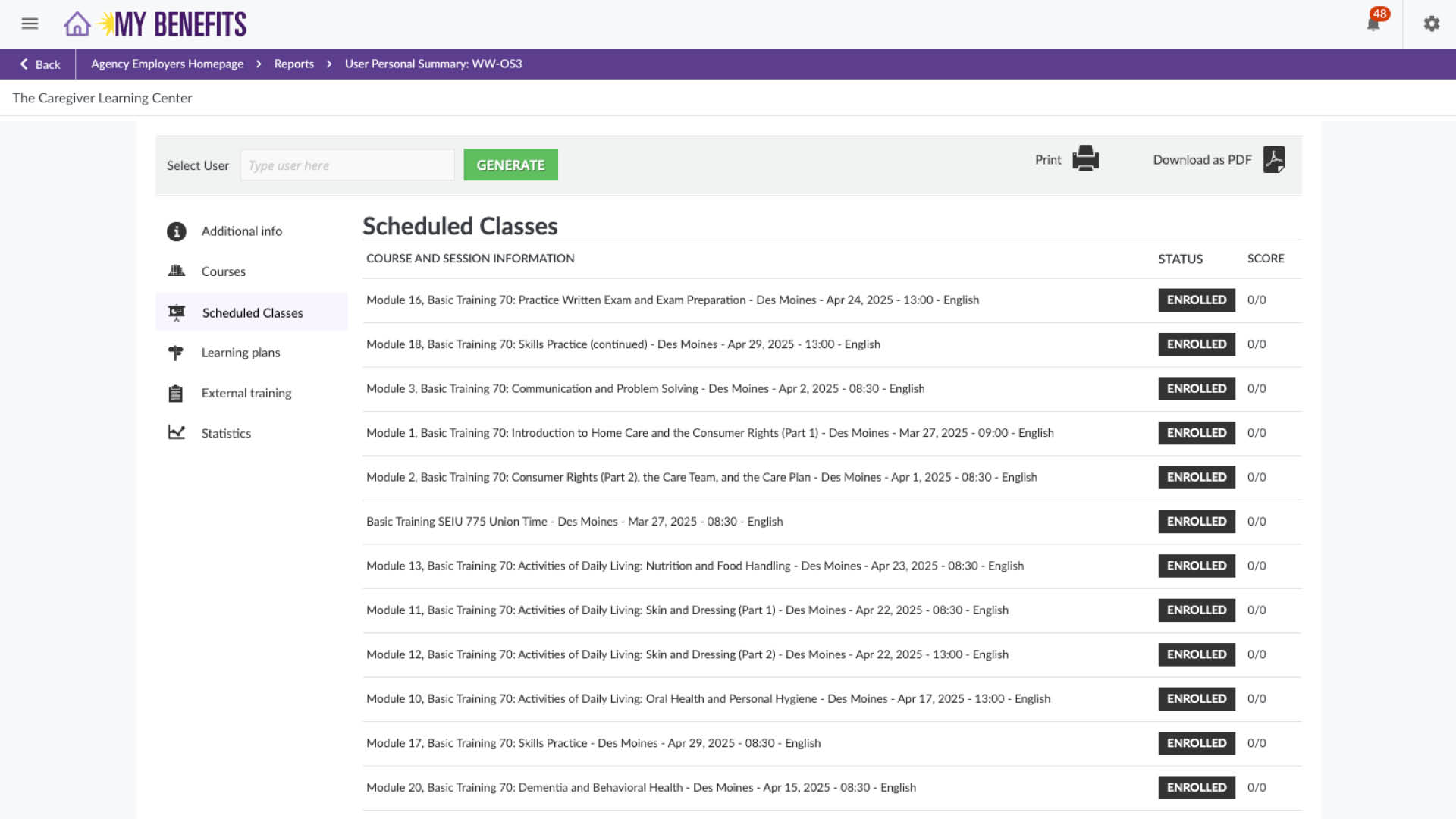
Click the Scheduled Classes tab on the left.
Click on the Course you want to unenroll the caregiver from.
On the course page:
Click the three dots in the top right corner
Click Enrollments.
Search for the caregiver’s name or User ID and click the search icon.
On the caregiver’s row, click the three dots and click unenroll in the drop down menu.
Enter the caregiver’s ID or name in the search bar and click the search icon.
Click the 3 dots on the far right of the caregiver’s row and click Unenroll.
Click Unenroll in the pop up box.
ILT Session Management
Before managing a session, first verify if the caregiver is already enrolled in a session.
You will select a session, if a caregiver is enrolled in an ILT, but the session needs to selected.
You will change a session, if a caregiver is enrolled in a session they cannot attend or they missed a class. (The impersonation method is most efficient if you are able to log in as the caregiver.)
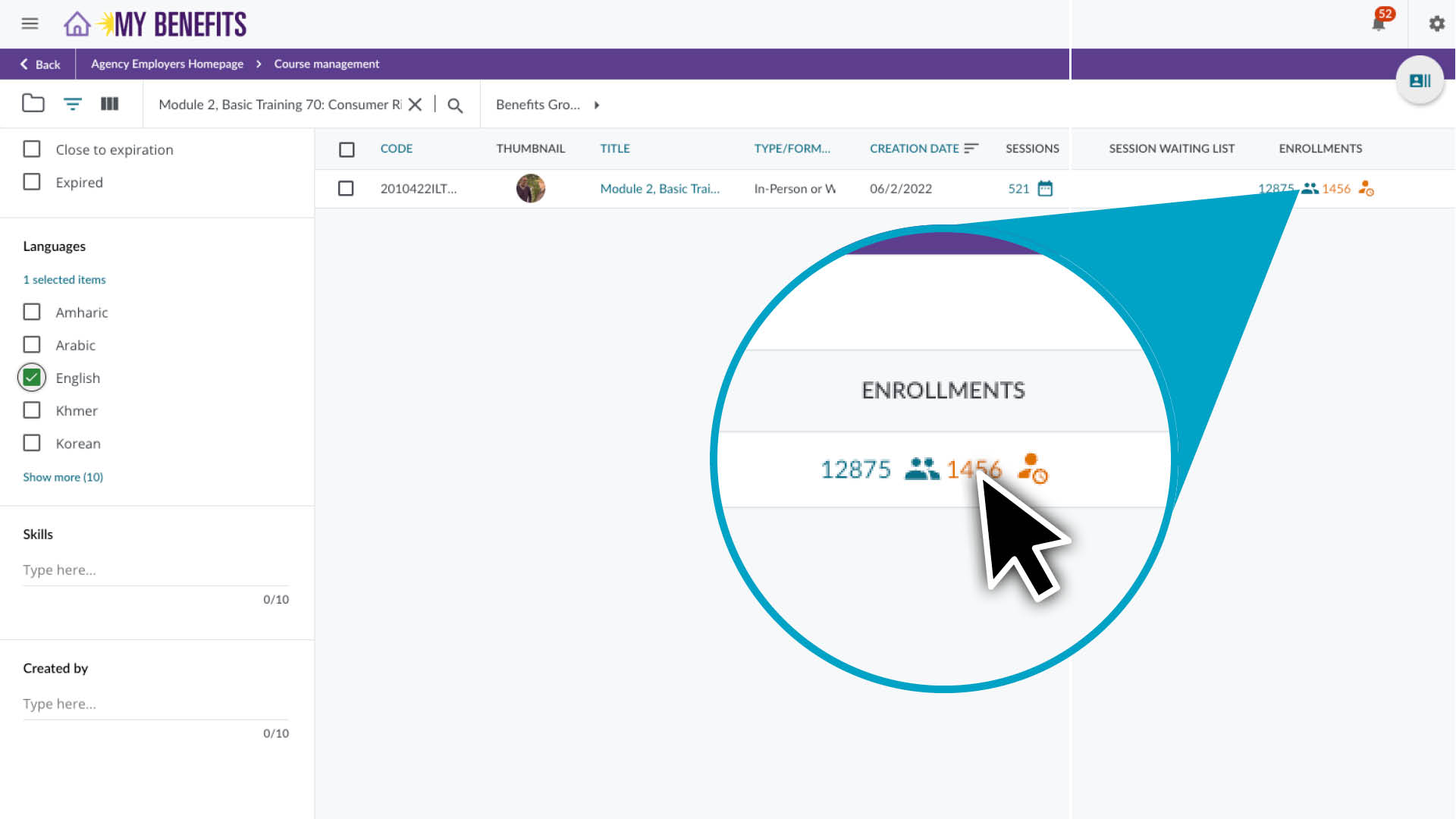
Paste the course name into the search bar and click the search icon.
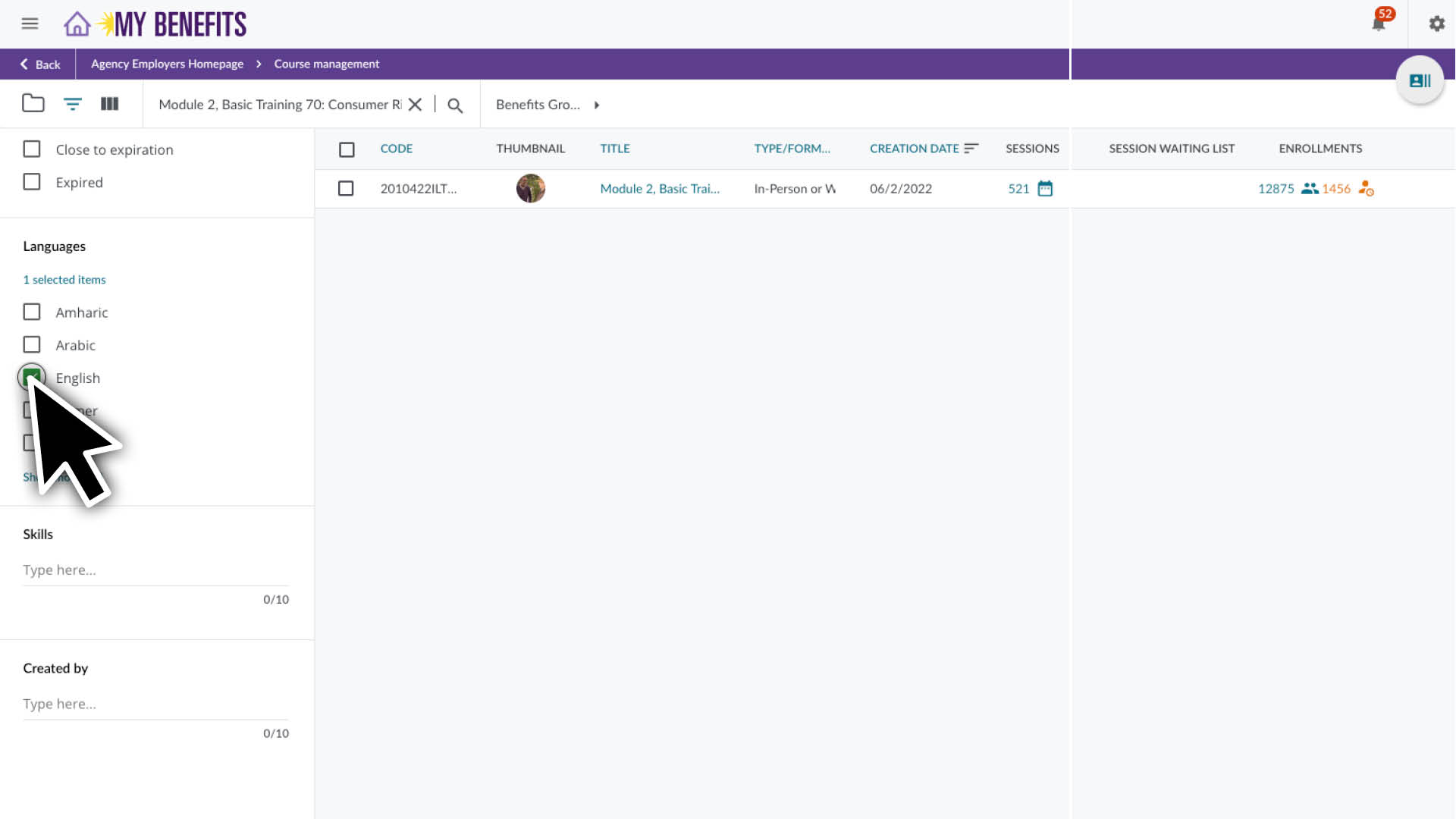
Click the Filters icon to open the filter panel. • Scroll down to check the desired language under Languages.
Click on the Enrollments icon in the class row.
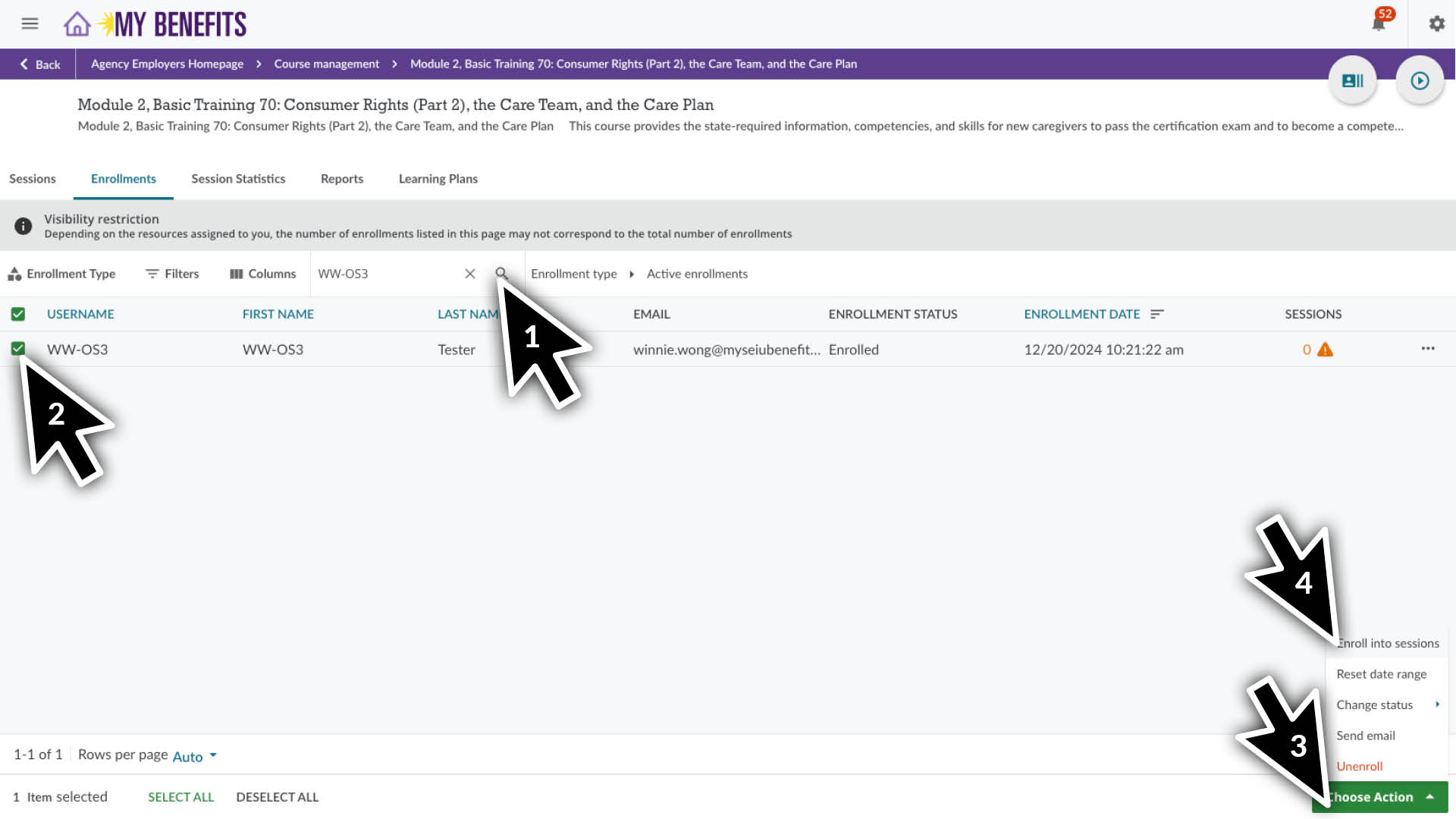
Choose the caregiver(s) you want select the session for. • Search for the caregivers name or User ID and click the search icon. • Check the box next to their name. • Click the Choose Action button in the bottom right of the screen. • Select Enroll into sessions.
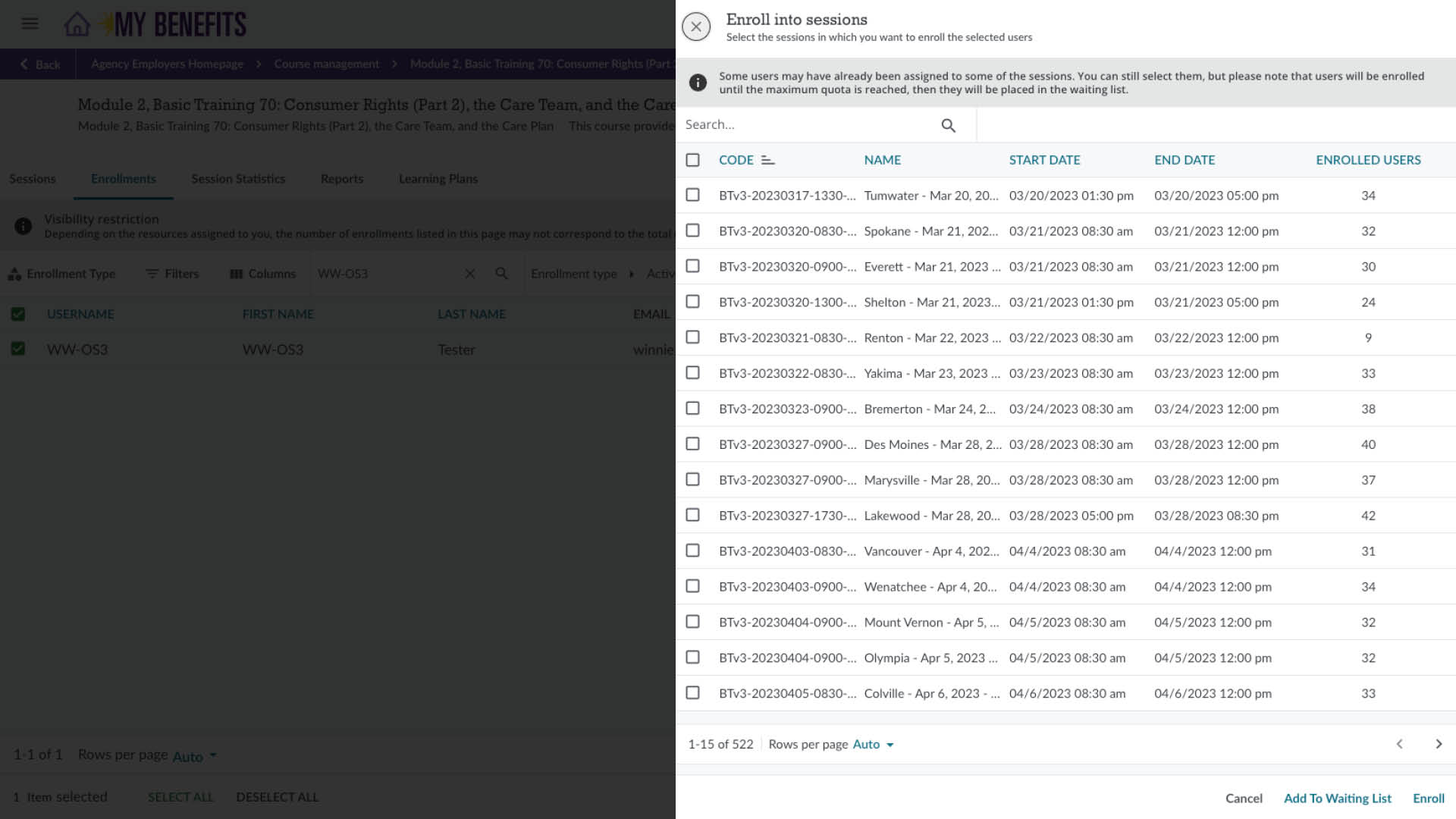
You will see the Enroll in sessions window.
Open a new browser tab.
Find & select the class session from the Class Session Schedules:
From the homepage, click on the link for the desired Class Session Schedules.
Locate the desired session in the list: • Review the remaining seat count to ensure there are seats available. • Click on the Docebo Session URL.
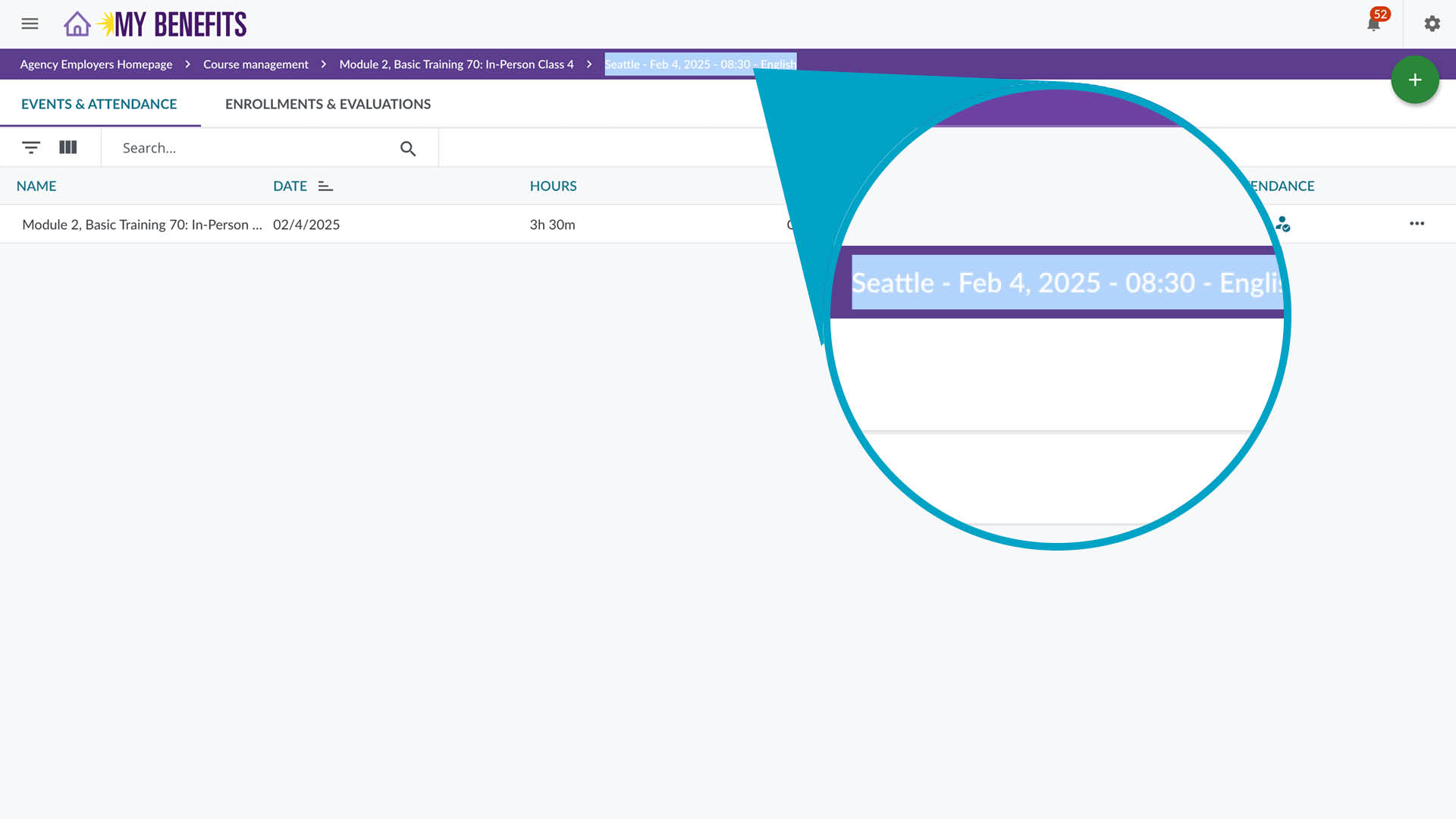
Copy the Session Name in the purple bar of the course page.
Return to the browser tab with the Enroll into sessions window to complete enrollment:
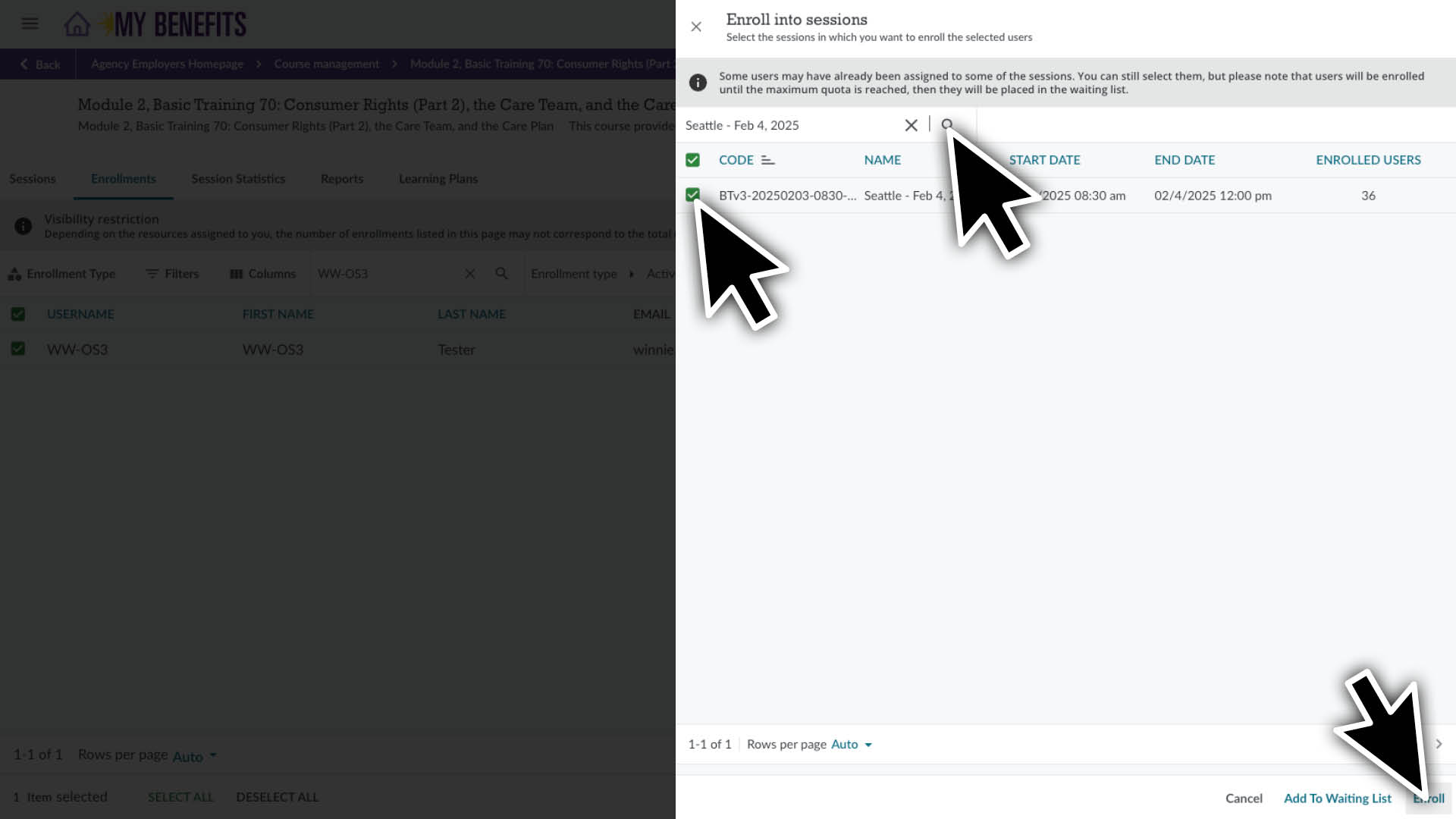
Paste the session name you copied previously and search.
Select the session and click Enroll in the bottom right corner.
You will see that the caregiver has been enrolled into the session.
Click the menu icon located in the top left and click on My Courses.
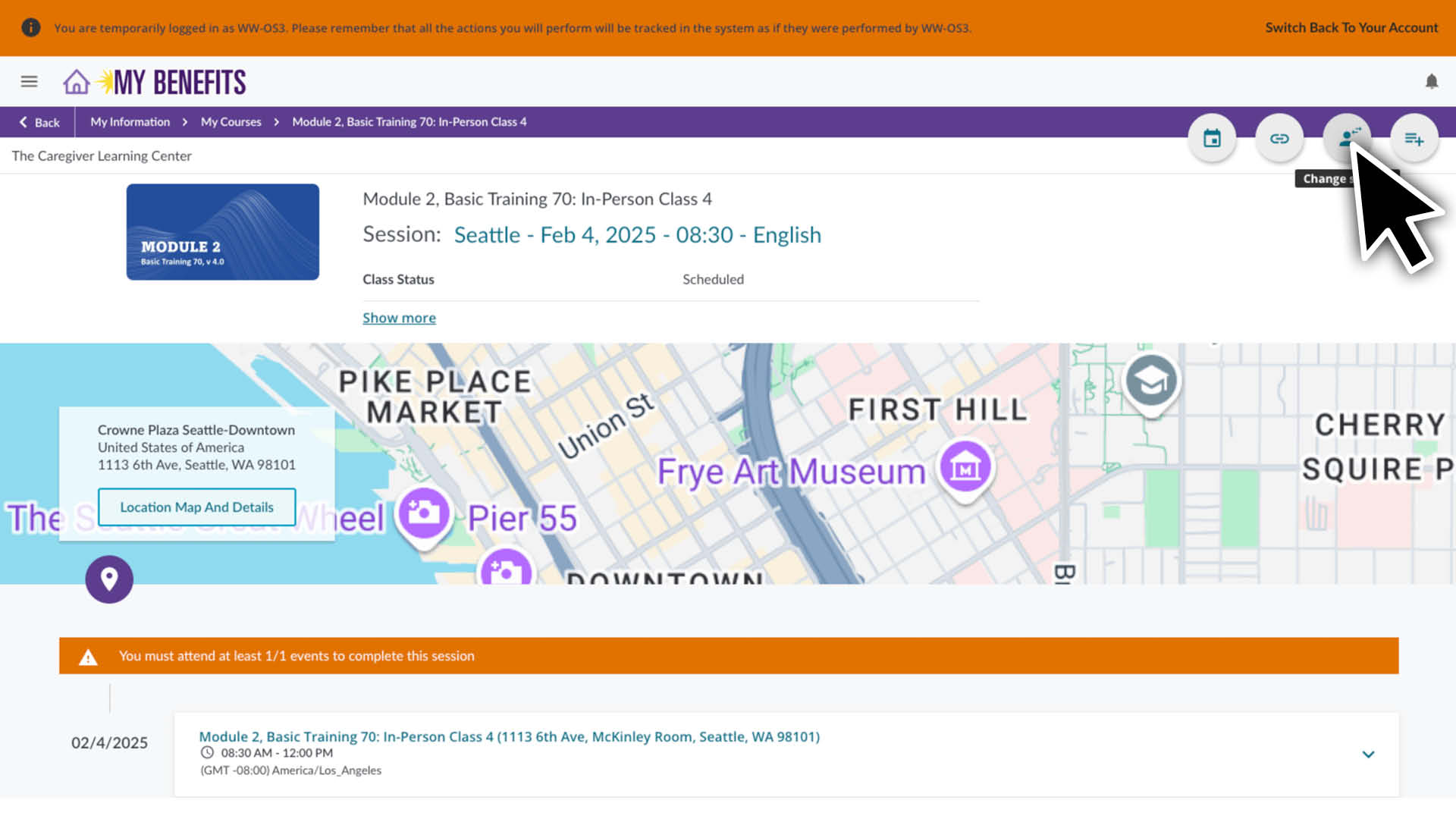
Use the search bar to find the session you want to change and click on the course.
On the Course detail page, click the Change Session button in the top right corner.
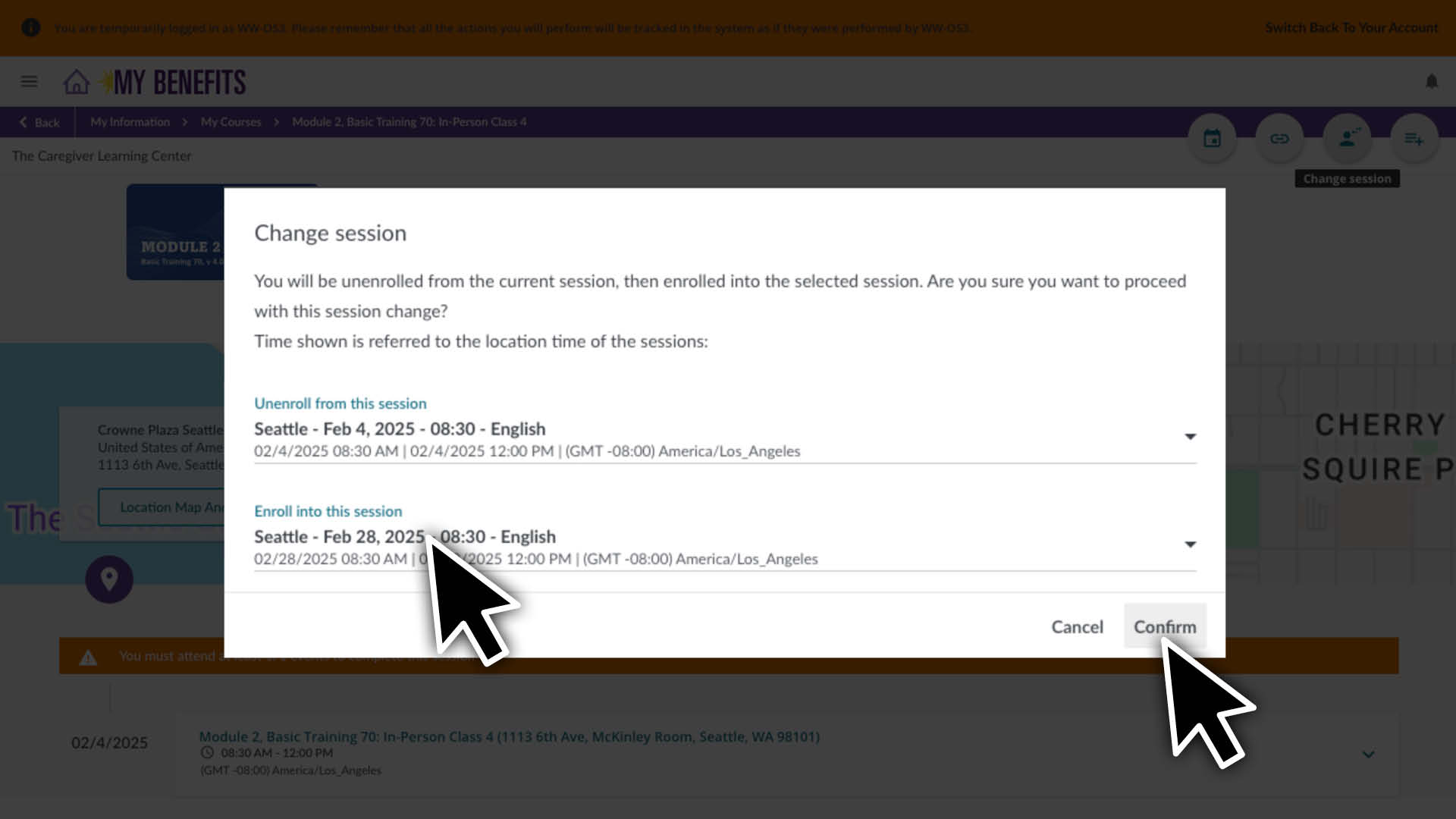
Use the Change Session pop up. On the Enroll in this session section, click the down arrow to view options select a new session. Then click the Confirm button.
After confirming the change, the page will refresh with the new session information.
Change a Session - Admin Method
If you can’t use the Impersonate Method above, you will have to first unenroll the caregiver from the current session and then enroll a caregiver in the new session. Use the instructions for Individual Course Enrollment.
Verifying Enrollment
Learn how to verify enrollment in a course, Learning Plan or ILT session. You can also use this method to see which ILT sessions need to be scheduled for a caregiver.
Enter the caregiver’s ID or name in the search bar and click the search icon.
Hover over a caregiver row, you will see 3 dots appear on the far right.
Click the 3 dots to reveal a pop up menu and click User Personal Summary.
Click the specified tab on the left to confirm enrollment: • Learning Plans Tab: for BT70, Tools for Calm or AHCAS Learning Plans • Courses Tab: for online courses • Scheduled Classes Tab: for ILT course sessions
You will see the Course or Learning Plan listed, if the caregiver was enrolled successfully.
Advanced Home Care Aide Specialist (AHCAS) Training
Prior to enrolling a caregiver into AHCAS Training you must first verify that they are AHCAS eligible*
*This includes ensuring your agency has bargained for AHCAS training benefits for your caregivers.
Enter the caregiver’s ID or name in the search bar and click the search icon.
Hover over a caregiver row, you will see 3 dots appear on the far right.
Click the 3 dots to reveal a pop up menu and click User Personal Summary.
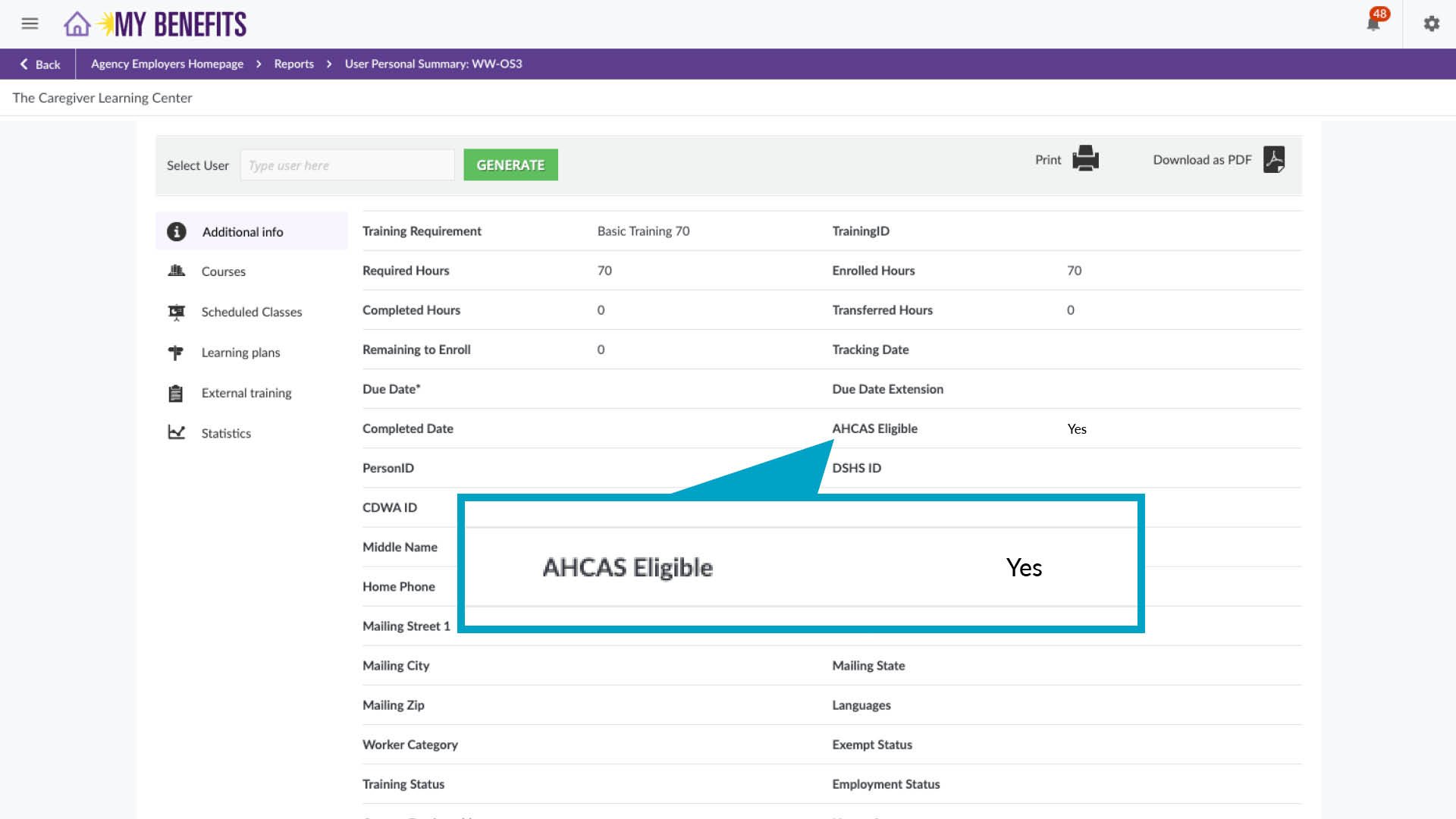
Click the Additional info tab and look for the AHCAS Eligible line.
Enroll Caregiver(s)
The Enrollment App will schedule the in-person and webinar ILT class sessions. In the below cases some ILT sessions may need to be selected separately.
Schedule conflicts: If one of the class schedules doesn’t work for a caregiver you can reschedule it after they are enrolled in the Learning Plan.
Unable to enroll in these sessions alert: If you get this message, the caregiver is enrolled in BT70 but needs to select a session. Learn how.
You will need the caregivers User ID to use the Enrollment App. You can find it on the User Management page where you look up caregivers.
You will see a class list, sorted by location and start date. • Use the Select Location dropdown and the calendar inputs to filter results. • You can also use the CTRL-F keys to search for a city name. (Macs: use Command-F)
Click the View All Class Series button to see the full schedule. • Click X to close the window.
Click the ENROLL button on the desired class series.
Select your group and user(s). • Paste the User ID into the select users field to search for a caregiver. • Click on the user in the dropdown.
Click the Enroll button.
Click Ok.
You can verify enrollment by viewing the caregiver’s personal summary. Learn how.
Unenroll Caregiver(s)
Go to the User Management page to look up the code for the Learning Plan the caregiver is enrolled in.
Enter the caregiver’s ID or name in the search bar and click the search icon.
Hover over a caregiver row, click the 3 dots to reveal a pop up menu and click User Personal Summary.
Click the Learning Plans tab on the left.
Copy the Learning Plan Code.
Open a new browser tab, prior to executing the next steps in case you need to return to the previous page to retrieve the Learning Plan Code.
Paste the Learning Plan code into the search bar to filter your results, then click the Learning Plan link.
Click Enrollments tab at the top.
Enter the caregiver’s ID or name in the search bar and click the search icon. Hover over a caregiver, click the 3 dots on the far right.
Click Unenroll.
Check the box to unenroll the user also from all courses and click the Unenroll button.
O&S and Credit Transfers
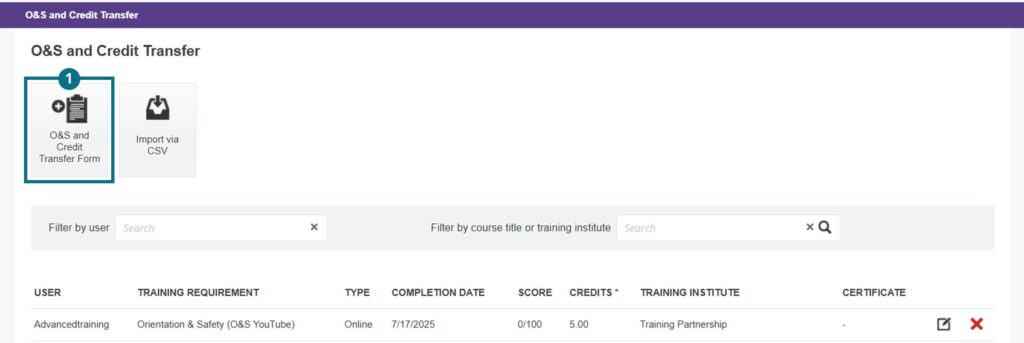
To access the O&S and Credit transfer application, login to CGLC and select the O&S and Credit Transfers link in the Forms section of the page.
IMPORTANT INFORMATION
You can search records by caregiver username, training institute, or training requirement.
DO NOT use the Import via CSV button on the form.
DO NOT edit records you didn’t create. You can view submissions for all Caregivers you employ, including those submitted by other agencies.
Updates take one business day to appear in the Tableau Caregiver/Employer lookup tool.
Add New O&S or Credit Transfer Record
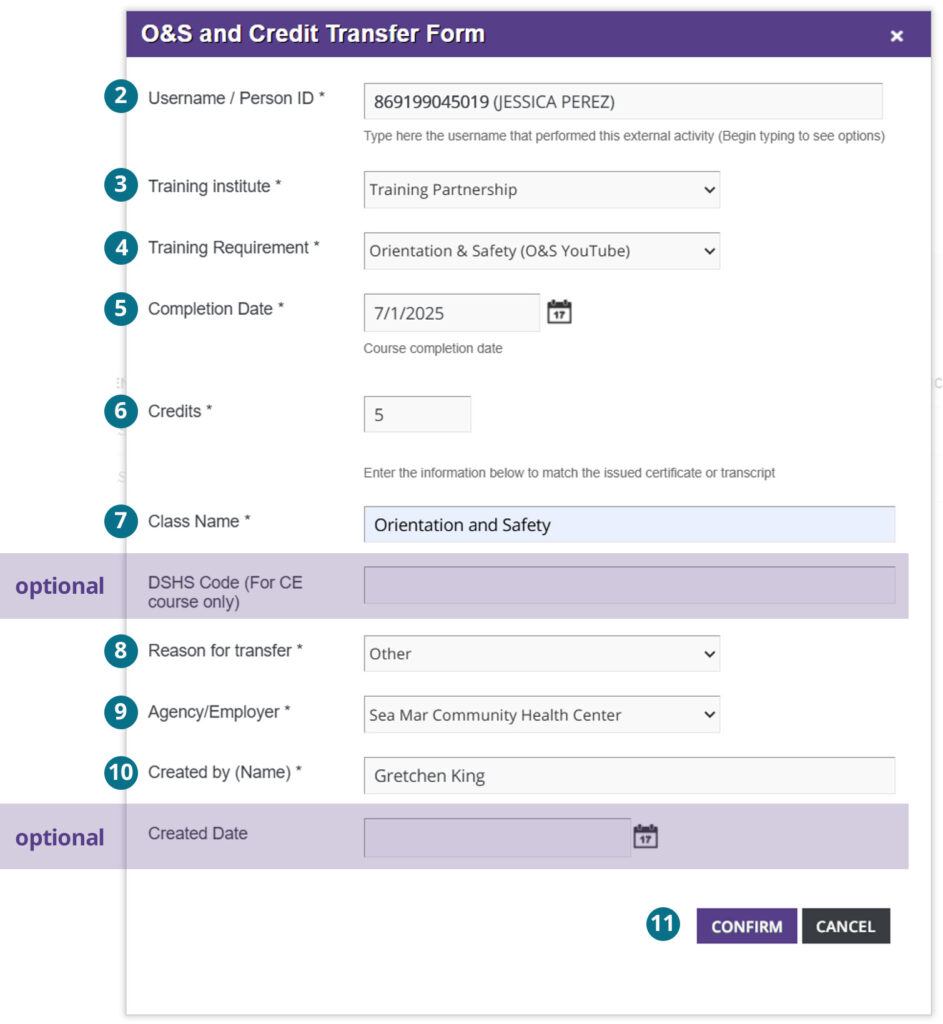
1. Open the Form: Go to the application and click the O&S and Credit Transfer Form button.
2. Select the Learner: Enter the learner’s username or first name. DO NOT type the full name manually. Choose the learner from the type-ahead drop-down list. Caregivers must be selected from the drop-down to ensure validation.
3. Choose the Training Institute: Select an option from the Training Institute drop-down.
4. Select the Training Requirement: Choose the requirement from the Training Requirement drop-down, it will display options based on the selected Training Institute.
5. Enter the Completion Date: Select from the calendar or enter the mm/dd/yyyy. Future dates are not accepted and incorrect formats will not save.
6. Enter the Credits: Credits must match the requirement, or the record will not save.
Training Requirement
Acceptable Credit Amount
Orientation & Safety (O&S)
5
Basic Training 70
70
Continuing Education (CE)
0–12
7. Enter Class Name: For CE courses, you may also enter the DSHS code (optional).
8. Select Reason for Transfer: Choose one of the options from the drop-down.
9. Select Agency/Employer: Pick from the list of agencies/employers.
10. Enter Your Name: Fill in the Created by field to record who submitted the training.
11. Submit the Record: When all required fields are complete, click “Confirm.”
Submit On The Job Training (OJT)
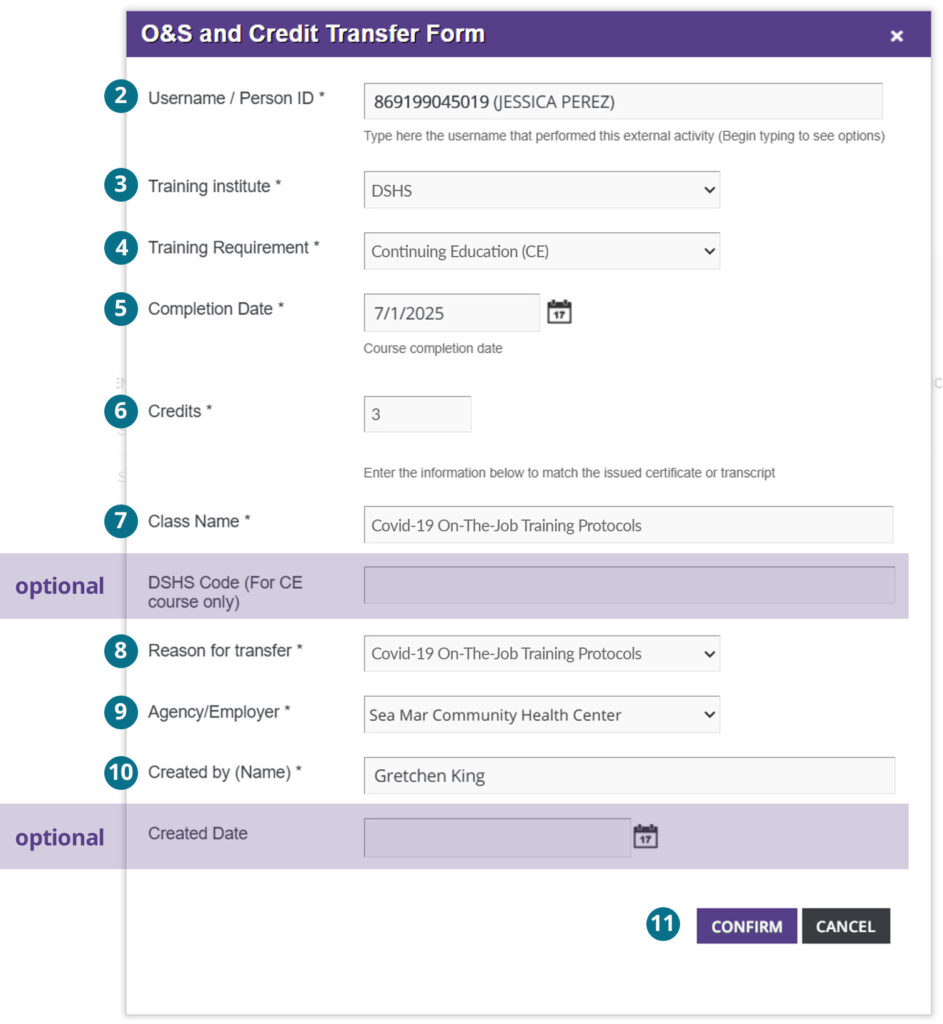
Open the Form: Go to the application and click the O&S and Credit Transfer Form button.
Select the Learner: Enter the learner’s username or first name. DO NOT type the full name manually. Choose the learner from the type-ahead drop-down list. Caregivers must be selected from the drop-down to ensure validation.
Training Institute: Select “DSHS.”
Training Requirement: Choose “Continuing Education (CE).”
Completion Date: Enter a past date (future dates are not accepted).
Enter the Credits: Enter 0–12 credits (no less than 0, no more than 12).
Class Name: Enter the course name exactly.
DSHS Code: Leave this field blank.
Reason for Transfer: Select “Covid-19 On-the-Job Training Protocols.”
Agency/Employer: Select your agency/employer from the list.
Created By (Name): Enter your name.
Modify a Training Record
Important To Know Before you start:
The record must already exist in the CGLC O&S and Credit Transfer Training application.
Records submitted via Qualtrics cannot be updated through this process.
Do not edit or delete records submitted by another agency.
The Username/Person ID can’t be changed—if it’s incorrect, delete the record and create a new one.
Updates take one business day to appear in the Tableau Caregiver/Employer lookup tool.
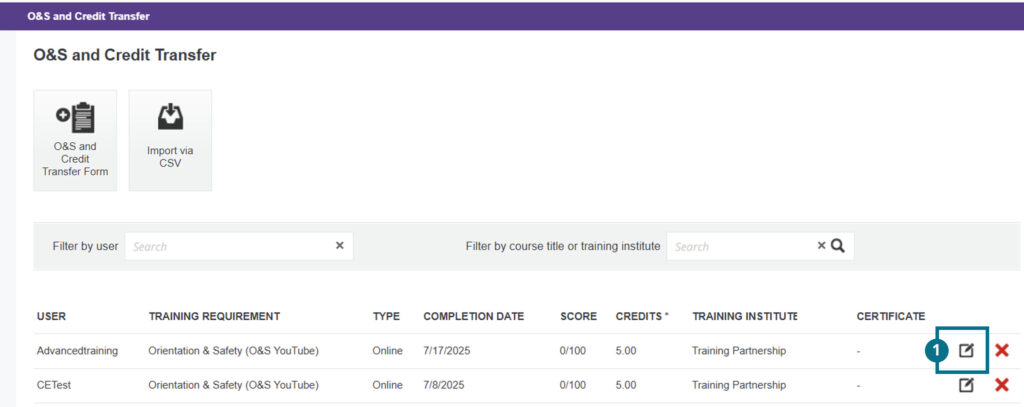
Click the edit icon for the record you want to update.
The submitted form will open for you to edit the necessary fields.
Click “Confirm” to save and submit changes.
The updated record will appear in your list.
Remove O&S or Credit Transfer Record
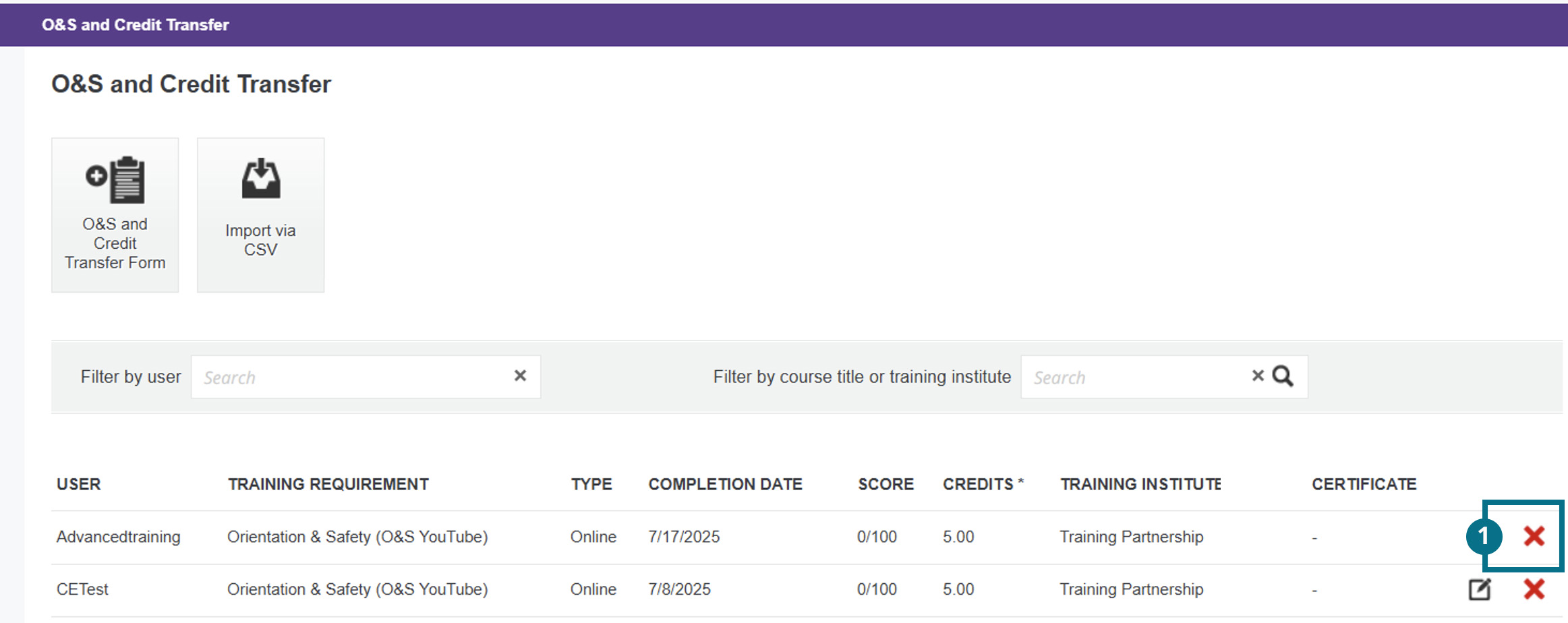
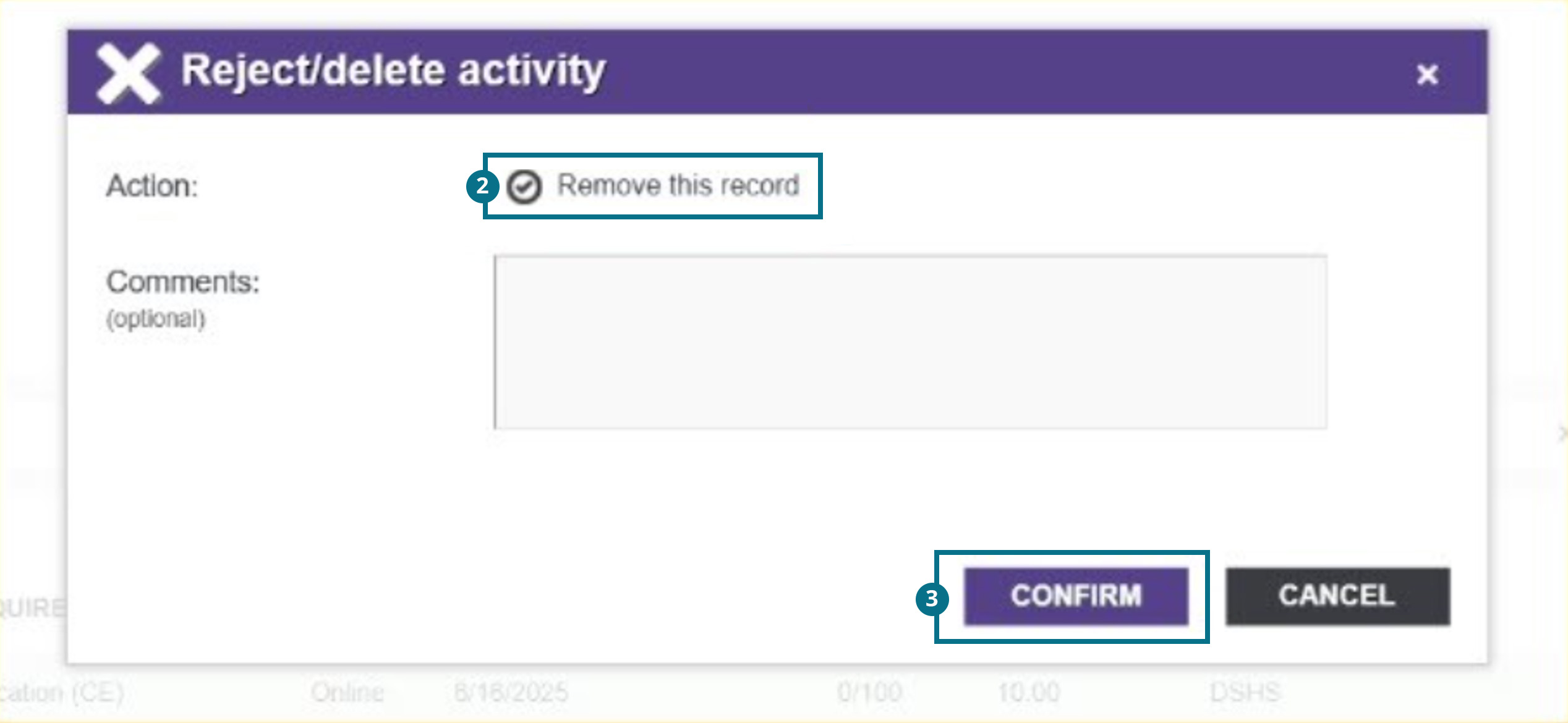
Important To Know Before you start: The record must already exist in the O&S and Credit Transfer Training application. Records submitted via Qualtrics cannot be deleted through this process. You can search records using the caregiver username, training institute or training requirement.
Enter the caregiver’s ID or name in the search bar and click the search icon.
Hover over a caregiver row, you will see 3 dots appear on the far right.
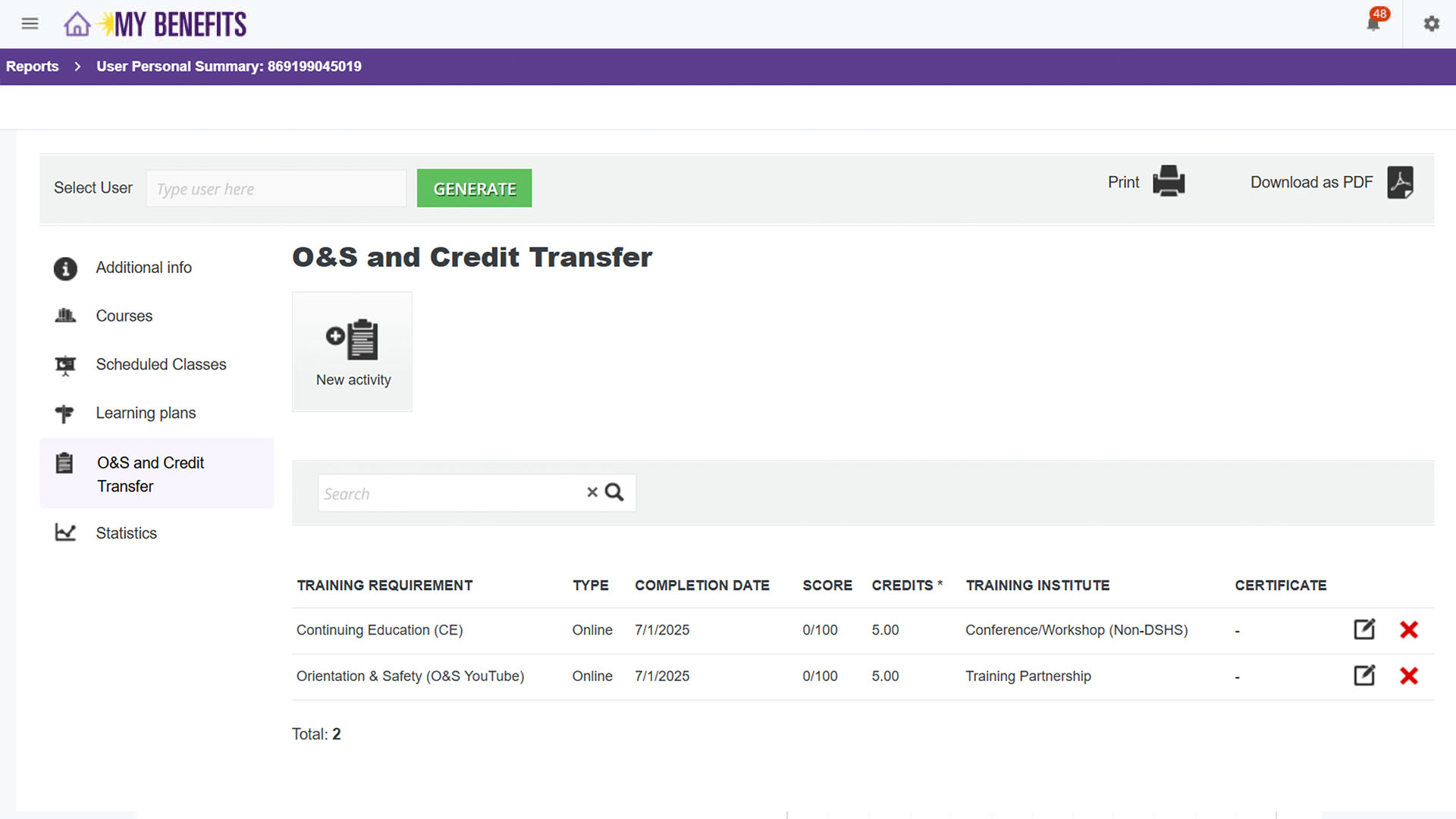
Click the 3 dots to reveal a pop up menu and select User Personal Summary.
In the summary view, click “O&S and Credit Transfer” on the left side. All submitted O&S and/or credit transfer records will be displayed.
Administrative Tasks
Export Reports
On the Employer Homepage, there is a list of Quick Reports.
Training Requirement (by Requirement): View data for all your Caregivers sorted by requirement.
Demographic Data Report: View demographic data for all Caregivers in your purview.
Reschedule Report: View a list of caregivers who missed a class and will need to be rescheduled.
View Standard Reports: Select from a set of standard reports.
View Custom Reports: View or create additional custom reports.
To generate and download a report:
Click the link for the desired report.
Click the export button in the top right corner.
Request Official Transcripts
Official transcripts are not available within the Caregiver Learning Center. To view current transcripts, review your designated BOX folder, provided by SEIU 775 Benefits Group.
Request Caregiver Information Updates
To request updates to the Caregiver demographic data, please email student.support@myseiubenefits.org.Caregiver information in the Caregiver Learning Center is synced with the SEIU 775 Benefits Group data environment.
Lorem ipsum dolor sit amet, consectetur adipiscing elit, sed do eiusmod tempor incididunt ut labore et dolore magna aliqua. Ut enim ad minim veniam, quis nostrud exercitation ullamco laboris nisi ut aliquip ex ea commodo consequat. Duis aute irure dolor in reprehenderit in voluptate velit esse cillum dolore eu fugiat nulla pariatur. Excepteur sint occaecat cupidatat non proident, sunt in culpa qui officia deserunt mollit anim id est laborum.